Our Top Picks
 SAMSUNG 34" ViewFinity S50GC Series Ultra-WQHD Monitor34- in Flat8.7 x 32.1 x 18 inches10.8 PoundsCheck on Amazon
 Dell UltraSharp U4025QW 40" Class 5K2K WUHD Curved16.5" x 37.3" x 4.3"4.3 x 37.3 x 16.5 Inches41.93 poundsCheck on Amazon
For most people the best monitor for productivity is a 34-inch 3440×1440 ultrawide, because it fits about three full-height windows side by side where a 27-inch 1080p screen fits one. The Samsung ViewFinity S50GC is the balanced pick in this set, while the Dell 34 adds USB-C charging for laptop desks. Cheaper 22-inch and 27-inch screens still work well as second displays, and the Dell UltraSharp 40-inch is the pick if you want to retire a two-monitor setup. Below, eight listings are sorted by how much working space they give you, followed by a window-capacity calculation with every assumption stated so you can swap in your own numbers. Hardware details come from listing titles, so treat them as seller claims and confirm the rest on the product page before you buy.
Productivity picks side by side
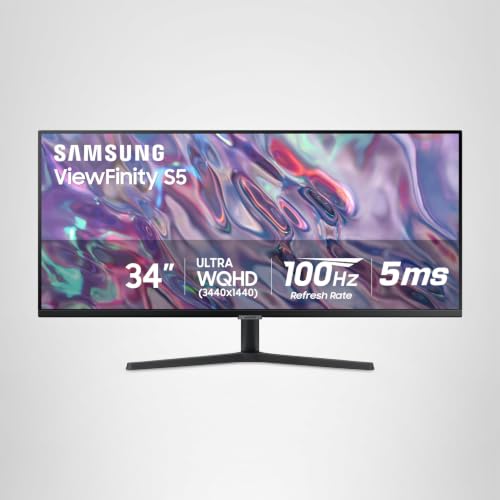
SAMSUNG 34" ViewFinity S50GC Series Ultra-WQHD Monitor, 100Hz, 5ms, HDR10, AMD FreeSync, Eye Care, Borderless Design, PIP, PBP, LS34C502GANXZA, 2023, Black


As an Amazon Associate we earn from qualifying purchases. Product prices and availability are accurate as of the date/time indicated.

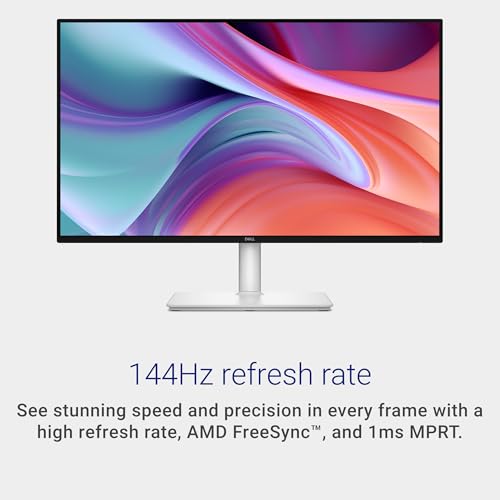
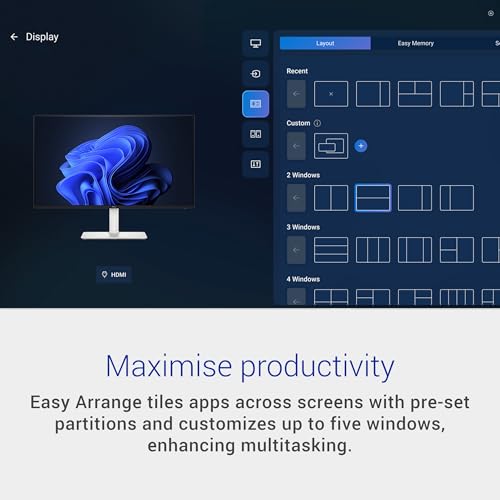
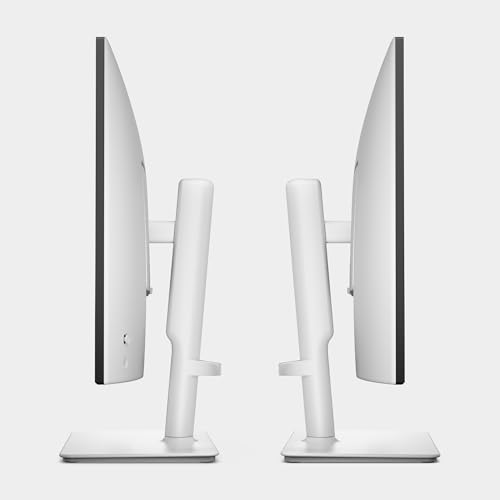
Dell 27 Plus Monitor - S2725HSM - 27-inch FHD (1920x1080) 144Hz 1ms Display, 2 x 3W Speakers, HDMI Connectivity, Height/Tilt/Pivot/Swivel Adjustability, AMD FreeSync - Ash White






As an Amazon Associate we earn from qualifying purchases. Product prices and availability are accurate as of the date/time indicated.

Dell 34 Monitor S3425DW, WQHD VA, 120Hz, FreeSync Premium, Eye Comfort | HDR10, Anti-Glare, 300 cd/m2 Brightness, 3,000:1 Contrast, 95% DCI-P3, 2x10W Speakers, USB-C 65W Power Delivery






As an Amazon Associate we earn from qualifying purchases. Product prices and availability are accurate as of the date/time indicated.
Dell UltraSharp U4025QW 40" Class 5K2K WUHD Curved Screen LED Monitor - 21:9




As an Amazon Associate we earn from qualifying purchases. Product prices and availability are accurate as of the date/time indicated.

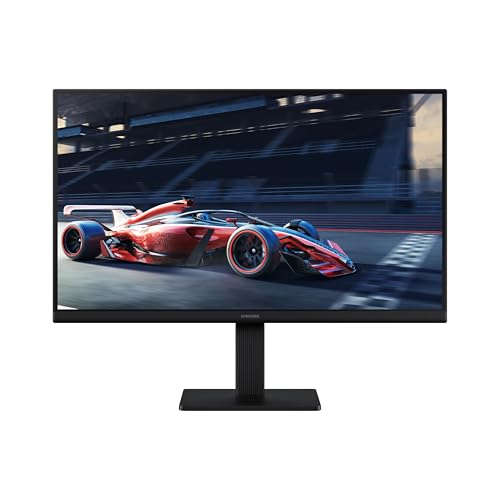
Samsung 27" (S30GD) Essential Monitor with IPS Panel | 100Hz Refresh Rate, Tilt Only Stand, Ergonomic Design, Advanced Eye Care, Game Mode, LS27D304GANXZA





As an Amazon Associate we earn from qualifying purchases. Product prices and availability are accurate as of the date/time indicated.

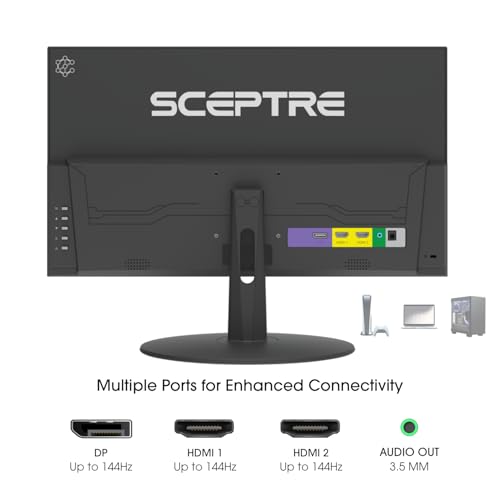
Sceptre New 22-Inch Gaming Monitor, FHD 1080p, Up to 144Hz, HDMI, DisplayPort, Built-in Speakers, Machine Black (E225W-FW144 Series, 2026)



As an Amazon Associate we earn from qualifying purchases. Product prices and availability are accurate as of the date/time indicated.

Philips 22 Inch Computer Monitor FHD 100Hz VA VESA Flicker-Free, 221V8LB | 1920×1080 LED Monitor, 4ms GtG, Adaptive Sync, HDMI 1.4, Tilt Adjust, Low Blue Light, 4yr Advance Replacement Warranty


As an Amazon Associate we earn from qualifying purchases. Product prices and availability are accurate as of the date/time indicated.
| Model | Key point from title | Price tier | Best for |
|---|---|---|---|
| Samsung ViewFinity S50GC 34-inch | Ultra-WQHD, 100Hz, HDR10, PIP and PBP | Mid-range | Three windows on one screen |
| Dell 34 S3425DW | WQHD VA, 120Hz, USB-C 65W Power Delivery, speakers | Mid-range | One-cable laptop desk |
| Dell UltraSharp U4025QW 40-inch | 5K2K WUHD curved 21:9 | Premium | Replacing two monitors |
| Sceptre C345B-QUT168 34-inch | 3440×1440 curved, DisplayPort x2, 99% sRGB | Mid-range | Cheapest ultrawide here |
| Dell 27 Plus S2725HSM | 27-inch FHD, 144Hz, speakers, height/tilt/pivot/swivel | Budget | Adjustable single screen |
| Samsung S30GD 27-inch | IPS, 100Hz, tilt-only stand | Budget | Simple fixed setup |
| Philips 221V8LB 22-inch | FHD VA, 100Hz, HDMI 1.4, 4-year warranty | Budget | Second screen on a small desk |
| Sceptre E225W-FW144 22-inch | FHD, up to 144Hz, HDMI and DisplayPort | Budget | Lowest-cost side panel |
The eight screens, one by one
Samsung ViewFinity S50GC 34-inch
The title lists an Ultra-WQHD panel (3440×1440) with 100Hz, 5ms, HDR10, FreeSync, a borderless design, picture-in-picture and picture-by-picture. PBP is the work feature here: it can show two computers side by side, such as a work laptop and a personal desktop. The 5ms and HDR10 wording are seller claims, and the panel type is not stated in the title, so check the listing if viewing angles matter. At roughly 110 pixels per inch, small spreadsheet text stays readable. For a mixed desk, PIP also lets a video call sit in a corner while a document fills the rest. Because the title mentions no USB-C, laptop users will need a separate charger, which is worth budgeting for.
- Pros: sharp 3440×1440 canvas; PIP and PBP for two sources
- Cons: panel type and stand adjustments not stated in the title
Who it’s for: people who want one wide screen at a moderate price.
Dell 34 S3425DW
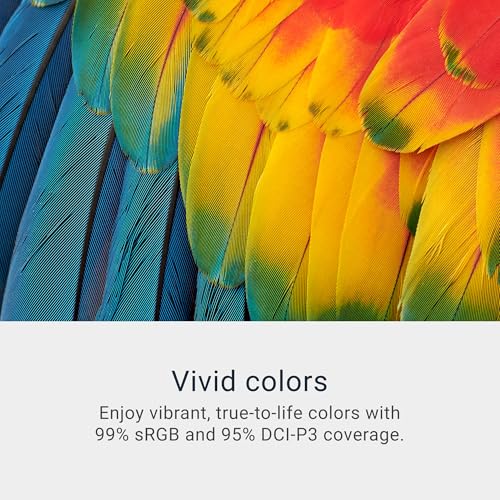
This one reads like a work monitor. The title gives WQHD VA, 120Hz, FreeSync Premium, HDR10, anti-glare, 300 cd/m2 brightness, 3,000:1 contrast, 95% DCI-P3, two 10W speakers and USB-C with 65W Power Delivery. That last item matters for laptops: one cable can handle video and charging, provided your laptop draws 65W or less; bigger machines will charge slowly or not at all. A 300 cd/m2 rating is ordinary for an office with curtains, so bright south-facing rooms may want a closer look. The HDR10 label is a seller claim, and at this brightness it is best seen as a compatibility tag, not a visual upgrade. Anti-glare coatings help with window reflections in shared offices.
- Pros: USB-C 65W charging; anti-glare coating; built-in speakers
- Cons: 300 cd/m2 is modest; costs more than other 34-inch listings here
Who it’s for: laptop users who want a dock-free single-cable desk.
Dell UltraSharp U4025QW 40-inch
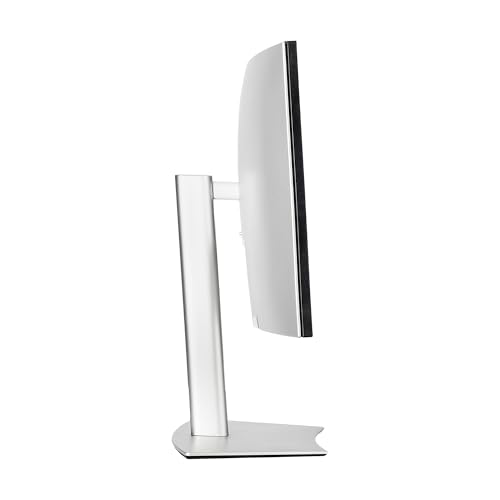
The title says 40-inch class, 5K2K WUHD, curved, 21:9, LED. The short label hides the specs, so read the listing for ports and refresh. By convention 5K2K means about 5120×2160, giving roughly 139 pixels per inch (our estimate), the densest panel in this set. That is enough to hold four or five 1,000-pixel windows. The cost is price, desk depth and weight: check your stand or arm rating before mounting. Driving it needs a modern cable, so confirm the port versions and whether your laptop or graphics output can drive that resolution at all. The curve also suits a single user sitting centered, less so a shared screen for meetings.
- Pros: largest canvas here; high pixel density; can replace two screens
- Cons: highest price; needs a deep, wide desk
Who it’s for: heavy multitaskers with budget and space.
Sceptre C345B-QUT168 34-inch
The title lists 3440×1440, R1500 curve, 99% sRGB, 1ms, two DisplayPort inputs and built-in speakers. The refresh text, “up to 180Hz/165Hz”, is ambiguous; probably the higher figure applies over one input type only, so check the listing. Office work does not need it. What you get is the same pixel count as the pricier 34-inch models, at lower cost. The trade-off is that stand and warranty details are not in the title, and the title shows no USB-C. Built-in speakers are handy for calls but thin for music, as with most monitor speakers. Sceptre also lists a 99% sRGB figure, which matters little for office text but helps if you edit the odd photo.
- Pros: lowest-cost ultrawide in the set; two DisplayPort inputs
- Cons: ambiguous refresh wording; no USB-C in the title
Who it’s for: budget-minded buyers who want ultrawide space.
Dell 27 Plus S2725HSM
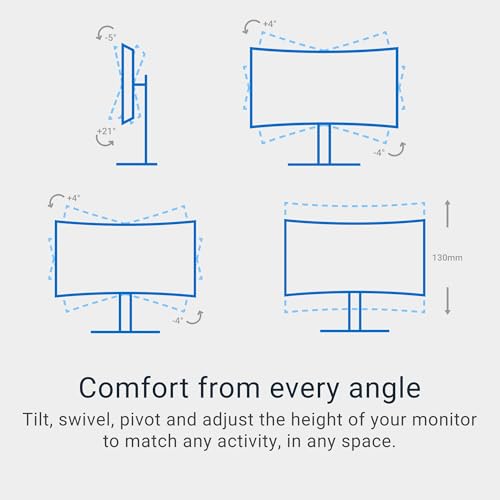
A 27-inch FHD panel at 144Hz with 1ms, two 3W speakers, HDMI, FreeSync and height, tilt, pivot and swivel adjustability. Full adjustment is the standout, and the pivot lets you stand it upright for long documents or code. At 1920×1080 on 27 inches, density is about 82 pixels per inch, so text looks softer than on the 34-inch models. The title shows only HDMI, so DisplayPort users should check the listing. The 1ms and 144Hz figures are seller claims. The two 3W speakers are fine for meeting audio but not for much else. Compared with the ultrawides, it shows one window at a time comfortably, so it suits focused work, not window juggling.
- Pros: full stand adjustment; pivot for portrait work
- Cons: 82 PPI text; HDMI only per title
Who it’s for: shared desks where ergonomics beat resolution.
Samsung S30GD 27-inch
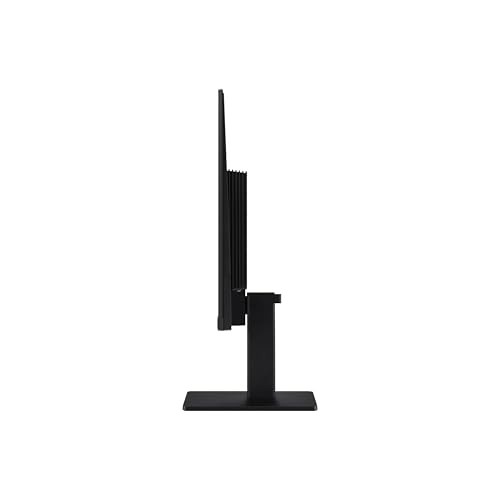
A 27-inch IPS panel at 100Hz with a tilt-only stand, eye care features and a game mode. The IPS panel suits wide viewing angles, which helps if colleagues glance at the screen. Tilt-only means no height or swivel, so your eye line depends on the desk and perhaps a riser or VESA arm. The resolution is not in the title; 27-inch Essential-class models are commonly 1080p, so verify. Treat the eye care wording as a feature label, not a medical claim. Flicker-free and low-blue-light modes vary by brand, so use them as comfort settings, not guarantees. A VESA mount, if the back plate supports it, is a cheap fix for the missing height adjustment.
- Pros: IPS panel; simple and low-priced
- Cons: tilt-only stand; resolution not stated in the title
Who it’s for: buyers who want a plain 27-inch and will add an arm.
Philips 221V8LB 22-inch
A 22-inch 1920×1080 VA panel at 100Hz with 4ms GtG, Adaptive Sync, VESA mounting and a tilt-only stand. The title mentions HDMI 1.4 and low blue light. HDMI 1.4 is fine for 1080p, but it rules out higher resolutions later. The four-year advance replacement warranty is the notable line, a seller claim worth reading before purchase. Density near 100 pixels per inch makes text crisp at this size. The VA panel typically offers deeper contrast than IPS but narrower viewing angles, so sit roughly in front of it. At 22 inches, two of them fit on a shallow desk.
- Pros: long advance-replacement warranty; VESA support; crisp text for its size
- Cons: small; tilt-only stand
Who it’s for: a reference or chat panel next to a main screen.
Sceptre E225W-FW144 22-inch
A 22-inch gaming-styled monitor, 1080p, up to 144Hz, with HDMI, DisplayPort and speakers. Plainly the weakest class in this set for work: small, and the marketing is aimed at games. It earns its slot on cost. Both HDMI and DisplayPort suit a spare laptop or desktop output, and pivot or height adjustment is not mentioned, so assume a basic stand. The panel type is not in the title. Speaker quality is unlikely to matter, and a VESA arm would let you rotate it into portrait for reading long pages. Do not expect color accuracy suited to design work.
- Pros: lowest entry price; two video inputs
- Cons: small; panel type and stand not stated
Who it’s for: a cheap second display for secondary tasks.
How we picked these
We sorted listings by usable workspace, then compared ports, stand options and price tier within this set, and we gave each listing a plain note on what it does well and where it falls short. Everything is drawn from published specifications, manufacturer documentation and buyer reviews, plus titles as written. Nobody on the team used or measured these units. Specs in titles are seller claims, and where a title is unclear we say so rather than guess. Price tiers are relative to this set only, so a Budget label means cheaper than the others here, not cheap in general.
What to look for in a productivity monitor
Window capacity: a worked example
Assume a comfortable spreadsheet or document window needs about 1,000 pixels of width. A 1920-wide screen then holds one such window plus a narrow sidebar. A 3440-wide panel holds three. A 5120-wide panel holds about five. Pixel totals: roughly 2.07 million on 1080p, 4.95 million on 3440×1440, and 11.06 million on 5120×2160. These are our estimates from resolutions in or implied by titles.
Pixel density and text
Pixels per inch decide how sharp small text looks. A 27-inch 1080p screen sits near 82, a 22-inch 1080p screen near 100, a 34-inch 3440×1440 near 110, and a 40-inch 5120×2160 near 139. Higher density suits long reading sessions at an arm’s length viewing distance. At 22 inches a pixel density near 100 is comfortable at about 60 to 70 cm, while a 27-inch 1080p screen asks you to sit slightly farther back before the pixel grid fades.
Ports and cables
A 3440×1440 picture at 100Hz needs about 12 Gbit/s of video data before overhead, so HDMI 1.4 will not carry it. DisplayPort 1.2 or HDMI 2.0 class links generally can. A 5120×2160 picture at 60Hz needs roughly 16 Gbit/s before overhead, which calls for DisplayPort 1.4 or a similar link. If you work from a laptop, USB-C with Power Delivery, as on the Dell 34, saves a charger.
Stand, mounting and ergonomics
Height and swivel adjustment matter more than panel specs for comfort. Tilt-only stands force you to adapt the desk. If you plan a VESA arm, check the monitor’s weight against the arm’s rating, especially for the 40-inch. General ergonomics advice applies: top edge near eye level and regular breaks. This is not medical guidance.
Size against desk depth
A 34-inch ultrawide is roughly 80 cm wide as a rule of thumb, and a 40-inch about 95 cm, so measure the desk before you order. Deeper desks let you sit farther back, which makes larger panels easier on the eyes. Curved models also pull the edges toward you, which helps keep corners in view at a typical 60 to 80 cm distance. These are estimates, not exact dimensions: check the listing for the real width, depth and weight.
Mistakes buyers make
Paying for refresh rate is the most common one. Office apps gain almost nothing above 60Hz. Another is buying a large 1080p panel: a 27-inch screen at 1920×1080 looks soft for text. Buyers also assume every ultrawide has USB-C charging, when only some do. Others forget the cable version and run an ultrawide through HDMI 1.4, which cuts refresh rate. Finally, ignoring the stand leaves you with a screen too low for comfort. Read the listing, not just the headline spec. Use the cable in the box first. Skipping the weight and VESA check is another trap, since a large panel on a light arm will sag or tip. Also watch for scaling: a dense screen at 100% scaling makes text tiny, so budget time to set operating-system scaling to 125% or 150% when you first connect it.
Verdict
Pick the Samsung ViewFinity S50GC for the best balance of space and cost, or the Dell 34 if your laptop needs one-cable charging. The Sceptre 34-inch gives the lowest-cost ultrawide, and the Dell UltraSharp 40-inch is the top pick if budget and desk width allow. The Dell 27 Plus suits shared desks because its stand adjusts in every direction. For size comparisons, see our 27 inch vs 32 inch monitor guide, and for HDR labels read what the HDR label really promises.
Related guides
- Helping Hands Soldering Station With Magnifier
- Bench Power Supply For Electronics Hobbyists
- Monitor For Visually Impaired
Frequently asked questions
Is an ultrawide better than a 27-inch monitor for work?
For side-by-side documents, usually yes. A 3440×1440 panel gives roughly 4.95 million pixels against about 2.07 million on a 27-inch 1080p screen, so three 1,000-pixel windows fit instead of one. The trade-off is desk width and a flatter vertical view. If you mostly use one full-screen app, a 27-inch is simpler and cheaper.
Does refresh rate matter for office work?
Very little. Spreadsheets, documents and browsers look the same at 60Hz and 144Hz apart from slightly smoother scrolling and cursor movement. Several listings here advertise 100Hz to 180Hz, which is a bonus, not a reason to buy. Spend the money on resolution, size and a stand that adjusts instead.
Do I need USB-C for a laptop-based desk?
It helps. A single USB-C cable can carry video and charging, which means one plug when you sit down. In this set, only the Dell 34 lists USB-C with 65W Power Delivery in its title. Check that your laptop charges at 65W or less, and read the listing for data and port details.
Are 22-inch monitors still worth buying for work?
As a second screen, yes. A 22-inch 1080p panel sits near 100 pixels per inch, which is sharp enough for chat, email or reference pages, and it costs little. As your only screen, it feels cramped once you want two windows side by side.
Can one cable run a 34-inch ultrawide at its full refresh rate?
Usually, if the cable and port versions match. A 3440×1440 image at 100Hz needs roughly 12 Gbit/s of video data before overhead, which DisplayPort 1.2 or HDMI 2.0 class links can generally carry. HDMI 1.4 cannot, so confirm the ports on both ends and use the cable in the box.