Our Top Picks
 Kantek MAXVIEW LCD Computer Monitor Screen Magnifier for27-Inch Widescreen23.13 x 13.75 x 7 inchesCheck on Amazon
The best monitor for most visually impaired users in this group is the Dell 32 S3225QS, because it pairs a 31.5-inch panel with a 4K resolution, a stated 3000:1 contrast ratio and an anti-glare finish that suit high scaling. The Acer 31.5-inch EZ321Q is the simplest lower-cost route to a big screen, and the Dell 27 Plus is the one to pick if stand movement matters most. No monitor corrects vision, and needs vary a great deal, so treat this as a spec comparison drawn from listing titles and ask an eye-care professional about your own case. Every figure below comes from the listing titles, not from use of the monitors.
The eight options side by side
Kantek MAXVIEW LCD Computer Monitor Screen Magnifier for 27-Inch Widescreen Monitors (Measured Diagonally) (MAG27WL)


As an Amazon Associate we earn from qualifying purchases. Product prices and availability are accurate as of the date/time indicated.

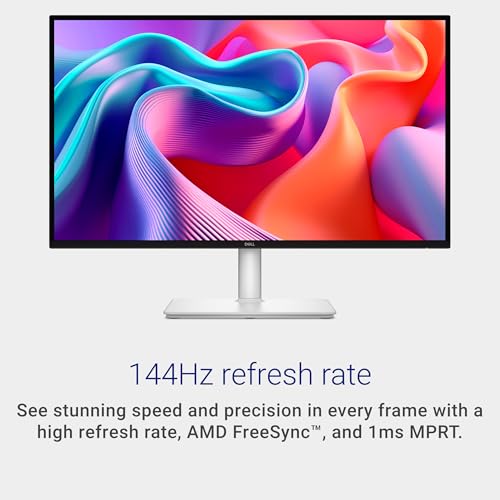
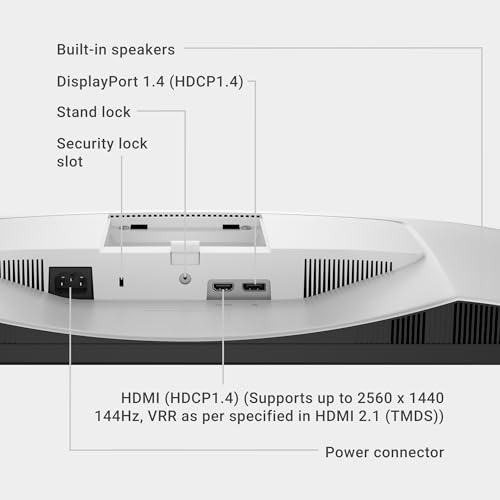
Dell 27 Plus QHD Monitor - S2725DSM - 27-inch QHD (2560x1440) 144Hz 1ms Display, 2 x 3W Speakers, HDMI/DisplayPort 1.4 Connectivity, Height/Tilt/Pivot/Swivel Adjustability, AMD FreeSync - Ash White






As an Amazon Associate we earn from qualifying purchases. Product prices and availability are accurate as of the date/time indicated.
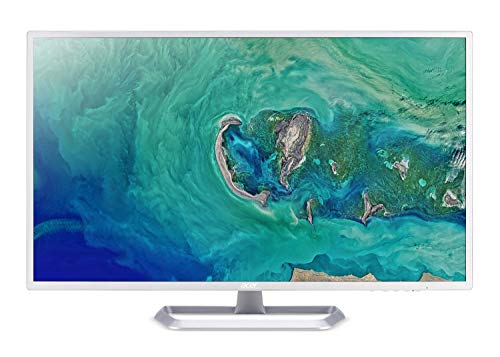
Acer 31.5in FHD 1920x1080 IPS 75Hz Office Monitor EZ321Q wi | 1ms, AdaptiveSync, HDMI, VGA, VESA Mountable, Bluelight Filter, Flickerless Technology


As an Amazon Associate we earn from qualifying purchases. Product prices and availability are accurate as of the date/time indicated.

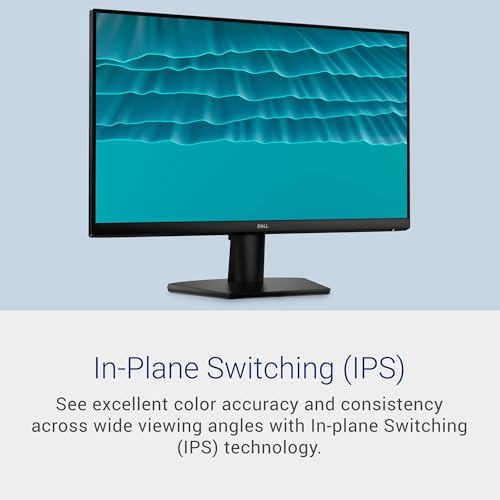
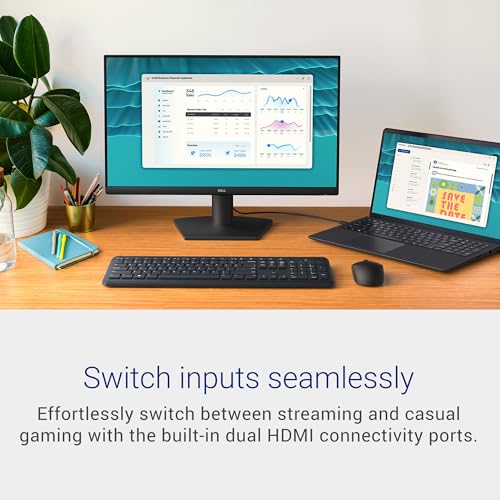
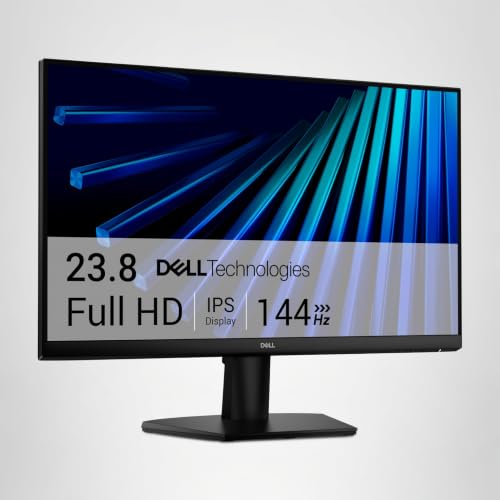
Dell 24 Monitor - SE2426H - 23.8-inch FHD (1920x1080) 144Hz 1ms Display, in-Plane Switching (IPS) Technology, AMD FreeSync™, TÜV 3-Star 2X HDMI, Tilt





As an Amazon Associate we earn from qualifying purchases. Product prices and availability are accurate as of the date/time indicated.

ASUS VA279HG 27 Inch 1080P 120Hz Eye Care Gaming Monitor, HDMI, VGA | IPS, Full HD, 99% sRGB, Frameless, 1ms, Adaptive-Sync, Low Blue Light, Flicker Free, VESA Wall Mount, 3 yr warranty, EPEAT


As an Amazon Associate we earn from qualifying purchases. Product prices and availability are accurate as of the date/time indicated.

Dell 32 Monitor S3225QS, 4K UHD VA, 120Hz, FreeSync Premium, Eye Comfort | 3840x2160, 31.5in, 3000:1 Contrast, 300 cd/m2 Brightness, 4ms, 99% sRGB, Anti-Glare, HDMI, DisplayPort


As an Amazon Associate we earn from qualifying purchases. Product prices and availability are accurate as of the date/time indicated.

Sceptre 27-inch Prime Gaming Monitor 100Hz 1ms DisplayPort HDMI x2 100% sRGB AMD FreeSync Build-in Speakers, Eye Care Frameless Machine Black 2025 (E275W-FW100T Series)


As an Amazon Associate we earn from qualifying purchases. Product prices and availability are accurate as of the date/time indicated.

Amazon Basics 27 Inch Monitor, FHD 1080P, 100Hz, IPS, Built-in Speakers, VESA Compatible, USB Ports, Black


As an Amazon Associate we earn from qualifying purchases. Product prices and availability are accurate as of the date/time indicated.
| Model | Key point from title | Price tier | Best for |
|---|---|---|---|
| Kantek MAXVIEW MAG27WL | Screen magnifier accessory for 27″ widescreen monitors | Mid-range | Trying enlargement on a monitor you own |
| Dell 27 Plus S2725DSM | 27″ QHD, 144Hz, height/tilt/pivot/swivel, HDMI/DP 1.4 | Mid-range | Moving the screen to suit you |
| Acer EZ321Q | 31.5″ Full HD IPS, 75Hz, bluelight filter, flickerless | Mid-range | Large text without scaling |
| Dell 24 SE2426H | 23.8″ Full HD IPS, 144Hz, TUV 3-Star, tilt | Budget | Small desks |
| ASUS VA279HG | 27″ Full HD IPS, 120Hz, flicker free, VESA | Mid-range | Mounting on an arm |
| Dell 32 S3225QS | 31.5″ 4K VA, 3000:1, anti-glare, DisplayPort | Premium | High contrast, big and sharp |
| Sceptre E275W-FW100T | 27″, 100Hz, DisplayPort + 2 HDMI, speakers | Budget | Several devices on one screen |
| Amazon Basics 27 inch | 27″ Full HD IPS, 100Hz, speakers, USB ports, VESA | Mid-range | A plain 27-inch start |
What each listing offers
Dell 32 S3225QS
The title lists a 31.5-inch 4K VA panel at 120Hz with a 3000:1 contrast ratio, 300 cd/m2 brightness, anti-glare treatment and “Eye Comfort” wording. Those figures are seller claims. At 200 percent scaling it behaves like a very sharp 31.5-inch Full HD screen, which is the main appeal for large, crisp text. The title names HDMI and DisplayPort, but confirm that your computer can output 3840×2160 at a smooth refresh, because older laptops and cables sometimes fall back to a lower rate. As a VA panel, its viewing angles differ from IPS, which matters little for one person sitting centered.
Pros
- Large panel with high pixel density, so scaled text stays smooth
- Stated 3000:1 contrast and anti-glare finish help separate text from background
Cons
- 4K needs a capable computer, and some older apps scale poorly
- The title does not mention height or pivot adjustment
Who it’s for: readers who want the biggest, sharpest text and have a desk deep enough for 32 inches.
Dell 27 Plus S2725DSM
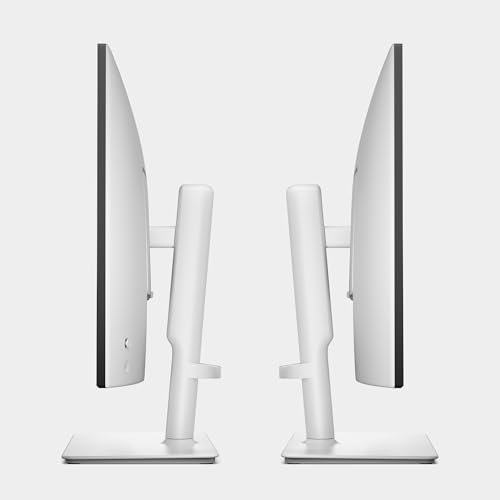
A 27-inch QHD (2560×1440) panel with 144Hz, FreeSync, two 3W speakers, HDMI and DisplayPort 1.4. Its standout line is “Height/Tilt/Pivot/Swivel Adjustability”, the fullest stand description in this set. The refresh and 1ms numbers are gaming claims you can ignore for reading. At about 109 pixels per inch, it is the middle ground between the large Full HD screens and the dense 4K one, and the Ash White finish is a style choice that may help or hinder depending on your room lighting.
Pros
- Full stand movement lets you bring the screen closer and set the angle
- QHD leaves room to raise scaling to 125 or 150 percent
Cons
- At 100 percent scaling, text is smaller than on a Full HD 27-inch
- You pay for gaming features that do little for reading
Who it’s for: users who rely on scaling and want to reposition the screen often.
Acer 31.5-inch EZ321Q
Full HD stretched across 31.5 inches means about 70 pixels per inch, so everything is physically large at 100 percent scaling with no software changes. The title adds IPS, 75Hz, bluelight filter, flickerless technology, HDMI, VGA and VESA mounting. It also contains a stray “wi” fragment, so confirm the exact model on the listing. Remember that the 75Hz and “1ms” claims are irrelevant to reading, and that VGA, one of its two inputs, is analog and tends to look softer than HDMI for text.
Pros
- Largest text per setting among the Full HD screens here
- VESA mounting allows an arm to pull it closer
Cons
- Coarse pixels make letter edges look blocky up close
- Wide enough to need a deep desk
Who it’s for: buyers who want large text without touching scaling and do not need a premium panel.
ASUS VA279HG
A 27-inch Full HD IPS screen at 120Hz with 99% sRGB, a frameless design and “Eye Care” labels (low blue light, flicker free). It lists HDMI and VGA only, plus VESA wall mount support and a 3-year warranty. At roughly 82 pixels per inch it sits between the Acer and the Dell 27 Plus for text size. Because the title lists no DisplayPort, check that your computer has an HDMI output, or that your adapter is a good one, before you order.
Pros
- VESA compatibility makes arm mounting possible
- Flicker-free and low blue light labels for long sessions
Cons
- No DisplayPort in the title
- Stand movement is not described
Who it’s for: people planning an arm who want a mid-size Full HD panel.
Sceptre E275W-FW100T 27-inch
The title gives 100Hz, 1ms, DisplayPort, two HDMI inputs, 100% sRGB, built-in speakers and a frameless look. It does not state the resolution, so check the listing before buying. The speakers matter if you pair the screen with a screen reader, since you will not need extra desk hardware. It is close in class to the ASUS and Amazon Basics screens, so the deciding factors are the extra input and whether the stand lets you move the panel nearer.
Pros
- Three digital inputs suit a laptop, console and desktop together
- Built-in speakers
Cons
- Resolution is missing from the title
- Stand adjustment is not described
Who it’s for: shared desks that switch between several sources.
Amazon Basics 27 Inch
A plain 27-inch Full HD IPS monitor with 100Hz, speakers, VESA compatibility and USB ports. It is close in size and resolution to the ASUS and Sceptre, so choose on inputs and stand rather than expecting different text size. The title’s “USB ports” wording does not say whether they work as a hub for peripherals, so read the listing if you want to plug in a keyboard or a braille display.
Pros
- IPS panel with speakers and USB ports in a basic package
- VESA compatible
Cons
- Inputs are not listed, so check HDMI or DisplayPort availability
- No contrast or anti-glare figures
Who it’s for: a no-fuss 27-inch first step.
Dell 24 SE2426H
This 23.8-inch Full HD IPS screen runs at 144Hz with a 1ms claim, FreeSync, a TUV 3-Star label, two HDMI inputs and tilt. It is the sharpest per inch of the Full HD group, which also means the smallest text. For low vision it is the weakest pick here, and it only makes sense if the desk is very shallow or you already know small text is comfortable for you.
Pros
- Compact footprint for small desks
- Two HDMI inputs
Cons
- Smallest text at 100 percent scaling
- Tilt is the only listed adjustment
Who it’s for: a secondary display or tight desk, rather than a main low-vision screen.
Kantek MAXVIEW MAG27WL
This is not a monitor. The title describes a screen magnifier for 27-inch widescreen monitors, so it is an accessory placed over a display you already own. It gives no magnification factor, fitting method or clarity notes. Lens-style accessories often narrow the comfortable viewing angle, but confirm on the listing. It is also tied to one screen size, so it will not follow you to a new monitor unless that one is also a 27-inch widescreen. Check the return terms before buying.
Pros
- Works with an existing 27-inch monitor
- No new display or software required
- Sits in a similar price tier to some full monitors, so weigh it against them
Cons
- No magnification factor in the title
- Only fits 27-inch widescreen screens
Who it’s for: someone with a compatible 27-inch monitor who wants to try enlargement before replacing the display.
How we picked these
We compared listing titles for size, resolution, stand wording, inputs and comfort claims. Our basis is published specifications, manufacturer documentation and buyer reviews. Nobody on the team used or measured these units. Several listings are close to each other, and one is an accessory rather than a display, which we say plainly above. We ranked on features that matter for reading, namely size, density, contrast wording and stand movement, and gave less weight to refresh rate and gaming labels. Any number we add beyond the titles is labeled as an estimate with its assumption.
What to look for in a monitor for low vision
Text size: a pixel density worked example
Apparent text size depends on pixels per inch (ppi). Assume a 16-pixel character at 100 percent scaling; this is a stand-in, since real apps vary.
| Screen | Resolution | ppi | 16 px character |
|---|---|---|---|
| 23.8″ Full HD | 1920×1080 | 93 | 0.17 in |
| 27″ Full HD | 1920×1080 | 82 | 0.20 in |
| 27″ QHD at 150% | 2560×1440 | 109 | 0.22 in |
| 31.5″ Full HD | 1920×1080 | 70 | 0.23 in |
| 31.5″ 4K at 200% | 3840×2160 | 140 | 0.23 in |
The last two give the same physical text size, but the 4K screen draws it with four times the pixels. Moving from 23.8 inches to 31.5 inches at Full HD makes text about a third larger. If you are still choosing between sizes, our 27 inch versus 32 inch comparison covers desk depth and viewing distance in more detail. Remember that the table ignores font choice, application zoom and your own viewing distance, which can change the real result.
Contrast, finish and brightness
Higher contrast ratio claims, such as 3000:1 on a VA panel, can help text stand out, though IPS panels often trade some contrast for wider viewing angles. A matte, anti-glare finish limits window and lamp reflections. Brightness figures like 300 cd/m2 are seller numbers, so use the monitor menu and your operating system’s high-contrast or dark themes rather than relying on specs alone. Glossy coatings can look vivid but may mirror windows, so ask whether the listing says matte, anti-glare or neither.
Stand and viewing distance
Many low-vision users sit closer than normal. A stand with height and pivot, or a VESA arm, lets you move the screen toward you without stacking books under it. Check desk depth too: a 31.5-inch 16:9 panel is about 27.5 inches wide, so at a close seating distance you may turn your head to reach the edges. Keep the top edge near eye level, and avoid pushing the screen so close that reaching the corners is tiring.
Where software fits in
Windows and macOS include magnifiers, cursor enlargement and high-contrast modes, and screen readers add speech. These cost nothing, so try them on your current monitor first; they may change what size you really need. Some people use a smaller monitor with strong software magnification, others a very large one with no software at all, so a short trial of both is worth the effort.
Mistakes buyers make
Choosing resolution as if sharper always means easier is the common one: higher pixel counts make text smaller until scaling is raised. Others include trusting “eye care” labels as medical claims, ignoring desk depth for a 32-inch screen, buying VGA-only connections, and skipping a trial of scaling before the return window closes. Check also that your computer can output the resolution you want, and that the stand can actually bring the screen close. Another trap is paying for 144Hz or 1ms gaming claims that do nothing for reading. Skipping a check of the return policy is another, since the only reliable test of text comfort is your own eyes at your own desk. Finally, do not assume every screen labeled “flicker free” or “low blue light” feels the same: comfort is personal, so judge by the return-window trial.
Verdict
For maximum size, contrast and sharpness, pick the Dell 32 S3225QS. For the most affordable large screen, choose the Acer 31.5-inch. For flexible positioning, take the Dell 27 Plus. Treat the Kantek as an optional experiment, and always confirm details on the listing and the return policy. Whatever you choose, set scaling, contrast and cursor size in the operating system right after setup, because those settings often matter as much as the hardware, and remember a short trial beats any spec table.
Related guides
- Helping Hands Soldering Station With Magnifier
- Bench Power Supply For Electronics Hobbyists
- Monitor For Music Production
Frequently asked questions
Is a bigger monitor always better for low vision?
Not always. A larger panel makes everything bigger only if the resolution stays the same, so a 31.5-inch Full HD screen shows larger text than a 27-inch one. Bigger screens also need a deeper desk and more head or eye movement. Many people do better with a moderate size and the operating system scaling set higher. Try both if the return window allows.
Should I choose 4K for easier reading?
4K helps when you use scaling. At 200 percent, a 31.5-inch 4K screen shows the same text size as a 31.5-inch Full HD one, but with much finer edges. At 100 percent, text is tiny. 4K also needs a computer that outputs it and apps that scale cleanly, so confirm both before buying.
Do blue light and flicker-free labels help vision problems?
Treat them as seller labels, not medical features. A flicker-free backlight and a matte finish may make long sessions more comfortable for some people, but no monitor corrects or treats a vision condition. Ask an eye-care professional what suits your situation, then use the listing as a spec sheet. Comfort differs from person to person.
Is a screen magnifier like the Kantek a good alternative to a new monitor?
It can be a way to try enlargement if you already own a 27-inch widescreen monitor, since it is an accessory rather than a display. The title gives no magnification factor, so check the listing and the return terms. Operating system magnification is free, adjustable and worth trying first, and it travels with you to any display.
Which connection should I use?
Use the best digital cable your computer and monitor share. HDMI or DisplayPort both carry Full HD easily. For 4K at 120Hz, you need a recent HDMI or DisplayPort version on both ends and a cable rated for it. VGA is analog and usually looks softer, so avoid it when text clarity matters. Check that the cable you own actually supports the refresh rate you want.