Our Top Picks
 BenQ RD320U 32” 4K 3840x2160 Programming Monitor with32.028 x 23 x 10.2 inches34.17 poundsCheck on Amazon
 BenQ RD280U 28.2” 4K 3840x2560 3:2 Programming Monitor28.29.6 x 24 x 18.7 inches16.8 poundsCheck on Amazon
 BenQ RD280UA 28.2” 4K 3840x2560 Programming Monitor Backlight28.218 x 24 x 27 inches16.8 poundsCheck on Amazon
The best 4K monitor for programming is the one that gives you roughly 110 logical pixels per inch of comfortable text at a scaling level you can live with, and in this group that points to either a 27-inch 4K screen at 150 percent scaling or the 28.2-inch BenQ RD280U-family panels with their taller 3:2 shape. On paper, the BenQ RD280U is the most developer-specific choice, the Dell S2725QS is the value pick with a 120Hz refresh rate, and the Samsung ViewFinity S7 is the lowest-priced entry.
Programming has different needs from gaming or video editing. You stare at small, high-contrast text for hours, you want more lines visible without squinting, and you probably connect a laptop. That means pixel density, scaling behavior, vertical space, matte finish and one-cable docking matter more than peak brightness or color gamut. We organize this guide around those factors and show a worked comparison of how much code each size really shows.
Eight monitors on one page
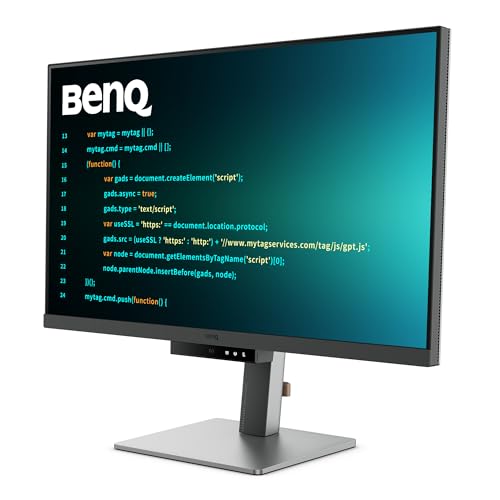
BenQ RD320U 32” 4K 3840x2160 Programming Monitor with 2000:1 Contrast Ratio, Nano Matte Panel, Backlight, 90W USB-C, Coding Modes, Night Hours Protection, Ergonomic Design, and Eye-Care Technology

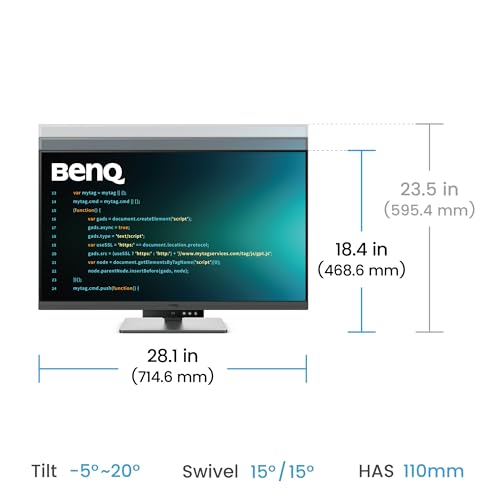


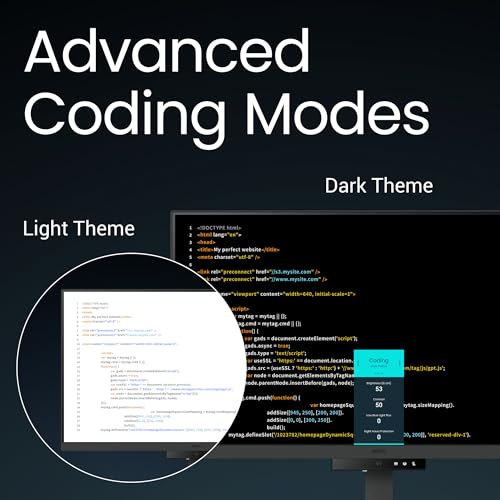
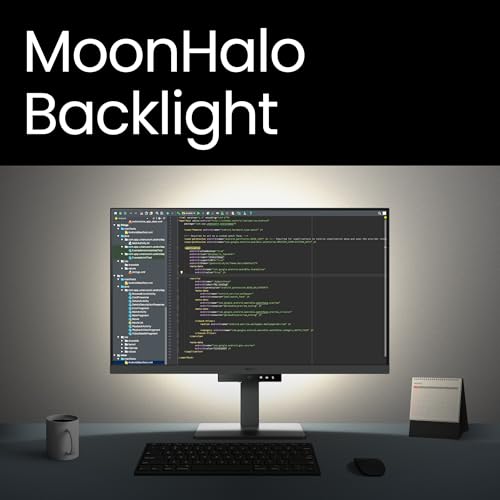


As an Amazon Associate we earn from qualifying purchases. Product prices and availability are accurate as of the date/time indicated.

Samsung 27" ViewFinity S7 (S71H) 4K UHD IPS HDR10 High Resolution Monitor | Explore and buy 27 inch 4K UHD ViewFinity S7 S71H Monitor LS27H710EANXZA, Featuring IPS Panel, HDR10 and Eye Saver Mode


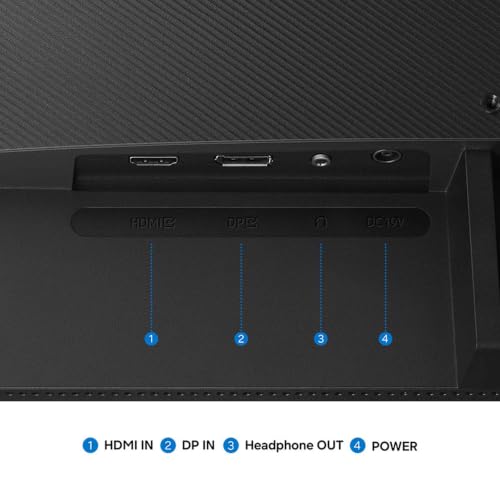


As an Amazon Associate we earn from qualifying purchases. Product prices and availability are accurate as of the date/time indicated.
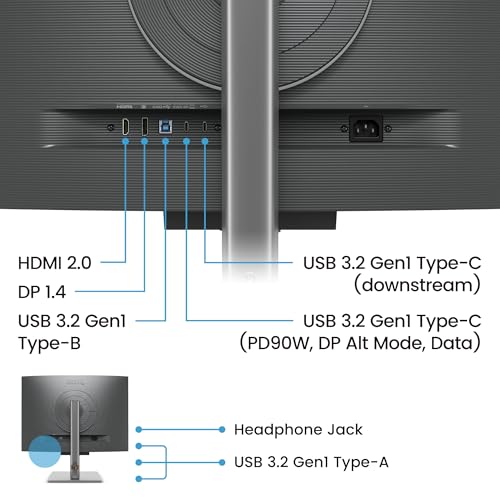
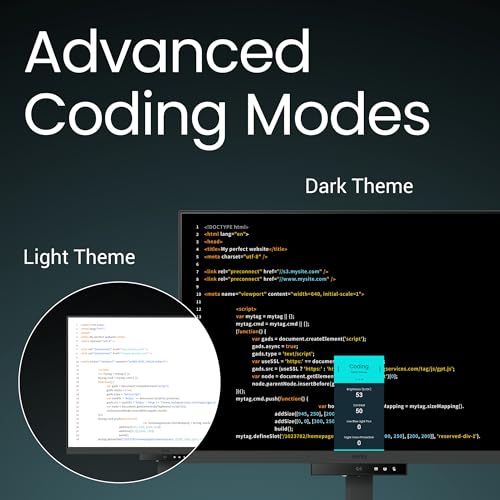
BenQ RD280U 28.2” 4K 3840x2560 3:2 Programming Monitor, Eye-Care, Nano Matte Panel, Coding Modes, MoonHalo Backlight, 90W USB-C, KVM, VESA Mount, Developer Monitor





As an Amazon Associate we earn from qualifying purchases. Product prices and availability are accurate as of the date/time indicated.

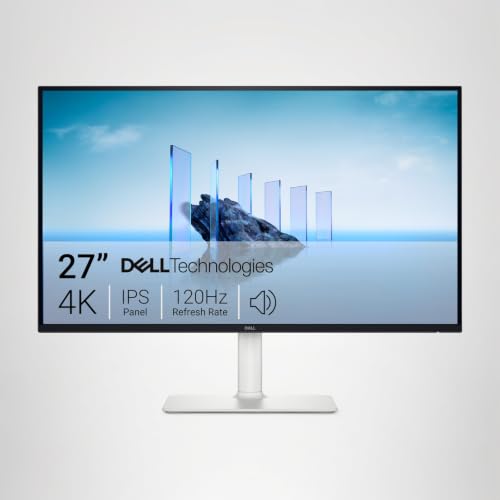
Dell 27 Monitor S2725QS, 4K UHD IPS, 120Hz, 5ms, FreeSync Premium | 350 cd/m2 Brightness, 1,500:1 Contrast, 99% sRGB, Anti-Glare, HDMI, DisplayPort, USB‑C, Height Adjustable, Swivel, Pivot


As an Amazon Associate we earn from qualifying purchases. Product prices and availability are accurate as of the date/time indicated.

BenQ Programming Monitor RD280UG 28.2" 4K+, 120Hz Refresh Rate, 3:2 Aspect Ratio, Nano Matte Panel, MoonHalo Backlight, Coding Modes, 2000:1 Contrast Ratio, Eye-Care to Deliver Effortless Coding View


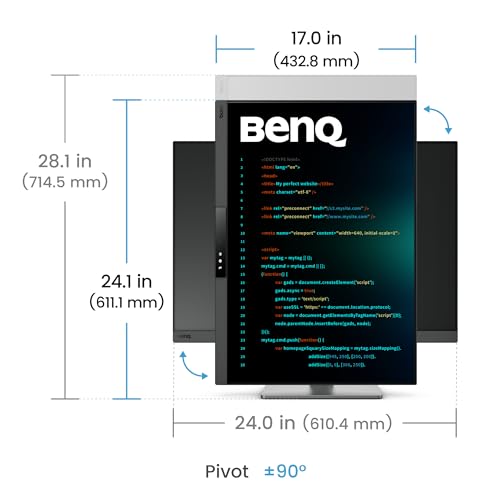


As an Amazon Associate we earn from qualifying purchases. Product prices and availability are accurate as of the date/time indicated.
BenQ RD280UA 28.2” 4K 3840x2560 Programming Monitor Backlight, Ergo Flexible Arm, 90W USB-C, Fine-Coated Panel, Advanced Coding Modes, Night Hours Protection, Coding HotKey, Eye-Care Tech


As an Amazon Associate we earn from qualifying purchases. Product prices and availability are accurate as of the date/time indicated.

BenQ RD320UA 32” 4K 3840x2160 Programming Monitor with 2000:1 Contrast Ratio, Nano Matte Panel, MoonHalo, 90W USB-C, Coding Modes, Night Hours Protection, Ergonomic Stand, and Eye-Care Technology


As an Amazon Associate we earn from qualifying purchases. Product prices and availability are accurate as of the date/time indicated.
| Monitor | Size and resolution from the title | Notable title details | Price tier |
|---|---|---|---|
| Samsung 27 ViewFinity S7 (S71H) | 27 in, 4K UHD | IPS, HDR10, Eye Saver Mode | Budget |
| Dell 27 S2725QS | 27 in, 4K UHD | IPS, 120Hz, 5ms, FreeSync Premium, 350 cd/m2, 99% sRGB, USB-C, height-adjustable stand | Budget |
| Dell 27 S2725QC | 27 in, 4K UHD, 163 PPI | IPS, 120Hz, 4ms, 99% sRGB, USB-C, HDMI, DisplayPort | Budget |
| BenQ RD280U | 28.2 in, 3840×2560, 3:2 | Nano Matte, MoonHalo backlight, 90W USB-C, KVM, VESA | Mid-range |
| BenQ RD280UA | 28.2 in, 3840×2560 | Ergo Flexible Arm, 90W USB-C, fine-coated panel, Coding HotKey | Mid-range |
| BenQ RD320U | 32 in, 3840×2160 | 2000:1 contrast, Nano Matte, 90W USB-C, Coding Modes | Premium |
| BenQ RD280UG | 28.2 in, 4K+, 3:2 | 120Hz refresh rate, Nano Matte, MoonHalo | Premium |
| BenQ RD320UA | 32 in, 3840×2160 | Ergonomic stand, MoonHalo, 90W USB-C | Premium |
Tiers are relative to this group of eight. The Samsung and the two Dells land in the lowest tier, while the 32 inch and 120Hz BenQs reach the top. Check the current prices before you decide, because monitor prices move often.
The sizing formula: match physical text size, then count lines
Here is a simple rule that keeps you from overpaying or buying the wrong size. Divide the monitor’s pixels per inch (PPI) by the scaling percentage as a decimal. The result is the logical pixel density you are effectively working with. A value of about 110 produces text of a size many developers find comfortable at an arm’s length; call that our working assumption, since eyesight and seating distance vary.
| Panel | PPI (calculated) | Scale | Effective workspace | Logical PPI |
|---|---|---|---|---|
| 27 in 3840×2160 | about 163 | 150% | 2560 x 1440 | about 109 |
| 28.2 in 3840×2560 | about 164 | 150% | 2560 x 1707 | about 109 |
| 32 in 3840×2160 | about 138 | 125% | 3072 x 1728 | about 110 |
| 32 in 3840×2160 | about 138 | 150% | 2560 x 1440 | about 92 |
Now count lines. Assume an editor with a 20-pixel logical line height, and about 200 logical pixels lost to the title bar, tabs and status bar. On the 27-inch panel at 150 percent, that leaves (1440 minus 200) divided by 20, or about 62 lines of code. The 28.2-inch 3:2 panel leaves (1707 minus 200) divided by 20, or about 75 lines, roughly 21 percent more. The 32-inch panel at 125 percent leaves (1728 minus 200) divided by 20, about 76 lines, with text the same physical size as the 27-inch at 150 percent. These are estimates based on stated assumptions, not measurements of any particular monitor.
The result is useful in two ways. First, it shows that the 3:2 panels earn their keep on vertical space without needing the desk width of a 32-inch screen. Second, it shows that a 32-inch panel at 150 percent is comfortable but gives you the same 2560 by 1440 workspace as a 27-inch screen, with larger and softer-looking text, so the extra inches buy you readability, not space.
The eight monitors in detail
BenQ RD280U: the 3:2 programming monitor
The title calls this a 28.2-inch 4K 3840×2560 3:2 programming monitor with eye-care features, a Nano Matte panel, coding modes, MoonHalo backlight, 90W USB-C, KVM and a VESA mount. It is the model most clearly designed around reading and writing text. The 3:2 shape gives you more rows than a 16:9 panel, and per our calculation above, about 18 percent more rows than a standard 4K screen of similar width.
The Nano Matte panel is named in the title, but the title does not say how it compares with a standard anti-glare finish, so read the listing for details. “Coding modes” and “MoonHalo backlight” are brand terms for presets and a rear light; the title does not explain their behavior. KVM is also named: KVM features usually let you share one keyboard and mouse between two computers, though you should confirm on the product page how it is implemented.
It sits in the Mid-range tier. Remember to check your laptop’s USB-C charging and video capability before relying on the 90W port.
Pros
- 3:2 panel with taller workspace for code and docs
- 90W USB-C and KVM named in the title
- Mid-range tier among BenQ models
Cons
- Refresh rate is not stated in the title
- Stand ergonomics are not described, unlike the UA version
- Letterboxing for video and games
Who it’s for: developers who spend most of the day in editors, terminals and documentation.
BenQ RD280UA: the same panel with an arm
The RD280UA title reads like the RD280U with a few changes: 28.2 inches, 4K 3840×2560, an “Ergo Flexible Arm,” 90W USB-C, a “fine-coated panel,” advanced coding modes, night hours protection, a Coding HotKey and eye-care technology. It looks like a close relative of the RD280U, so treat the pair as variants rather than unrelated products.
The Ergo Flexible Arm is a stand type, and it matters if your desk is cramped or you want to move the screen closer and farther or between sitting and standing. A monitor arm lifts the base off the desk, and the title does not give the weight limit or the clamp type, so check the listing for desk-thickness requirements before buying.
It is in the Mid-range tier, a little above the RD280U. If you were planning to buy a separate monitor arm, the combined cost may make this version the better deal; if you already own an arm or use a VESA mount, the RD280U may be enough.
Pros
- Flexible arm saves desk space
- Coding HotKey in the title
- 90W USB-C for laptop docking
Cons
- Costs more than the RD280U
- Arm clamp limits are not in the title
- KVM is not mentioned in this title
Who it’s for: developers with tight desks who want a clamp-mounted arm included.
BenQ RD280UG: the 120Hz 4K+ version
This listing is titled as a 28.2-inch 4K+ programming monitor with a 120Hz refresh rate, a 3:2 aspect ratio, Nano Matte panel, MoonHalo backlight, coding modes, 2000:1 contrast ratio and eye-care technology. It is the only BenQ here whose title mentions a refresh rate, and 120Hz is a plus for scrolling smoothness and cursor movement even if you never play games.
For code, a higher refresh rate shows up in how scrolling feels, which is subtle but real for people who read long files all day. It also helps if the same monitor doubles as a game display after hours. Check the listing for the ports and USB-C power delivery, because the title does not mention 90W USB-C as the other BenQ titles do.
In the Premium tier, it costs more than the RD280U, so the question is whether smoother motion is worth the difference. If you already have a 60Hz screen and wonder what 120Hz is like, it is often a pleasant surprise, but it is not required for coding.
Pros
- 120Hz refresh rate named in the title
- 3:2 shape with extra vertical space
- Nano Matte panel
Cons
- Premium tier
- USB-C wattage is not given in the title
- Check how your computer handles 120Hz at 4K and over which port
Who it’s for: developers who also game or want smoother scrolling.
BenQ RD320U: the 32-inch programming monitor
The RD320U’s title: 32-inch 4K 3840×2160 programming monitor with 2000:1 contrast ratio, Nano Matte panel, backlight, 90W USB-C, coding modes, night hours protection, ergonomic design and eye-care technology. At 32 inches and 3840×2160 the pixel density works out to about 138 PPI, so the 125 percent scaling in our table is the starting point for comfortable text.
The benefit of 32 inches is room. At 125 percent you get a logical 3072 by 1728 workspace, enough for two editor panes and a terminal without feeling cramped. The cost is size: a 32-inch screen needs desk depth, and you may need to turn your head to see the edges.
Text on a 138 PPI screen is slightly less sharp than on a 163 PPI screen at the same viewing distance, which some developers notice and others do not. It sits in the Premium tier. If you like the BenQ feature list but not the 3:2 shape, it is the conventional-shape choice.
Pros
- Large 3072 by 1728 workspace at 125 percent scaling
- 90W USB-C, coding modes and a Nano Matte panel
- 2000:1 contrast ratio named in the title
Cons
- Lower pixel density than the 27 and 28.2 inch models
- Needs more desk depth
- Premium tier
Who it’s for: developers who want maximum room for side-by-side windows and sit far enough back.
BenQ RD320UA: the 32-inch model with an ergonomic stand
The RD320UA title matches the RD320U in most respects and adds “Ergonomic Stand” and a MoonHalo mention, with 90W USB-C, Nano Matte, coding modes, night hours protection and eye-care technology. As with the 280 pair, it reads as a close sibling of the other model rather than an unrelated one.
Because the stand is the difference in the title, the right way to compare the two is to look at adjustability on each product page: height, tilt, swivel and pivot ranges. A taller stand matters more for a 32-inch screen, since you want the top edge at or slightly below eye level and the screen at an arm’s length.
It is the highest-priced model in the group, in the Premium tier, so it makes sense only if you want the 32-inch size and the listed stand features. For a dev setup with a clamp-mounted arm anyway, the RD320U plus a separate arm may be a more flexible combination.
Pros
- 32 inch workspace with 90W USB-C
- Stand features named in the title
- Nano Matte panel
Cons
- Highest price tier in the group
- Close to the RD320U, so differences are modest
- Large footprint
Who it’s for: buyers who want a 32-inch coding display and a stand they do not need to replace.
Dell 27 S2725QS: the value 120Hz pick
Dell’s title for this model is detailed: 27 inch, 4K UHD, IPS, 120Hz, 5ms, FreeSync Premium, 350 cd/m2 brightness, 1,500:1 contrast, 99% sRGB, anti-glare, HDMI, DisplayPort and USB-C, with a stand that adjusts for height, swivel and pivot. For the price tier, that is a lot of confirmed specification. Pivot is particularly interesting for programmers, because a vertical monitor can show a very tall slice of a long file.
Run the math and a 27-inch 4K panel is about 163 PPI, so 150 percent scaling gives the 2560 by 1440 workspace in our table. The 120Hz refresh rate is a bonus in a value-priced monitor. The USB-C port is listed, but the title does not give a charging wattage, so check whether it can power your laptop. We also have a separate Dell S2725QS write-up if you want a closer look at this model.
It is in the Budget tier here, which makes it the easiest recommendation for people who want a good 4K panel without paying for developer branding.
Pros
- Detailed spec in the title, including 120Hz and 99% sRGB
- Height, swivel and pivot adjustments
- Budget tier
Cons
- USB-C charging wattage is not stated in the title
- No coding-specific modes
- 16:9 shape gives less vertical room than 3:2
Who it’s for: developers who want sharp text and a high refresh rate without paying for specialist features.
Dell 27 S2725QC: the similar Dell with a different list
The S2725QC is the other Dell: 27 inch 4K UHD, IPS, 120Hz, 99% sRGB, 4ms, FreeSync Premium, 3840×2160 resolution, 163 PPI, USB-C, HDMI, DisplayPort, anti-glare and Eye Comfort Technology with an LED edgelight system. The title confirms the 163 PPI figure that our table calculates, which is a nice check on the math.
Compared with the S2725QS, the differences visible in the titles are the response time (4ms versus 5ms), the edgelight mention, and the absence of the brightness and contrast figures and the stand-adjustment list. The two are close cousins, and whether the stand adjustments differ is a matter for the product pages.
It lands in the Budget tier, slightly above the QS by the price shown. If the stand matters to you, compare adjustments on both pages; if not, either Dell gives you the same panel size and 4K resolution. As with the other Dell, the title does not state a USB-C wattage, so check before counting on it for charging.
Pros
- 163 PPI stated in the title
- 120Hz and 99% sRGB
- HDMI, DisplayPort and USB-C inputs
Cons
- Close to the S2725QS, so little to separate them in titles
- Stand adjustments are not listed
- Charging wattage is not stated
Who it’s for: buyers choosing between the two Dells based on price and stand details.
Samsung 27 ViewFinity S7 (S71H): the lowest-priced 4K
The Samsung listing says 27-inch 4K UHD IPS HDR10 with Eye Saver Mode, model LS27H710EANXZA. The title includes a long block of marketing text, but the specs it names are small in number: size, resolution, IPS, HDR10 and Eye Saver Mode. It does not mention a refresh rate, USB-C, stand adjustments or an anti-glare finish.
That makes it a bare-bones 4K screen on paper, and the Budget price tier is the reason to consider it. At 27 inches and 3840×2160, it has the same 163 PPI as the Dells, so the scaling advice applies equally. If you connect via HDMI or DisplayPort and do not need docking, it may be enough.
Before buying, read the product page for ports, stand adjustability and VESA mounting. A non-adjustable stand can push the top of the screen too high for comfort, though a VESA arm can fix that if the monitor supports it. HDR10 is mostly relevant to media; for text work you can leave it off.
Pros
- Lowest price tier in the group
- 27 inch 4K IPS with the same pixel density as the Dells
- Eye Saver Mode named in the title
Cons
- Few specs stated, with no refresh rate or USB-C in the title
- Stand features unknown
- HDR10 adds little for coding
Who it’s for: buyers who want a sharp, inexpensive 4K second screen and will verify the ports first.
How we picked these
This guide comes from the Editorial team, using published specifications, manufacturer documentation and buyer reviews. Nobody on the team used or measured these units. We did not look at any screen in person, so nothing here describes how text looks, how bright a panel is in your room or how well a stand moves.
The eight listings were supplied for this keyword. We kept the process simple: group them by size and shape, calculate pixel density from the stated resolution and diagonal, and compare the features each title states. The calculations in the sizing section are ours and rely on stated assumptions. Everything else comes from titles, and the gaps are flagged as things to check on the product page.
We also grouped close relatives. The RD280U and RD280UA are related, as are the RD320U and RD320UA, and the two Dell models differ in small ways. Rather than pretend each is a distinct recommendation, we describe what the titles show and leave the rest to a side-by-side comparison of the product pages.
What to look for in a programming monitor
Pixel density and scaling
For crisp text, aim for roughly 140 PPI or higher. A 27-inch 4K panel gives 163 PPI, and the 28.2-inch 3:2 panels give about 164. A 32-inch 4K panel gives about 138. Higher density makes letters smoother at the same physical size, but it relies on operating-system scaling. Test your tools: terminals, editors and design apps can look different at fractional scales like 125 or 150 percent, and some older applications render blurry. Mac, Windows and Linux handle fractional scaling differently, so confirm that your system is comfortable with it.
Aspect ratio and vertical space
Code is tall and narrow. A 16:9 screen has plenty of width but limited height, which is why many developers rotate a secondary monitor to portrait. A 3:2 panel gives you extra rows in a single screen. A 4K monitor in pivot mode gives roughly a 2160-wide by 3840-tall panel, which is a lot of lines but requires a stand that pivots, which only some listings here mention.
Matte finish and glare
A matte or anti-glare coating spreads reflections, which helps in rooms with windows. The BenQ titles call out Nano Matte, and the Dell titles say anti-glare. How each coating handles sharpness is something the titles do not cover, so check buyer feedback about graininess on white backgrounds.
Connectivity and power
USB-C with power delivery lets a single cable carry video, data and charging. Four BenQ listings name 90W USB-C, while the Dell titles list USB-C without a wattage. Check your laptop’s own requirements. Use the cable the monitor maker recommends, and do not use damaged cables or chargers. If the connection feels unreliable, contact the manufacturer instead of trying an unknown adapter.
Refresh rate
The Dell and BenQ RD280UG titles mention 120Hz. For coding, that mainly improves scrolling and cursor movement. Check that your computer can drive 4K at 120Hz over the cable you intend to use, since some ports and cables are limited to 60Hz at that resolution.
Common mistakes when buying a coding monitor
- Running 4K at 100 percent scaling. Text becomes tiny and tiring. Use 125 to 150 percent and aim for about 110 logical PPI.
- Buying size without desk depth. A 32-inch monitor needs more distance. Measure your desk before ordering.
- Ignoring the stand. If the stand cannot raise the screen to eye level, plan on a VESA arm.
- Assuming every USB-C port charges a laptop. Check the wattage and your laptop’s requirements.
- Treating close relatives as unrelated. The RD280U and RD280UA, and the RD320U and RD320UA, differ mainly in stand features according to their titles.
- Over-weighting color specs. 99% sRGB matters for design work; for code, sharpness and comfort matter more.
Which monitor to buy
For most developers, the Dell S2725QS is the strongest value pick: 27 inches, 4K, 120Hz and a stand that adjusts, all named in the title. For a screen built around code, the BenQ RD280U gives you the 3:2 shape and 90W USB-C. For a 32-inch workspace, the RD320U is the standard choice and the RD320UA adds a stand. The Samsung is the lowest-priced route into 4K if you accept a short spec list. If your budget is stretched, read our best 4K monitor for work guide for general office picks, and if you also game, the 4K gaming monitors for PS5 and PC guide covers monitors built around console and PC play.
Frequently asked questions
Is 4K worth it for programming?
For many developers, yes, but mostly for text sharpness rather than raw space. At 27 inches, 4K gives roughly 163 pixels per inch, which makes code edges noticeably crisper than a 1440p panel at the same size. To benefit, you need operating-system scaling, usually 125 to 150 percent, because 100 percent makes text too small. If you only want more room and do not care about sharpness, a larger lower-resolution screen can cost less.
Which size is better for coding, 27 or 32 inches?
A 27-inch 4K screen at 150 percent scaling and a 32-inch 4K screen at 125 percent produce text of nearly the same physical size, but the 32-inch version gives about 20 percent more workspace in logical pixels. The 32-inch screen needs more desk depth and a bigger head turn. If your desk is shallow or you sit close, 27 or 28 inches is more comfortable. Sit about an arm’s length away and decide from there.
What does a 3:2 aspect ratio do for developers?
Two listings here, the BenQ RD280U family, describe a 3840×2560 3:2 panel. Compared with a standard 3840×2160 panel, that is 400 extra pixel rows, about 18 percent more vertical space, so you can fit more lines of code and documentation without scrolling. The trade-off is that video and games letterbox, and some people prefer a wider screen for side-by-side windows. If you mostly read code and docs, it is worth a close look.
Do I need USB-C with 90W power delivery?
Only if you want one cable to carry video, data and laptop charging. Four BenQ listings mention 90W USB-C, and the Dell models list USB-C without a wattage in the title. Check that your laptop supports charging and video over USB-C, and check the wattage the monitor can provide against what your laptop charger supplies. If your laptop needs more power than the monitor provides, it may charge slowly or not at all under load.
Will a matte or anti-glare screen help with eye strain?
A matte finish can reduce reflections from windows and lamps, which makes some people more comfortable, but eye strain also depends on brightness, distance, posture, room lighting and how often you take breaks. Position the monitor so the top edge is at or slightly below eye level, match screen brightness to the room, and rest your eyes regularly. If you have persistent discomfort, headaches or vision changes, see an eye care professional instead of relying on a monitor feature.