Key takeaways
- A 14-inch gaming laptop is a compromise on purpose. You give up the big keyboard deck and the raw cooling headroom of a 16- or 17-inch machine.
A 14-inch gaming laptop is a compromise on purpose. You give up the big keyboard deck and the raw cooling headroom of a 16- or 17-inch machine, and in return you get something that slides into a regular backpack, runs on a modest charger, and does not announce itself on a train. The question this size forces is simple: how much graphics power can you fit into a chassis that small before heat and fan noise become the story? The seven configurations below answer that in very different ways, from older RTX 3060 hardware to current RTX 5080 and 5070 builds.
This list is for students who game after class, for commuters who carry a laptop every day, and for creators who want OLED color alongside frame rates. Every comparison here comes from the specs in each title: processor, graphics card, memory, storage, and display type. Those details do not say how loud a laptop gets or how long it lasts, so the guidance sticks to what the spec sheet can actually tell you, plus the tradeoffs that come with the 14-inch form factor.
Quick Picks
Our top picks




As an Amazon Associate we earn from qualifying purchases at no extra cost to you.
| Product | Best for | Key spec taken from the title |
|---|---|---|
| ASUS TUF Gaming A14 | Memory-heavy multitasking | 14-inch WQXGA 165Hz, 32GB LPDDR5X, 1TB SSD |
| Acer Predator Helios Neo 14 | High-refresh play at a slightly larger screen | RTX 5070, 14.5-inch WQXGA 165Hz G-SYNC |
| Acer Predator Triton 300 SE-14 | Older hardware at a lower tier | RTX 3060, Core i7-12700H, 14.0-inch 1920×1200 |
| ASUS ROG Zephyrus G14 RTX 5080 | Top graphics in the class | 3K OLED 120Hz, RTX 5080, 32GB RAM, 2TB SSD |
| ASUS ROG Zephyrus G14 RTX 5060 | OLED with a balanced GPU | 2.8K OLED, Ryzen 9 270, RTX 5060 8GB |
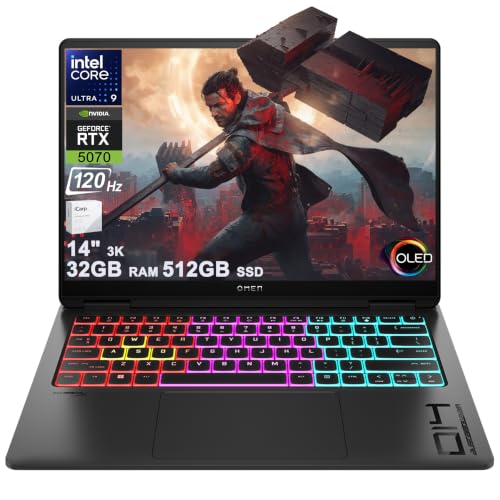
| HP Omen Transcend 14 | Color-accurate OLED and 32GB RAM | 3K OLED 120Hz, 100% DCI-P3, RTX 5070 |
| MSI Stealth 14 AI Studio | Slim build with 165Hz refresh | Core Ultra 7 155H, RTX 4060, 165Hz FHD+ |
How to Choose
Start with the graphics card tier
Frame rates live and die on the GPU. In this class, an RTX 3060 or RTX 4060 handles current games at 1080p to 1200p with settings trimmed, an RTX 5060 steps that up with newer architecture, an RTX 5070 targets higher-resolution panels, and an RTX 5080 sits at the top of what fits in a 14-inch shell. Ignore “AI TOPS” figures in titles when your goal is gaming; they describe neural processing for AI features, not frame rates. Also note that thin laptops often run their GPUs at lower power limits than their desktop-style names suggest, so a model name alone does not predict speed.
Choose the display that suits how you play
The panels here fall into two groups. IPS screens at 165Hz suit competitive shooters and fast-paced games, and the listed WQXGA or UXGA resolutions add sharpness over plain full HD. The OLED screens at 120Hz bring deep blacks and high color coverage, such as the 100% DCI-P3 figure on the HP, which is attractive for creative work and cinematic games. The tradeoff is that 120Hz OLED gives up some of the raw refresh advantage of 165Hz. If you edit photos or video on the same machine, lean OLED. If you mostly play multiplayer shooters, lean 165Hz.
Set a floor for memory and storage
Sixteen gigabytes of RAM is the practical minimum for modern games, and 32GB gives breathing room for streaming, browser tabs, and creative software at once. Check whether the memory is soldered, since many thin laptops lock it in at purchase. For storage, 512GB fills quickly once a few large games are installed, so favor 1TB or more if you can. A fast PCIe Gen 4 or NVMe drive matters less than total capacity for most buyers, and external drives can handle the overflow.
Remember the small-chassis tradeoffs
A 14-inch body has less room for ports, battery cells, and fans. Expect fewer USB ports than on a 16-inch laptop, and plan to carry a charger for demanding sessions. Budget configurations cut corners by pairing an older processor with a newer GPU, or by shipping with a single memory stick. Read the full title for the processor generation; a 12th-generation Intel chip behaves very differently from a Core Ultra 9 285H, even when both sit under the word “gaming.”
For daily carrying, the spec sheet hints at a rough ordering: the older RTX 3060 and RTX 4060 systems pair modest graphics with smaller power demands, while the RTX 5070 and RTX 5080 builds trade bag weight and charger size for frame rates. Treat that as a guide to expectations rather than a measured result, since the titles do not list weight or battery hours.
The 7 Best Options
ASUS TUF Gaming A14
This Copilot+ gaming laptop pairs a 14-inch WQXGA 16:10 165Hz display with an AMD Ryzen AI Max+ 392 processor, 32GB of LPDDR5X memory, and a 1TB PCIe Gen 4.0 SSD. It suits users who need real multitasking memory in a portable body and want a sharp, fast screen.
- Strength: 32GB of memory and 1TB of storage out of the box.
- Strength: 16:10 WQXGA panel at 165Hz mixes sharpness and speed.
- Trade-off: the title lists no discrete graphics card, so the gaming ceiling is unconfirmed from this listing alone.
Skip it if you want a named RTX card in the spec line.
Acer Predator Helios Neo 14
The Helios Neo 14 combines an Intel Core Ultra 9 285H with an RTX 5070 and a 14.5-inch WQXGA 165Hz G-SYNC display. It is for gamers who want a current-generation mid-high GPU in a slightly roomier screen than the standard 14-inch size.
- Strength: RTX 5070 graphics paired with a 165Hz G-SYNC panel.
- Strength: the 14.5-inch screen adds a little more working area.
- Trade-off: the slightly larger body is a small step away from true 14-inch portability.
Skip it if you need the smallest footprint possible.
Acer Predator Triton 300 SE-14
This model lists a Core i7-12700H, 16GB of memory, a 512GB PCIe SSD, an RTX 3060, and a 14.0-inch IPS 1920×1200 display. It targets buyers who want a gaming-capable 14-inch system at a lower tier and accept previous-generation parts.
- Strength: RTX 3060 still handles many games at its native resolution.
- Strength: 16:10 display with a taller picture for productivity.
- Trade-off: older processor generation and only 512GB of storage.
Skip it if you want current-generation graphics or OLED color.
ASUS ROG Zephyrus G14 with RTX 5080
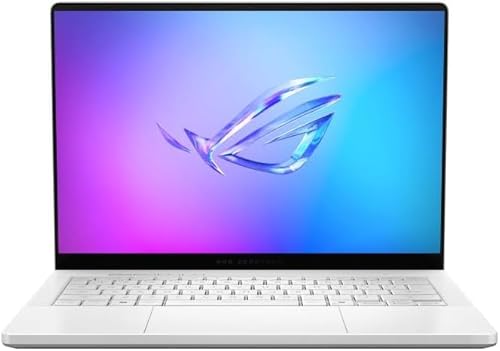
The top-tier G14 pairs a 14-inch 3K OLED 120Hz panel with a Ryzen AI 9 HX 370, an RTX 5080, 32GB of RAM, and a 2TB SSD, in Platinum White. It is the spec leader here for people who want maximum graphics in a small body.
- Strength: the most powerful GPU named in this group, with 2TB of storage.
- Strength: 3K OLED brings strong contrast and color.
- Trade-off: it sits at the premium tier, so it costs the most of the seven.
Skip it if your budget is mid-range or you play mostly esports titles that do not need this GPU.
ASUS ROG Zephyrus G14 with RTX 5060
This G14 lists a 14.0-inch 2.8K OLED display, a Ryzen 9 270 with 8 cores at 4.0GHz, an RTX 5060 with 8GB, 16GB of RAM, and 1TB of storage. It is a balanced build for people who want OLED color and a modern GPU without stepping up to the flagship.
- Strength: OLED panel plus an RTX 5060 at a moderate tier.
- Strength: 1TB of storage with 8GB of dedicated graphics memory.
- Trade-off: 16GB of RAM is fine for gaming but tight for heavy creative multitasking.
Skip it if you plan to run demanding creative apps next to games.
HP Omen Transcend 14
The Omen Transcend 14 lists a 3K OLED 120Hz display with 100% DCI-P3 and 500-nit HDR, an Intel Ultra 9 285H, 32GB of RAM, a 512GB SSD, and an RTX 5070. It appeals to buyers who value color accuracy and memory capacity alongside gaming power.
- Strength: 100% DCI-P3 coverage and HDR at 500 nits on an OLED panel.
- Strength: 32GB of RAM with an RTX 5070.
- Trade-off: 512GB of storage fills quickly with modern game installs.
Skip it if you want a bigger drive without adding external storage.
MSI Stealth 14 AI Studio
This configuration lists an Intel Core Ultra 7 155H, 16GB of DDR5 RAM, a 1TB NVMe SSD, an RTX 4060, and a 14-inch FHD+ 165Hz display. It suits shoppers who prefer a slim system and one-generation-back graphics.
- Strength: 165Hz refresh with RTX 4060 graphics.
- Strength: 1TB NVMe storage with DDR5 memory.
- Trade-off: the FHD+ panel is less sharp than the WQXGA and 3K options above.
Skip it if display sharpness or OLED color is the priority.
Which One Fits Your Situation
You want the most graphics in the smallest body
Choose the ASUS ROG Zephyrus G14 with the RTX 5080. Its GPU and 2TB of storage lead the group, and its OLED panel suits both games and media.
You game and edit video on the same machine
The HP Omen Transcend 14 is the stronger pick on paper, with 32GB of RAM, OLED, and 100% DCI-P3 coverage. The ASUS TUF Gaming A14 is a second option if memory and storage matter more than a named GPU.
You play competitive shooters
The Acer Predator Helios Neo 14 pairs an RTX 5070 with a 165Hz G-SYNC display, which fits fast-paced multiplayer games better than a 120Hz OLED does.
You are on a tighter budget
The Acer Predator Triton 300 SE-14 and the MSI Stealth 14 AI Studio use previous-generation graphics, which usually puts them in a lower price tier. Pick the MSI for 165Hz and more storage, or the Acer for a taller 16:10 screen.
Common Mistakes
- Choosing by GPU name alone without considering that thin laptops often run graphics at reduced power.
- Counting AI TOPS figures as gaming performance when they measure neural processing.
- Buying 16GB of RAM for creative work that wants 32GB.
- Ignoring the 512GB storage limit, then running out of space after three large games.
- Expecting a 14-inch laptop to offer the same port selection as a 16-inch model.
Specs and Terms Explained
Graphics power limit (TGP)
Two laptops can carry the same graphics chip name and still perform differently, because each maker sets how many watts the chip may draw. That limit is called total graphics power. In a 14-inch body the limit is often lower than in a larger machine, so a spec sheet that lists the wattage tells you more than the chip name alone. When a listing hides it, assume the chip is held back to keep the chassis cool.
MUX switch and hybrid graphics
Most gaming laptops have a power-saving integrated graphics chip alongside the dedicated one. A MUX switch lets the dedicated chip drive the screen directly, which can lift frame rates a little and lower input delay. Without one, the image passes through the integrated chip first. It is a nice extra for competitive play but not a reason to reject an otherwise strong model.
VRAM
Video memory holds textures and frame data on the graphics card. Newer games with high-resolution texture packs fill it quickly, and running out causes stutter even when raw speed is fine. This is why a higher graphics tier with more VRAM tends to age better than a slightly faster chip with less.
Thermal throttling
When the processor or graphics chip gets too hot, it slows itself down to protect the hardware. Compact bodies reach that point sooner than large ones. Owners of thin machines commonly report a clear drop in frame rate after a long session, which is why a laptop stand and a performance fan profile matter more here than on a bulky 17-inch model.
Setup and Care Tips
- Update the graphics driver and the maker’s control software on day one; these often unlock fan profiles and the MUX setting.
- Use the performance power mode while plugged in, and switch to a balanced mode on battery to protect the runtime.
- Raise the back of the laptop slightly so the intake vents can breathe, and avoid using it on a bed or sofa cushion.
- Clean the vents with short bursts of compressed air every few months, holding the fans still so they do not overspin.
- If the machine supports charging over USB-C, keep a small travel charger for light work and save the full-size brick for gaming.
- Avoid leaving the battery at full charge while plugged in for weeks; a battery-care or charge-limit setting, where offered, extends its life.
Who Should Skip These
If the laptop will sit on a desk with a monitor all day, a larger machine gives you better cooling for the same graphics tier and often a gentler budget, so the portability premium of a 14-inch model may be wasted. Players who want the longest sessions at maximum settings in the most demanding titles will also find a 16-inch chassis more comfortable. Finally, anyone who needs a numeric keypad for spreadsheets should expect a cramped layout at this size.
Related guides
- Helping Hands Soldering Station With Magnifier
- Is 8000Hz Polling Rate Worth It For 144Hz Monitor
- Bench Power Supply For Electronics Hobbyists
Frequently Asked Questions
Can a 14-inch laptop really replace a gaming desktop?
For many players in 2026, yes, especially with an RTX 5070 or better. A desktop still wins on raw sustained performance and upgradeability, so the laptop is best for people who need portability.
Is OLED worth it on a gaming laptop?
OLED offers deep blacks and wide color, which helps in cinematic games and creative work. Its 120Hz refresh is lower than the 165Hz found on IPS options, which matters most for fast competitive play.
How much RAM do I need?
Sixteen gigabytes covers most games. Choose 32GB if you stream, edit video, or keep many applications open while playing.
Do 14-inch gaming laptops overheat?
Smaller chassis have less cooling space, so manufacturers limit GPU power to manage heat. A lower-tier GPU such as an RTX 5060 is easier on thermals than an RTX 5080, which is worth weighing against raw frame rates.