Key takeaways
- Step 1 — Cable it. Modem to the blue WAN port, PC to any LAN port — or connect wirelessly to the TP-LINK_XXXX network using the key printed on the bottom label (later revisions; early ones broadcast an open network).
- Step 2 — Open the admin page. Browse to 192.168.0.1 or tplinkwifi.net. Some early revisions answer on 192.168.1.1 instead.
- Step 3 — Log in. Older firmware accepts admin/admin; newer revisions prompt you to create an admin password on first login.
- Step 4 — Quick Setup. Let it auto-detect the WAN type: Dynamic IP for most cable/fiber, PPPoE for DSL (enter the ISP username and password), Static IP only if your provider gave you one.
- Step 5 — Wireless settings. Rename the SSID and set security to WPA2-PSK AES with a strong passphrase. Avoid mixed WPA/TKIP modes, which are weaker and can slow N-mode links.
- Step 6 — Finish and reboot, then reconnect every device to the new SSID.
- Step 7 — Harden it. Change the admin password, turn off WPS (the PIN method has a documented brute-force weakness), and make sure remote management is disabled.
- Step 8 — Firmware. Under System Tools → Firmware Upgrade, install the newest file for your exact hardware version from TP-Link’s support site. Flashing a file for the wrong version can brick the router permanently.
What's inside
The TP-Link TL-WR841N wireless N router is still usable in 2026 — but only for internet plans under roughly 50Mbps, for 2.4GHz-only devices, or as a repurposed access point behind a modern router. Its two hard limits are a single 2.4GHz radio rated at 300Mbps on paper and 10/100 Ethernet ports that cap every wired and wireless connection at about 94Mbps no matter how fast your plan is. Below is what this TP-Link 300Mbps wireless N router actually delivers in real homes, how to set it up and log in, and a straight answer on whether yours should stay, be repurposed, or be replaced.
As an Amazon Associate we earn from qualifying purchases at no extra cost to you.

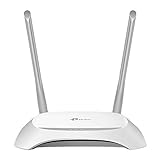

Specs at a glance
| Spec | TL-WR841N detail |
|---|---|
| Wi-Fi standard | 802.11n (Wi-Fi 4), single-band 2.4GHz |
| Advertised link rate | 300Mbps (2×2 MIMO, 40MHz channel bonding) |
| Wired ports | 1x 10/100Mbps WAN, 4x 10/100Mbps LAN |
| Antennas | 2x 5dBi fixed (WR841ND variant: detachable) |
| Extra modes (later revisions) | Access Point, Range Extender/WISP, WDS bridge |
| Security | WPA/WPA2-PSK, WPS button; no WPA3 |
| Flash / RAM (V11+ revisions) | Typically 4MB / 32MB |
| Size / power | ~192 × 130 × 33 mm; 9V/0.6A adapter |
| Typical 2026 street price | Used or new-old-stock, roughly $10–25 |
One thing spec sheets never flag: hardware revisions matter a lot. The WR841N has shipped in more than a dozen versions (V5 through V14 and beyond), and the sticker on the bottom (“Ver: V14,” for example) determines which firmware file it accepts, which extra modes are available, and whether the firmware asks you to create an admin password or ships with a default one.
What “300Mbps” actually delivers in 2026
The 300Mbps figure is the radio’s raw link rate, not internet throughput — and on this TP-Link wireless N router it barely matters, because the Fast Ethernet WAN port is the real bottleneck. Even if the Wi-Fi could move more, nothing leaves the router faster than the WAN port allows.
| Connection scenario | Realistic internet throughput |
|---|---|
| PC wired to a LAN port | ~90–94Mbps (port ceiling) |
| Wi-Fi, same room, clear signal | ~60–85Mbps |
| Wi-Fi, one wall away | ~35–60Mbps |
| Wi-Fi, two walls / crowded apartment 2.4GHz | ~15–30Mbps plus jitter |
Do the math on the Fast Ethernet ceiling: a 100Mbps port yields about 94Mbps of usable TCP throughput after overhead. On a 200Mbps fiber plan, that’s more than half of your paid bandwidth stranded at the WAN port. For context, a single 4K stream needs roughly 25Mbps, so the WR841N handles one stream comfortably in the same room — but two streams plus a video call plus a background download already brushes against both the radio and the port limit at once.
Setup and login: first run in about 10 minutes
- Step 1 — Cable it. Modem to the blue WAN port, PC to any LAN port — or connect wirelessly to the TP-LINK_XXXX network using the key printed on the bottom label (later revisions; early ones broadcast an open network).
- Step 2 — Open the admin page. Browse to 192.168.0.1 or tplinkwifi.net. Some early revisions answer on 192.168.1.1 instead.
- Step 3 — Log in. Older firmware accepts admin/admin; newer revisions prompt you to create an admin password on first login.
- Step 4 — Quick Setup. Let it auto-detect the WAN type: Dynamic IP for most cable/fiber, PPPoE for DSL (enter the ISP username and password), Static IP only if your provider gave you one.
- Step 5 — Wireless settings. Rename the SSID and set security to WPA2-PSK AES with a strong passphrase. Avoid mixed WPA/TKIP modes, which are weaker and can slow N-mode links.
- Step 6 — Finish and reboot, then reconnect every device to the new SSID.
- Step 7 — Harden it. Change the admin password, turn off WPS (the PIN method has a documented brute-force weakness), and make sure remote management is disabled.
- Step 8 — Firmware. Under System Tools → Firmware Upgrade, install the newest file for your exact hardware version from TP-Link’s support site. Flashing a file for the wrong version can brick the router permanently.
Ownership realities: what ages, what breaks, what to watch
Firmware support is the biggest caveat. The last official updates for most WR841N revisions shipped years ago, and WPA3 will never come to this platform. If you keep it in service, the safer arrangement is as a wired access point behind a modern gateway rather than as your edge router — especially on a home office network.
What physically wears first: the 9V wall adapter and the router’s capacitors, after years of heat, usually die before the radio does — replacement adapters are cheap and often revive a “dead” unit. On the WR841ND, the detachable antenna joints loosen over time. The unit runs cool enough that it rarely overheats, but keep its vents out of enclosed cabinets.
Custom firmware: the WR841N was a classic DD-WRT/OpenWrt candidate, but late revisions carry only 4MB of flash and 32MB of RAM — too small for current OpenWrt releases. Only legacy or trimmed community builds fit, which largely cancels the security benefit of flashing.
Common mistakes owners make: buying it “new” in 2026 for a fast plan because the price looks attractive; leaving WPS and default credentials enabled; forcing 40MHz channels in crowded buildings where 20MHz would actually be more stable; and hiding it behind a TV or metal shelf, which can halve usable range.
Keep it, repurpose it, or replace it?
| Your situation | Verdict | Why |
|---|---|---|
| Plan ≤50Mbps (DSL, fixed wireless), light streaming in a small flat | Keep it | Below ~90Mbps the ports aren’t the bottleneck |
| Plan of 100Mbps or faster | Replace | The ~94Mbps ceiling strands paid bandwidth |
| Gaming, multiple 4K streams, all-day video calls | Replace | No 5GHz band to escape 2.4GHz congestion |
| Need a segregated 2.4GHz network for older IoT/guest devices | Repurpose as access point | Disable DHCP, assign a static LAN IP, uplink it to your main router |
| One dead room far from the router | Repurpose as extender | Works, but repeater mode roughly halves throughput; wired AP is better |
| Dense apartment building with dozens of visible networks | Replace | Crowded 2.4GHz punishes aging N-class radios hardest |
If you’re replacing it: what roughly $35–60 buys in 2026
- Entry Wi-Fi 6 (AX1800 class) — models like the TP-Link Archer AX23 or ASUS RT-AX55 add gigabit ports, a real 5GHz radio, WPA3, and active firmware support. This is the default recommendation for plans up to ~500Mbps.
- AC1200 dual-band (Wi-Fi 5) — something like the TP-Link Archer C64 makes sense on a tighter budget for plans under ~300Mbps.
- Another N300 (Mercusys MW325R and similar) — only rational for plans under ~80Mbps; you’re otherwise buying the same two bottlenecks again.
Any of these is a bigger upgrade than the spec sheets suggest, because gigabit Ethernet and a 5GHz band remove both WR841N limitations simultaneously.
FAQ
What’s the WR841N default IP and password?
192.168.0.1 or tplinkwifi.net (192.168.1.1 on the earliest revisions), with admin/admin on older firmware. Newer revisions force you to set a password at first login — if you’ve forgotten it, hold the reset button about 10 seconds and start over.
Can it handle gigabit internet or 5GHz Wi-Fi?
No — both are hardware limits, not settings. The ports are 10/100 and there is no 5GHz radio.
Can it work as a repeater or access point?
Yes, on revisions that include Range Extender/WISP mode (older ones offer WDS bridging). Wired access-point mode is the stronger use, since repeating halves throughput.
How many devices can it handle?
About 10–15 light devices comfortably; the 32MB of RAM and aging radio start to struggle beyond that under real load.
Is it still safe to use in 2026?
Usable, with mitigations: WPA2-AES only, WPS and remote management off, a unique admin password — and ideally AP-mode duty behind a patched modern router rather than serving as your network’s front door.
WR841N vs. WR841ND — what’s the difference?
Same router; the ND’s antennas detach, which lets you fit higher-gain replacements.