Key takeaways
- How to calibrate a monitor step by step: warm-up, reset, white point, gamma and brightness targets, Windows and macOS tools, colorimeter use and a fix table.
To calibrate a monitor, let it warm up for about half an hour, reset it to default settings, set a fixed brightness and a 6500K white point, then use either the free Windows or macOS calibration tool or a hardware colorimeter to adjust gamma and create a color profile. The built-in tools take about ten minutes and improve a screen that looks too warm, too cool or too contrasty, while a colorimeter gives repeatable readings that matter for photo and video work.
This guide covers the three methods, the preparation that makes any of them work better, a symptom-and-fix table, a worked brightness example, and the signs that a problem is hardware and not settings. It draws on published guidance from operating-system makers and calibration hardware vendors, so treat exact menu names as subject to change between versions and check the current documentation for your system.
Calibration methods compared
| Method | What you need | Accuracy | Best for |
|---|---|---|---|
| By eye with test patterns | Free patterns or a game’s own sliders | Low to moderate | Quick fix for clipped blacks or washed-out whites |
| Operating-system wizard | Windows “Calibrate display color” or the macOS display calibrator | Moderate; depends on your eyes and room | General users who want a better baseline |
| Colorimeter plus software | A hardware sensor and its software, or open-source tools | High for the chosen targets | Photo, video and design work; matching two screens |
| Hardware calibration | A monitor with internal lookup tables and supporting software | Highest; stored in the monitor | Professional workflows; check if the listing names it |
Most home users stop at the second row. The third row is the sensible step up when color accuracy affects income or when you need a repeatable result. Hardware calibration is a feature of specific monitors, so confirm it in the specifications; a normal gaming monitor will not have it.
Prepare before you touch any tool
Preparation changes the result more than people expect. Start with the display connected using the cable and port you normally use, running at its native resolution and the refresh rate you actually play at. A screen running at a non-native resolution is scaled, and no calibration can fix the softness that creates.
- Warm up. Leave the screen on for about 30 minutes with a bright, static image. Backlight output and color can drift while the panel warms.
- Reset the monitor. Use the factory reset in the on-screen menu so you start from a known state.
- Turn off dynamic features. Disable dynamic contrast, eco or ambient-light modes, local dimming controls that vary with content, and any “game” or “movie” picture preset that boosts saturation. Keep sharpening at the neutral value.
- Set the color mode. Choose a standard or sRGB mode if the menu offers one. A wide-gamut panel in its native mode can look oversaturated for ordinary content.
- Check the graphics driver. Make sure color settings in the graphics control panel are at defaults, and that the output uses the full RGB range when the monitor expects it. A mismatch here causes crushed blacks or washed-out greys that no later step will fix.
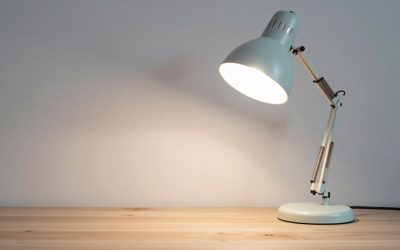
- Control the room. Avoid direct light on the screen and keep the lighting at the level you normally work in. Warm or cool bulbs near the monitor can bias your eyes; a neutral-colored task light placed so it does not shine on the glass helps, as covered in desk lamps for a PC setup.
Software calibration with the built-in tools
Windows includes a display color calibration wizard, found by searching the Start menu for “calibrate display color”. It walks through gamma, brightness and contrast, and color balance with example images, and it saves an ICC profile when you finish. On macOS, the Color tab in the display settings lets you create a profile with a calibration assistant, and the exact route differs between versions, so check Apple’s current support pages.
Work through each screen deliberately. On the gamma step, adjust until the small dots in the middle of the circles blend into their backgrounds, viewing from your usual seat. On black level, raise brightness only until the second-darkest block becomes visible, not the darkest. On white, lower contrast until the brightest stripes stay separate. For color balance, aim for neutral grey bars without a tint.
For HDR screens, Microsoft also offers a separate HDR calibration app in its store, which sets the brightness range for HDR content. Run it only if you use HDR in Windows, and do it after the standard calibration. If HDR looks worse than SDR afterward, revert in the app and check the monitor’s HDR mode in its menu.
Calibrating with a colorimeter, step by step
A colorimeter is a small sensor that sits on the screen and reads the light it emits. The vendor’s software, or open-source software such as DisplayCAL, shows test colors, compares what the sensor reads with the target, and builds a correction profile. Open-source software may no longer be actively maintained, so check compatibility with your sensor and your operating system version before relying on it.
- Install the software and plug in the sensor. Follow the vendor’s instruction to let the sensor warm up if it requires that.
- Choose targets: white point 6500K, gamma 2.2 (or sRGB curve), and luminance matched to your room.
- Run the brightness-adjustment stage. The software reads the white level live; change the monitor’s brightness control until the reading hits the target.
- If the monitor has RGB gain controls, let the software guide you to a neutral white before the full measurement run.
- Run the profiling pass, which displays dozens or hundreds of color patches. Keep the sensor flat and do not change the room lighting while it runs.
- Save and apply the profile, then open the verification report. Many programs list an average and maximum error value; lower is better, and an average well under 2 on the common delta E scale is a widely quoted good result for general work.
Worked example for the brightness step. Assumptions: a 27-inch monitor, a normally lit home office, and a general-purpose target of 120 cd/m2. Set the monitor’s brightness control to 50 percent, read the sensor value, and adjust. If the sensor shows 160 cd/m2 at 50 percent, drop it to around 35 to 40 percent and read again; if it shows 95 at 50 percent, move up. Write down the final control percentage. Once you have it, you can restore that exact brightness after a reset without the sensor. The percentage in the menu is not a standard unit, so expect a different number on every model.
Diagnostic table: common problems and fixes
| Symptom | Likely cause | What to try |
|---|---|---|
| Everything looks yellow or blue | Wrong color temperature or ICC profile mismatch | Reset monitor; set 6500K or a “Normal” mode; remove old profiles |
| Dark scenes lose detail | Black level too low or RGB range mismatch | Check graphics driver range; adjust brightness using a black-level pattern |
| Whites look grey or dim | Brightness too low, eco mode on, or dynamic contrast active | Disable eco modes; raise brightness to your target |
| Washed-out colors | Full versus limited range mismatch | Match the range between graphics driver and monitor |
| Oversaturated colors in photos | Wide-gamut panel without color management | Use an sRGB mode or a color-managed viewer |
| Banding in gradients | 8-bit panel with aggressive adjustments | Use smaller changes in the monitor menu instead of large graphics-card curves |
| Two screens do not match | Different panels, ages or modes | Calibrate each to the same targets; see triple monitor setup |
Panel type considerations
IPS panels usually hold color evenly across viewing angles, so sitting slightly off-axis changes little. VA panels have higher contrast but their color and gamma shift when viewed from the side, so calibrate from your normal seated position and avoid judging from an angle. OLED panels reach deep blacks, so the black-level step matters differently, and many have brightness limiters that make the white level vary with content, so check the maker’s recommended calibration notes. Monitors with matte coatings can look slightly less saturated than glossy ones, which is not a fault.
Brand matters less than the specific model. If you are comparing two brands and care about color out of the box, the Dell vs ASUS monitor comparison explains what each brand tends to emphasize, and the Samsung monitor roundup sorts listings by job.
Verification checklist
- A grey ramp from black to white shows no strong tint and no obvious steps.
- You can distinguish the darkest few shades without lifting the whole image.
- A white page looks neutral next to a sheet of plain paper under your normal light.
- Skin tones in a familiar photo look natural.
- Text stays sharp, which confirms native resolution and correct scaling.
- The settings survive a restart. If they reset, check whether the profile loader is running.
Games, HDR and the limits of profiles
An ICC profile only helps programs that read it. Photo editors and browsers generally do; most games, full-screen video and some creative tools do not. So the best result for gaming comes from setting the monitor itself: brightness, color temperature, and a standard or sRGB mode. If a game offers brightness and gamma sliders, set them last, using the game’s own calibration screen. Do not stack large corrections from the monitor menu, the graphics driver and the game at once, because each step can add banding or clip detail.
When to stop and replace or call support
Stop adjusting when the software cannot reach the target brightness at maximum, when one corner stays visibly dimmer or yellow after calibration, when colors flicker or change as the screen warms, or when the screen shows persistent patches that do not move with the picture. These point to an aging backlight, uneven panel, or a failing component. If the monitor is under warranty, contact the seller or manufacturer with the model, a photo of the problem on a plain white or grey screen, and the steps you already tried. If it is older, accept that a limited panel will not match a new one and consider replacing it.
Frequently asked questions
Do I need a colorimeter to calibrate a monitor?
No. The built-in Windows and macOS tools and a few test patterns will improve an obviously off screen, and many monitors are close enough out of the box for games. A colorimeter becomes worthwhile when you edit photos or video, need two screens to match, or want a repeatable white point and brightness target instead of eyeballing.
How long should a monitor warm up before calibration?
A common recommendation is around 30 minutes with a bright image displayed, because backlight output and color can drift while the panel reaches working temperature. Check the manual of your colorimeter or software, since some vendors suggest a different time, and keep room lighting steady while you work.
What brightness, white point and gamma should I choose?
For general use, a white point of 6500K, a gamma near 2.2 and a luminance between roughly 100 and 120 cd/m2 in a normally lit room are widely used starting targets. Dim rooms usually call for lower brightness. These are conventions, not rules, so adjust to your room and the work you do.
Will calibration change how my games look?
Only partly. A hardware change such as the monitor’s brightness, color temperature or RGB gains affects everything. An ICC profile created by calibration software is applied by color-managed apps, and most games ignore it. For games, use the monitor’s own settings and an sRGB or standard mode if available.
How often should I recalibrate?
For color-critical work, many users re-check monthly or when the room lighting changes, and software often reminds you. For general use and gaming, a re-check when something looks off, after a driver or cable change, or after a long time is enough. Panels age, so large shifts over a year or two are normal.