Key takeaways
- Plug the RE450 into an outlet in the same room as your router — setup first, placement second.
- Connect your phone to the extender’s default network (TP-Link_Extender_2.4GHz or _5GHz), then open Tether.
- The app detects the RE450, asks you to create an admin password, then scans for your router’s networks. Select your 2.4GHz and 5GHz SSIDs and enter their passwords.
- By default the extender broadcasts your network name with an “_EXT” suffix. You can rename both bands to match your router’s SSID exactly, which gives you a single network name — though devices, not the extender, decide when to roam.
- Once saved, unplug the unit and move it to its permanent spot. Run any pending firmware update in Tether right away; early firmware is a common source of dropped connections.
What's inside
The TP-Link AC1750 Wi-Fi range extender (RE450) remains a sensible buy in 2026 if you need to push a Wi-Fi 5 router’s signal into one or two dead rooms for under roughly $70 — it’s easy to set up through the Tether app, its signal LED makes placement nearly foolproof, and its gigabit Ethernet port adds wired flexibility. It is not the right choice if your router is already Wi-Fi 6 or your internet plan exceeds about 500 Mbps, because its AC1750 radios will bottleneck newer hardware.
As an Amazon Associate we earn from qualifying purchases at no extra cost to you.



Key specifications at a glance
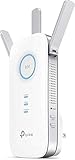
The RE450 is a wall-plug dual-band extender with three adjustable external antennas. Here’s what the AC1750 rating actually breaks down to:
| Spec | Detail |
|---|---|
| Wi-Fi class | AC1750, dual-band 802.11ac (Wi-Fi 5) |
| Rated link rates | 450 Mbps (2.4GHz) + 1300 Mbps (5GHz) |
| Antennas | 3 × external, adjustable |
| Ethernet | 1 × gigabit (10/100/1000) port |
| Modes | Range extender, access point, High Speed Mode |
| Signal indicator | LED ring — blue = good link, red = too far from router |
| Setup options | Tether app, WPS button, or tplinkrepeater.net web UI |
| Size | ~6.4 × 3.0 × 2.6 in (163 × 76 × 66 mm) |
| Typical street price | Roughly $45–70 |
Setup through the Tether app
The TP-Link AC1750 Wi-Fi range extender RE450 takes about five minutes to configure, and the Tether app (iOS and Android) is the smoothest route:
- Plug the RE450 into an outlet in the same room as your router — setup first, placement second.
- Connect your phone to the extender’s default network (TP-Link_Extender_2.4GHz or _5GHz), then open Tether.
- The app detects the RE450, asks you to create an admin password, then scans for your router’s networks. Select your 2.4GHz and 5GHz SSIDs and enter their passwords.
- By default the extender broadcasts your network name with an “_EXT” suffix. You can rename both bands to match your router’s SSID exactly, which gives you a single network name — though devices, not the extender, decide when to roam.
- Once saved, unplug the unit and move it to its permanent spot. Run any pending firmware update in Tether right away; early firmware is a common source of dropped connections.
A WPS button on the front offers an even faster one-press setup if your router supports it, but you’ll skip the password and naming options the app gives you.
Placement: let the LED ring do the work
The single biggest mistake with any extender is placing it where Wi-Fi is already dead — it can’t repeat a signal it can’t hear. The RE450’s LED ring solves this: after relocation, blue means the link back to the router is strong, red means you’ve gone too far.
- Start at the halfway point between the router and the dead zone, not inside the dead zone itself.
- If the ring glows red, move one room closer to the router and wait ~10 seconds for the LED to re-evaluate.
- Prefer an open wall outlet over a power strip buried behind furniture — the antennas need clearance, and vertical adjustment of the three antennas can nudge a marginal blue ring into a solid one.
- For the 2.4GHz band, keep the unit away from microwave ovens and cordless phone bases, which share that spectrum.
Speeds on 2.4GHz vs 5GHz
Independent lab tests and typical home measurements of the RE450 line up consistently: on a ~500 Mbps connection, expect numbers in this range.
| Distance from router (via extender) | 5GHz throughput | 2.4GHz throughput |
|---|---|---|
| ~10 ft, same room | 300–380 Mbps | 80–95 Mbps |
| ~30 ft, one wall | 180–240 Mbps | 60–80 Mbps |
| ~50 ft, two walls | 90–130 Mbps | 30–50 Mbps |
| ~70 ft, garage/far bedroom | 40–70 Mbps | 15–30 Mbps |
Two things explain the drop-off. First, any single-radio-per-band extender halves throughput because each packet is received, then retransmitted — that’s physics, not a defect. Second, 5GHz delivers the speed but decays faster through walls, while 2.4GHz reaches farther but tops out lower and suffers more interference.
The RE450’s High Speed Mode (enabled in Tether or the web UI) is the fix worth knowing: it dedicates one band entirely to talking to the router and leaves the other band purely for your devices, largely eliminating the halving penalty. Use 5GHz as the backhaul band unless distance forces you onto 2.4GHz.
The gigabit Ethernet port works in both directions: plug in a smart TV or console to give it wireless access, or run an Ethernet cable from the router to flip the RE450 into access point mode — at which point you get full wired backhaul and the best performance this hardware can deliver.
Who should buy it — and who shouldn’t
| Your situation | Recommendation |
|---|---|
| Wi-Fi 5 router, 1–2 dead rooms, budget under ~$70 | RE450 is a strong fit |
| Wi-Fi 6 router or internet plan above ~500 Mbps | Step up to a Wi-Fi 6 extender such as TP-Link’s RE605X or RE715X |
| Whole-home coverage, 3+ dead zones, seamless roaming wanted | A mesh system will outperform any single extender |
| Need to hardwire a TV/console in the weak-signal room | RE450’s gigabit port handles this well |
| Ethernet run to the dead zone is possible | RE450 in AP mode beats repeating; a wired AP is even better |
Ownership realities
- It runs warm. The wall-wart design dissipates heat through the casing — this is normal, but don’t sandwich it behind curtains or stacked plugs.
- It can block the second outlet. At ~2.6 inches wide it may overlap a neighboring socket depending on your outlet orientation.
- The LED is bright at night. Tether includes a night mode / LED schedule — set it before the extender lands in a bedroom.
- Firmware matters. Units shipped years ago still receive periodic updates; check quarterly in the app for stability fixes.
- Nothing wears out, but the non-detachable antennas loosen over repeated adjustment — set their angle once and leave them.
FAQ
Does the RE450 work with non-TP-Link routers?
Yes — it’s a standard extender and pairs with any router brand’s 2.4GHz or 5GHz network via Tether, WPS, or the web interface.
Why is my extended speed roughly half the router’s?
Because the extender uses the same radio to receive and re-send data. Enable High Speed Mode to dedicate one band as backhaul, or use the Ethernet port for AP mode to bypass the issue entirely.
Can I use the TP-Link AC1750 Wi-Fi range extender as a wired access point?
Yes — connect Ethernet between the router and the RE450’s gigabit port, then switch modes in the settings. This delivers better performance than wireless repeating wherever a cable run is practical.
For extending a Wi-Fi 5 network into a spare bedroom, garage, or backyard-facing office, the RE450 still earns its spot in 2026 — just confirm your router and plan aren’t fast enough to justify paying a little more for a Wi-Fi 6 model instead.