Key takeaways
- Plug it in near the router first. Do initial pairing in the same room, then relocate. Wait about a minute for the indicator to settle into its pairing state.
- Install Xiaomi Home and check the region. This is the single most common setup failure: the app region must match the region the unit was sold for. A global unit usually needs “Europe” or a similar international region; the wrong region means the device simply never appears in the add-device list.
- Add the device. Tap + in the app — the extender is usually discovered automatically. Select it, then grant location permission if asked (Android uses it for Wi-Fi scanning).
- Enter router credentials. The app relays both bands — you provide the 2.4 GHz password and it carries the 5 GHz network over too.
- Choose your SSID strategy. Mirroring the router’s network names gives near-seamless roaming; adding a suffix like _5G lets you force devices onto a specific band deliberately. More on why you’d want that below.
- Move it and read the light. Blue means a healthy link back to the router; orange means the link is weak and it should be closer.
What's inside
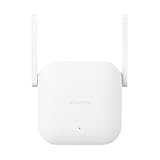
The Mi WiFi Range Extender AC1200 is the right buy if you need usable Wi-Fi pushed into one or two dead rooms for roughly $15–25 — and the wrong buy if you’re trying to blanket a multi-floor house or feed a gigabit connection. It’s a palm-sized plug-in unit with two external antennas, one 10/100 Ethernet port, and dual-band radios rated at 300 Mbps on 2.4 GHz plus 867 Mbps on 5 GHz. What follows covers how Mi Home pairing actually goes, where to plug it in so the two bands work for you instead of against each other, and how much coverage the physics support.
As an Amazon Associate we earn from qualifying purchases at no extra cost to you.



What the AC1200 hardware actually gives you
“AC1200” is a combined figure: 300 Mbps on 2.4 GHz and 867 Mbps on 5 GHz, with a single device only ever using one band at a time. The important ceiling isn’t the radios, though — it’s the single Fast Ethernet port, which maxes out around 95 Mbps for anything wired. The Mi WiFi extender AC1200 competes directly with TP-Link’s AC1200-class RE305 and Netgear’s EX6120, and all three share nearly identical radio hardware. The real differences are price, software, and roaming features:
| Mi WiFi Range Extender AC1200 | TP-Link RE305 (AC1200) | Netgear EX6120 (AC1200) | |
|---|---|---|---|
| Typical street price | $15–25 | $25–35 | $30–45 |
| 2.4 GHz link rate | 300 Mbps | 300 Mbps | 300 Mbps |
| 5 GHz link rate | 867 Mbps | 867 Mbps | 867 Mbps |
| Ethernet | 1× 10/100, wired client only | 1× 10/100, AP mode supported | 1× 10/100, AP mode supported |
| Antennas | 2 external | 2 external | 2 external |
| Management | Xiaomi Home (Mi Home) app | Tether app, OneMesh-ready | Nighthawk app |
| WPA3 | No — WPA2 only | No — WPA2 only | No — WPA2 only |
That last row matters more than it looks: if your router is set to WPA3-only, none of these will connect. Set the router to WPA2/WPA3 mixed mode before blaming the extender.
Pairing it through the Mi Home app
Setup takes about five minutes when it works — and the failure points are predictable:
- Plug it in near the router first. Do initial pairing in the same room, then relocate. Wait about a minute for the indicator to settle into its pairing state.
- Install Xiaomi Home and check the region. This is the single most common setup failure: the app region must match the region the unit was sold for. A global unit usually needs “Europe” or a similar international region; the wrong region means the device simply never appears in the add-device list.
- Add the device. Tap + in the app — the extender is usually discovered automatically. Select it, then grant location permission if asked (Android uses it for Wi-Fi scanning).
- Enter router credentials. The app relays both bands — you provide the 2.4 GHz password and it carries the 5 GHz network over too.
- Choose your SSID strategy. Mirroring the router’s network names gives near-seamless roaming; adding a suffix like _5G lets you force devices onto a specific band deliberately. More on why you’d want that below.
- Move it and read the light. Blue means a healthy link back to the router; orange means the link is weak and it should be closer.
When the app won’t find it
Three fixes cover most cases: disable any VPN or private relay on the phone during setup (they block local discovery); check whether your router’s 5 GHz radio sits on a DFS channel (52–140), which extenders often can’t see — locking the router to channels 36–48 solves it; and hold the reset pinhole for about five seconds to wipe a bad partial pairing before retrying. A WPS button press on both router and extender also works as a fallback, though you lose the per-band control the app gives you.
Placement: the dual-band part most people skip
The classic mistake is plugging an extender inside the dead zone. It can only rebroadcast what it receives, so it needs to sit where it still gets a strong router signal — roughly 60–70% of the way from the router toward the dead room. The indicator exists precisely for this: keep moving it until it stays blue.
Pick the backhaul band on purpose
The extender talks to your router on one band (the backhaul) and rebroadcasts on both. Which band carries the backhaul changes everything:
- 5 GHz backhaul — realistically 200–450 Mbps through one wall, but short reach. Use it when the extender is within about a room or two of the router.
- 2.4 GHz backhaul — a lower ceiling (around 60–90 Mbps in practice) but much better through walls and floors. Use it for a garage, garden, or far upper floor.
If you mirrored the router’s SSIDs, client devices pick their own band and often pick badly — a laptop will cling to a weak 2.4 GHz signal while a faster 5 GHz link exists. A distinct _5G network name lets you pin your TV or work laptop to the faster path.
How much extra coverage to expect
A typical router’s usable 5 GHz bubble indoors is roughly 10–12 metres through a wall or two; 2.4 GHz stretches to maybe 15–20 metres. Place the extender at about 8 metres from the router — where the backhaul still runs at 200–300 Mbps — and it adds a fresh bubble of roughly 8–10 metres in the dead zone’s direction.
The trade-off is the halving rule: because one radio receives and retransmits on the same channel, a wireless client behind the extender tops out near half the backhaul rate. A 300 Mbps backhaul yields roughly 120–150 Mbps at the client — still comfortable for 4K streaming (~25 Mbps), video calls, and downloads. Devices wired to the Ethernet port skip the airtime fight for that device, making the port the best seat in the house for a console or TV, capped at about 95 Mbps.
Which AC1200-class extender fits which situation
| Your situation | Pick | Why |
|---|---|---|
| Tightest budget, one dead room | Mi WiFi Range Extender AC1200 | Cheapest of the class; the app covers the basics |
| TP-Link router, may upgrade to mesh later | TP-Link RE305 | OneMesh links with compatible routers for unified roaming |
| Prefer mainstream retail availability and tooling | Netgear EX6120 | Nighthawk app is polished; AP mode adds flexibility |
| 3+ dead zones, multiple floors, or 300+ Mbps internet | A two-node mesh kit instead | Chained extenders compound the halving penalty |
Living with it: heat, resets, and common mistakes
- It runs warm, not hot. Keep the top vents clear — don’t wedge it behind curtains or a sofa.
- Nothing wears out, but settings go stale. After a router or password change, you’ll need a pinhole reset and a fresh pairing. There are no consumables.
- Check firmware quarterly. Updates arrive through Xiaomi Home and have historically fixed roaming and stability quirks — they don’t always auto-install.
- The mistakes that cause most complaints: placing it in the dead zone itself, expecting 5 GHz through two masonry walls, forgetting the Ethernet port is 100 Mbps (a wired PC will never exceed ~95 Mbps), and leaving a phone VPN on during setup.
FAQ
Does it need a Xiaomi router?
No — it works with any WPA2 router from any brand. The Mi Home app is just the setup tool.
Why is my speed roughly halved?
Because the extender’s radio spends half its airtime listening to the router and half talking to your device. It’s physics, not a defect — better backhaul placement is the fix.
Same network name or a different one?
Same name for phones and tablets that roam; a separate _5G name when you want to force a stationary device onto the fast band.