
If you run a ThinkPad as your primary work machine, the laptop’s own ports rarely cover what a full desk setup demands. You need dual external displays, a reliable charging path that doesn’t throttle under sustained load, and enough downstream USB ports to keep your keyboard, mouse, and peripherals plugged in without hunting for a hub. A Lenovo ThinkPad docking station solves all three problems at once, but the range of options spans wildly different prices, display capabilities, and power delivery tiers.
What separates a worthwhile dock from a frustrating one comes down to three things: whether the power delivery matches your laptop’s consumption, whether it actually drives the number of displays you need at the resolution you want, and whether its port selection reflects your real desk rather than a spec sheet. This roundup compares eight current options across published specs, pricing, and owner-reported experience so you can match a dock to your specific ThinkPad model and workflow without paying for features you’ll never use.
Our top picks
 40AY0090US Lenovo Thinkpad Docking Station Dual Monitor
- [Comprehensive Connectivity] - Seamlessly connect your devices with…
- [Enhanced Display Options] - Our Lenovo thunderbolt 4…
- [Efficient Power Delivery] - This Thinkpad Dock includes…
 Lenovo ThinkPad USB-C Dock Gen 2
- One Connection, No Limitations
- The days of being limited by your laptop's…
- Dock has the ability to support DisplayPort 1.4…
 Lenovo USA Lenovo ThinkPad USB-C Dock Gen
- Ports: 3x USB 3.1, 2x USB 2.0, 1x…
- Video Ports: 1x HDMI, 2x DisplayPort.
- Max Number of External Monitors: 3
| Product | Key specs | |
|---|---|---|
| 40AY0090US Lenovo Thinkpad Docking Station Dual Monitor | [Comprehensive Connectivity] - Seamlessly connect your devices with… [Enhanced Display Options] - Our Lenovo thunderbolt 4… [Efficient Power Delivery] - This Thinkpad Dock includes… | Check price |
| Lenovo ThinkPad USB-C Dock Gen 2 | One Connection, No Limitations The days of being limited by your laptop's… Dock has the ability to support DisplayPort 1.4… | Check price |
| Lenovo USA Lenovo ThinkPad USB-C Dock Gen | Ports: 3x USB 3.1, 2x USB 2.0, 1x… Video Ports: 1x HDMI, 2x DisplayPort. Max Number of External Monitors: 3 | Check price |
 Lenovo USA ThinkPad Thunderbolt 3 Dock Gen Lenovo USA ThinkPad Thunderbolt 3 Dock Gen | Ports: 2x HDMI Ports: 1x USB-C (Thunderbolt 3 compatible) 1x RJ-45 Ethernet 10Base-T/100Base-TX/1000Base-T | Check price |
 Lenovo ThinkPad Universal Thunderbolt 4 Dock Lenovo ThinkPad Universal Thunderbolt 4 Dock | One Cable Compatibility Remote Management | Check price |
 Lenovo 40AY0090US Dock Dual Monitor Bundle Lenovo 40AY0090US Dock Dual Monitor Bundle | Comprehensive Connectivity: - Seamlessly connect your devices with… [Enhanced Display Options] - Our thunderbolt 4 docking… [Versatile USB-C Connectivity] - Our docking station for… | Check price |
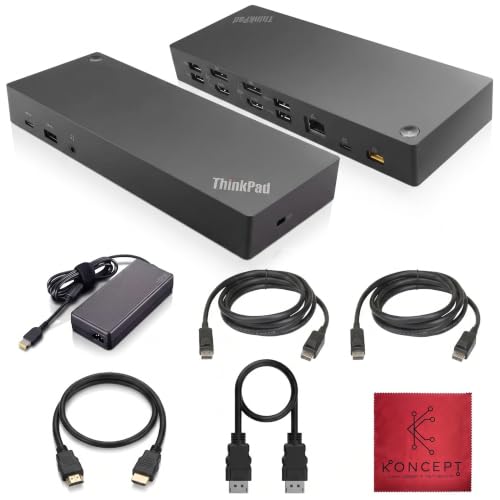 40AF0135US Lenovo Docking Station Dual Monitor 40AF0135US Lenovo Docking Station Dual Monitor | [Connectivity Hub for Enhanced Productivity] 2 x DisplayPort… [Versatile USB Connectivity] High-Speed USB 3.1 Gen2 Ports… [Enhanced Connectivity Options] High-Speed Gigabit Ethernet Port, Dual… | Check price |
 Lenovo ThinkPad USB 4 Smart Dock 5500 Lenovo ThinkPad USB 4 Smart Dock 5500 | ThinkPad USB4 Smart Dock 5500 delivers up to… Connect either one 8K 60Hz display or two… Supports PD 3.1 with up to 100W output… | Check price |
As an Amazon Associate we earn from qualifying purchases at no extra cost to you.
Quick Picks
| Product | Best for | Price |
|---|---|---|
| 40AY0090US Dual Monitor Bundle | Full setup out of the box | $236.99 |
| USB-C Dock Gen 2 (40AS0090) | Budget-conscious USB-C users | $103.96 |
| USB-C Dock Gen 2 (40AS0090US) | US availability and warranty | $103.70 |
| Thunderbolt 3 Dock Gen 2 135W | High-wattage Thunderbolt 3 laptops | $144.50 |
| Universal Thunderbolt 4 Dock | Multi-display Thunderbolt 4 setups | $229.00 |
| 40AY0090US Renewed Bundle | Bundle value on a budget | $157.99 |
| 40AF0135US Dual Monitor | USB-C and USB-A flexibility | $189.99 |
| USB 4 Smart Dock 5500 | Future-proof USB4 connectivity | $199.99 |
How We Picked
We narrowed this list using four criteria that consistently drive owner satisfaction or frustration in this category: power delivery wattage relative to your ThinkPad’s actual consumption, native display output count and resolution ceilings, cable and accessory inclusion versus separate purchase, and broad compatibility across recent ThinkPad generations. A dock that looks impressive on paper but can’t sustain 90W to a 16-inch P-series while driving two 4K panels is a paper tiger. We prioritized products whose published specifications align with real multi-monitor desk configurations.
The 8 Best Lenovo Thinkpad Docking Station in 2026
40AY0090US Dual Monitor Bundle
This is the grab-everything option for someone who wants a single purchase to cover the dock, a 90W power adapter, both HDMI and DisplayPort cables, a USB-C cable, and even a microfiber cloth. For ThinkPad users building a dual-monitor station from scratch, the bundle eliminates the tedious process of sourcing compatible cables separately.
- Pro: Includes everything needed for a complete dual-monitor setup in one box.
- Pro: 90W adapter provides sufficient power for most mid-range ThinkPads under load.
- Con: The highest sticker price in this list, and not every buyer needs all the included accessories.
Skip this if you already own quality display cables or if your laptop draws more than 90W during sustained workloads.
USB-C Dock Gen 2 (40AS0090)
The 40AS0090 has been the default recommendation for USB-C ThinkPad users needing a simple, reliable dock at an accessible price. It handles the common two-display scenario without Thunderbolt complexity and connects to any laptop with a USB-C port that supports DisplayPort Alternate Mode.
- Pro: Lowest entry price among docks with genuine dual-display support.
- Pro: Broad compatibility across most USB-C ThinkPads without model-specific caveats.
- Con: Power delivery and bandwidth are capped by USB-C, so heavier laptops may experience throttling.
Skip this if your ThinkPad requires more than what USB-C power delivery can provide under sustained multi-monitor load.
USB-C Dock Gen 2 (40AS0090US)
Functionally identical to the 40AS0090, the US variant (40AS0090US) exists primarily for buyers who need domestic warranty coverage and US-specific regulatory labeling. The price sits a few cents below its sibling, making it a practical choice when you want certainty about after-sales support.
- Pro: US warranty and support infrastructure included.
- Pro: Slightly lower listed price than the non-US variant.
- Con: Same USB-C bandwidth ceiling means it won’t outperform the 40AS0090 in any scenario.
Skip this if you already have a valid warranty path through another retailer and don’t need US-specific documentation.
Thunderbolt 3 Dock Gen 2 135W
The 40AN0135US is the dock for ThinkPad P-series and X1 Extreme users whose laptops demand more than 100W. Thunderbolt 3 bandwidth supports dual UHD 4K displays, and the 135W adapter covers even workstation-class power requirements. For anyone whose USB-C dock throttles charging during heavy GPU tasks, this removes that ceiling entirely.
- Pro: 135W power delivery handles high-consumption ThinkPads without compromise.
- Pro: Dual 4K display output with generous port count including two HDMI and two DisplayPort.
- Con: Requires a Thunderbolt 3 or 4 laptop; USB-C-only ThinkPads cannot use it.
Skip this if your ThinkPad lacks Thunderbolt or if you rarely push more than 90W of sustained power draw.
Universal Thunderbolt 4 Dock
This dock represents the current high-end standard: Thunderbolt 4 connectivity, support for up to four displays, and 100W charging. It’s designed for users running a four-monitor desk or those who want maximum future headroom. The 100W delivery covers most modern ThinkPads, and Thunderbolt 4’s minimum bandwidth guarantees consistent multi-display performance.
- Pro: Four-display support is the highest in this roundup.
- Pro: Thunderbolt 4’s guaranteed bandwidth floor eliminates the variability that plagued early TB3 docks.
- Con: At $229, it costs more than twice the budget options without benefiting two-monitor users.
Skip this if your desk stays at two displays or your laptop doesn’t have Thunderbolt 4.
40AY0090US Renewed Bundle
The renewed version of the 40AY0090US bundle saves roughly a third over the new unit while including the same cable set and 90W adapter. For buyers who prioritize value and don’t mind a refurbished label, it delivers identical functionality with a slightly compressed warranty window.
- Pro: Meaningful savings over the new bundle while retaining all included accessories.
- Pro: Same 4K display support and 90W adapter as the brand-new version.
- Con: Renewed status may carry a shorter warranty period depending on the seller.
Skip this if you want a full manufacturer warranty with zero ambiguity or if you’re buying a gift.
40AF0135US Dual Monitor
The 40AF0135US bridges the gap between pure USB-C docks and full Thunderbolt units. It supports dual monitors over USB-C while retaining USB-A ports for legacy peripherals that newer Thunderbolt docks sometimes drop. This matters for offices with older keyboards, mice, or data cables still in rotation.
- Pro: Mixed USB-C and USB-A connectivity reduces the need for separate hubs.
- Pro: Dual-monitor support with a clean cable path for common ThinkPad configurations.
- Con: Sits in an awkward price middle ground without a standout headline feature.
Skip this if you already own a USB-C hub for your A-peripherals or if your laptop demands Thunderbolt power levels.
USB 4 Smart Dock 5500
The newest entry here, the Smart Dock 5500 uses the USB4 standard to deliver up to four displays, 100W laptop charging, and an integrated USB4 cable that eliminates a separate purchase. The 135W adapter included in the box ensures the dock itself has ample power budget for full multi-display and charging simultaneously.
- Pro: USB4 is the emerging standard across 2026 ThinkPad lines, ensuring long-term compatibility.
- Pro: Integrated cable and bundled 135W adapter reduce total cost of ownership.
- Con: Requires a USB4-capable laptop; older USB-C or Thunderbolt 3 ThinkPads won’t reach full speed.
Skip this if your current laptop predates USB4 and you’re unlikely to upgrade within the dock’s useful lifespan.
Buying Guide
Match Power Delivery to Your Laptop’s Real Draw
A 90W adapter covers ThinkPad T-series and E-series under normal office loads, but a P-series workstation with a discrete GPU can pull more than 100W under sustained compute. Check your laptop’s rated adapter wattage: if it ships with 135W, a 90W dock will either throttle performance or slowly drain the battery during heavy work. The 135W Thunderbolt 3 dock and the USB 4 Smart Dock 5500 address this gap directly.
Display Output Count and Protocol
Two monitors is the practical minimum for a productive desk. Beyond that, verify that the dock’s stated display count isn’t a marketing number achieved through daisy-chaining or MST hubs that reduce per-display bandwidth. A dock that supports four displays via Thunderbolt 4 at native resolutions does more than one that claims four displays through a single USB-C output split across MST.
Thunderbolt 3 vs. USB-C vs. USB4
USB-C docks offer the lowest entry price and work with any USB-C ThinkPad. Thunderbolt 3 and 4 docks provide higher guaranteed bandwidth, enabling more displays at higher resolutions without MST workarounds. USB4 bridges both worlds, using the USB-C connector with Thunderbolt 4–class performance. Choose based on your laptop’s port type and your display count, not on which label sounds newest.
Our Verdict
The Thunderbolt 3 Dock Gen 2 135W (40AN0135US) is the overall top pick for anyone with a Thunderbolt-capable ThinkPad that demands serious power. It balances display capability, wattage headroom, and port variety at a price well below the premium tier.
The USB-C Dock Gen 2 (40AS0090US) wins as the budget pick. At under $104, it delivers dual-display support and broad compatibility that covers the majority of ThinkPad owners without overspending.
The Universal Thunderbolt 4 Dock overtakes the top pick if your desk genuinely needs four independent displays, because no other option in this list matches that capability natively.
FAQ
Do all Lenovo ThinkPad docking stations work with every ThinkPad model?
No. USB-C docks require a USB-C port with DisplayPort Alt Mode, Thunderbolt docks require Thunderbolt 3 or 4, and USB4 docks need USB4 support. Check your specific ThinkPad’s port type before purchasing, as older models with only USB-A or micro-DP outputs won’t connect at all.
Can I use a 90W dock with a ThinkPad that came with a 135W adapter?
It will physically connect and charge, but the dock cannot sustain 135W. Under heavy workloads like GPU rendering or multi-monitor use with an external drive array, the laptop may draw from its battery or throttle performance to stay within the 90W budget.
What does “Renewed” mean for a Lenovo dock?
Renewed indicates the product has been inspected, tested, and repackaged by a certified refurbisher. Functionally it should perform like new, but warranty length and cosmetic condition may differ from a factory-sealed unit. Prices are typically lower as a trade-off.
How many monitors can I realistically run from a ThinkPad dock?
USB-C docks with DP Alt Mode typically support two external displays. Thunderbolt 3 docks commonly handle two UHD 4K screens. Thunderbolt 4 and USB4 docks can extend to four displays, though real-world resolution limits depend on your laptop’s GPU and the dock’s specific firmware implementation.









