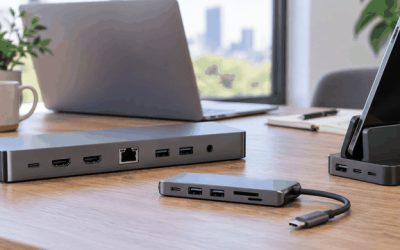
A laptop that drives two monitors, charges at full speed, and still leaves a free USB port for your flash drive is the promise every pc docking station makes. In practice, many cheap hubs deliver one of those three features and quietly compromise on the rest. Dual HDMI ports sound straightforward, but bandwidth sharing means the second screen often runs at 1080p while the first gets 4K. Power delivery passthrough can starve a demanding workstation if the hub splits wattage poorly. Understanding which trade-offs you can live with is the whole game.
We compared these eight docking stations on published specifications, listed prices, and recurring themes in owner reviews. The goal is to cut through marketing language and show you which model actually solves your desk problem without charging a premium for features you will never use. Whether you are a laptop-first freelancer who needs a single cable to tidy your setup or a developer who demands triple displays, the right pick here saves you money and a cluttered workspace.
Our top picks
 Dell Pro Laptop Docking Station WD25
- Powerful compatibility: Power essential productivity across the AI…
- Modern manageability: The Dell Pro Dock is part…
- Thoughtful design: Configure your workspace with an ambidextrous…
 Anker Nano Laptop Docking Station
- Detachable 2-in-1 Design for Desk & Travel
- Triple Display with Flexible Monitor Setup
- All the Ports You Need in One Dock
| Product | Key specs | |
|---|---|---|
 Anker Laptop Docking Station Dual Monitor Anker Laptop Docking Station Dual Monitor | Check price | |
| Dell Pro Laptop Docking Station WD25 | Powerful compatibility: Power essential productivity across the AI… Modern manageability: The Dell Pro Dock is part… Thoughtful design: Configure your workspace with an ambidextrous… | Check price |
| Anker Nano Laptop Docking Station | Detachable 2-in-1 Design for Desk & Travel Triple Display with Flexible Monitor Setup All the Ports You Need in One Dock | Check price |
 Docking Station Dual Monitor Docking Station Dual Monitor | 【9-Port Expansion】With a single USB-C connection, this docking… 【Dual 4K HDMI Display】Connect two external monitors through… 【Wide System Compatibility】Vicfluxion universal docking station compatible with… | Check price |
 Anker Laptop Docking Station Anker Laptop Docking Station | Turn your laptop into a desktop workstation with… Charge your laptop at 85W and your phone… Run up to 3 external monitors at 1080p@60Hz… | Check price |
 USB C Laptop Docking Station Dual Monitor USB C Laptop Docking Station Dual Monitor | Docking Station 14 in 1:This usb c docking… Ultra High-definition 4K Dual Monitor Output and Triple… Super Speed Data Transfer: Laptop docking station equipped… | Check price |
 Anker Nano Laptop Docking Station Dual Monitor Anker Nano Laptop Docking Station Dual Monitor | Check price | |
 Acer USB-C Docking Station Dual Monitor Acer USB-C Docking Station Dual Monitor | Check price |
As an Amazon Associate we earn from qualifying purchases at no extra cost to you.
Quick Picks
| Product | Best for | Price |
|---|---|---|
| Anker Dual Monitor 8-in-1 | Simple dual-screen office setups | $39.99 |
| Dell Pro WD25 | Dell laptop owners wanting reliable 100W passthrough | $152.49 |
| Anker Nano 13-in-1 | Travelers who want a detachable hub | $111.99 |
| Dual Monitor 2 HDMI Hub | Lowest-cost entry into dual displays | $32.99 |
| Anker 13-in-1 Triple Display | Power users driving three screens at once | $149.99 |
| USB C Dual Monitor Hub | Balanced mid-range dual-screen needs | $49.99 |
| Anker Nano 8-in-1 | Windows users who want a compact, cheap dock | $35.99 |
| Acer 9-in-1 Dual Monitor | One-stop shop with broad port selection | $43.99 |
How We Picked
Port count alone is misleading. The criteria that separate a genuinely useful pc docking station from a gimmick are display output quality (does it deliver true 4K on both screens or split bandwidth?), power delivery passthrough wattage relative to your laptop’s draw, and connection stability over months of daily use as reflected in long-term owner reviews. We also weighed build quality and cable strain relief, because a dock that fails at six months costs more than a slightly pricier one that lasts.
The 8 Best PC Docking Station in 2026
Anker Laptop Docking Station Dual Monitor, 8-in-1 USB C Hub
This is the pick for anyone who wants a clean dual-monitor setup without spending beyond the cost of a nice lunch. The 8-in-1 layout covers two 4K HDMI outputs, USB-A ports, and an Ethernet jack, which handles most office workflows comfortably. Owners praise its compact footprint and the fact that it works plug-and-play on macOS and Windows alike.
- Pro: Delivers 4K on a primary display without requiring a power adapter for light workloads.
- Pro: Solid aluminum housing dissipates heat better than plastic hubs in this price bracket.
- Con: Only one USB-C data port, so you lose a charging input if your laptop also charges through it.
Skip it if you need more than one USB-A connection for legacy peripherals or if you expect simultaneous 4K on both screens at 60Hz.
Dell Pro Laptop Docking Station WD25
Dell’s WD25 earns its price through reliability that third-party hubs struggle to match. With 100W USB-C power delivery, DisplayPort, HDMI, and multiple USB-A ports, it feeds a workstation-class laptop all day without bottlenecking performance. The dedicated DisplayPort output is a quiet advantage for anyone who has seen signal dropouts on HDMI-only docks. Owner feedback consistently highlights plug-and-play recognition with Latitude and Precision series machines.
- Pro: Full 100W passthrough means no battery drain even under sustained CPU load.
- Pro: DisplayPort alongside HDMI gives flexible multi-monitor options at higher refresh rates.
- Con: The $152.49 price is roughly three times what competing docks with similar port counts ask.
Skip it if your laptop is not Dell or if you find non-Dell docks that do not recognize it properly; the value here is tied to ecosystem synergy.
Anker Nano Laptop Docking Station, 13-in-1 with Detachable Hub
Anker’s clever twist here is a detachable 6-in-1 hub that slots into the main 13-in-1 body. For people who leave their desk for meetings, you pull the smaller hub off and carry it, leaving the heavy dock stationary. The full 13-in-1 configuration covers dual 4K HDMI, USB-A and USB-C ports, SD and microSD readers, and Ethernet.
- Pro: The detachable sub-hub eliminates the choice between desk docking and portable connectivity.
- Pro: SD and microSD slots serve photographers and videographers who otherwise need a separate reader.
- Con: The magnetic attachment is functional but can feel slightly loose when the sub-hub is used independently in a bag.
Skip it if you never leave your desk and would rather save $70 by buying a fixed dock with identical port layouts.
Docking Station Dual Monitor, USB C Hub with 2 HDMI
At $32.99, this is the cheapest way into a dual-screen workflow. It supports two HDMI outputs at up to 4K, but owner reviews warn that the second port typically maxes at 1080p when both are active simultaneously due to shared bandwidth. For a primary 4K monitor plus a secondary display for reference material, that limitation is invisible in practice.
- Pro: Lowest barrier to entry for anyone who has been putting off a second screen for budget reasons.
- Pro: Slim profile slides under a monitor stand without adding visual clutter.
- Con: Build quality uses cheaper plastics; cable strain relief is minimal and owners report fraying at the junction after heavy use.
Skip it if you need both monitors running at 4K simultaneously or if you value long-term durability over initial savings.
Anker Laptop Docking Station, 13-in-1, Triple Display
Triple display support puts this dock in a different tier from everything else in this roundup. It drives three monitors from one USB-C connection and still offers 100W power passthrough, so a laptop like the MacBook Pro 16 stays fully charged during demanding multi-screen work. The 13 ports cover Ethernet, SD, USB-A, USB-C, and audio jacks.
- Pro: Genuine triple-display capability eliminates the need for a separate GPU dock or daisy-chained adapters.
- Pro: Anker’s software integration provides per-port control and firmware updates that many competitors lack.
- Con: At $149.99, it costs more than a Dell WD25 while serving a narrower audience.
Skip it unless you are certain your laptop’s GPU and DisplayLink drivers support three external displays without a dedicated dock from the manufacturer.
USB C Laptop Docking Station Dual Monitor HDMI
This mid-range option sits in a sweet spot for users who want dual HDMI plus a broader port selection than the $32.99 hub offers, without paying for triple-display overhead. Owners report solid 4K output on the primary port and 1080p on the secondary, which mirrors real-world usage patterns for most desk setups.
- Pro: Includes Gigabit Ethernet and multiple USB-A ports, enough to retire a separate network adapter and USB hub.
- Pro: Compact metal chassis resists wobble on uneven desks.
- Con: Power delivery passthrough is adequate but not full wattage for the most power-hungry laptops under sustained load.
Skip it if you run a laptop that needs the full 90-100W to maintain performance while charging; a Dell WD25 or Anker triple-display dock handles that better.
Anker Nano Dual Monitor 8-in-1 USB C Hub for Windows
Anker’s Nano line trims the 8-in-1 format into one of the slimmest dual-monitor docks available. The explicit Windows optimization means it recognizes drivers and display arrangements more predictably on Intel and AMD-based machines, a point that matters to users frustrated by macOS-first assumptions elsewhere. At $35.99, it undercuts even the Anker 8-in-1 while offering comparable features.
- Pro: Windows-specific tuning reduces the chance of a black-screen on hot-plug events that plague generic hubs.
- Pro: Nano footprint fits easily into a laptop sleeve alongside a charger.
- Con: The slim profile means fewer ports than the 13-in-1 Anker options; no SD card reader here.
Skip it if you transfer files from cameras daily or if you are on macOS and cannot benefit from the Windows-focused firmware optimizations.
Acer USB-C Docking Station Dual Monitor, 9-in-1
Acer brings a nine-port layout with two HDMI outputs, three USB-A ports, a USB-C port, Ethernet, SD, and a 3.5mm audio jack into a single enclosure at $43.99. The port variety is the strongest argument here; no other dock under $50 offers this many distinct connection types. Owners on Acer laptops particularly praise native display recognition.
- Pro: Nine distinct ports cover nearly every peripheral combination a laptop user encounters without dongle chaining.
- Pro: The included 3.5mm audio pass-through lets you keep wired speakers or a headset connected through the dock.
- Con: No explicit wattage rating for power passthrough in published specs, which makes it harder to match against a specific laptop’s charging requirement.
Skip it if you need guaranteed high-wattage passthrough and want a published spec to match against your laptop’s requirement sheet.
Buying Guide
Display Output: Single-Link vs. True Dual 4K
The phrase “dual 4K” on a pc docking station listing is ambiguous. Many hubs use DisplayPort over USB-C with a splitter that delivers 4K on one port and 1080p on the other. If you require both monitors at native resolution and 60Hz, look for explicit per-port bandwidth specs or a dock that uses a DisplayLink chip, which encodes both streams independently. Otherwise, plan on one primary at 4K and one secondary at 1080p, which honestly covers most productivity tasks.
Power Delivery Passthrough: Match Your Laptop’s Draw
A 65W USB-C charger plugged into a dock that only passes through 60W will slowly drain a 16-inch workstation laptop during compilation or rendering tasks. Check your laptop’s maximum input wattage and ensure the dock specifies passthrough at or above that number. The Dell WD25’s 100W rating is a concrete advantage for power-hungry machines; cheaper hubs often cap at 85-90W and silently throttle performance.
Port Diversity vs. Dongle Fatigue
Count your actual daily connections. If you use a wired mouse, keyboard, an external SSD, and occasionally an Ethernet cable, you need at least three USB-A ports and one network jack. A 13-in-1 dock with an SD reader is overkill for a text editor but essential for a photographer who offloads cards at the desk. Buy for your real workflow, not for the feature list on the box.
Our Verdict
The Anker Nano 13-in-1 is the top overall pick for its unique detachable-hub design, which solves both desk and travel scenarios without doubling your dock collection. The Dual Monitor 2 HDMI Hub at $32.99 is the budget pick if you simply need two screens and accept minor bandwidth sharing. However, if you run a Dell Latitude or Precision laptop, the Dell WD25 becomes the clear winner because its native driver integration and full 100W passthrough eliminate the compatibility friction that third-party docks introduce.
FAQ
Can any USB-C dock drive two 4K monitors?
Only docks with independent per-port bandwidth or a DisplayLink chip can reliably push 4K at 60Hz to two monitors simultaneously. Most affordable dual-HDMI docks share a single display stream and downscale the second port. Check the spec sheet for per-port resolution claims rather than trusting a “4K dual monitor” headline.
Do I need software drivers for a docking station?
Docks using DisplayPort or HDMI alt-mode through USB-C are mostly plug-and-play on modern laptops. Docks with DisplayLink or triple-display capabilities require installing a small driver package. Check the product listing for driver requirements before assuming zero-setup operation.
Will a dock reduce my laptop’s charging speed?
Yes, if the dock’s passthrough wattage is lower than your charger’s output. A 90W charger through a dock rated at 65W passthrough will charge your laptop slower and may cause the battery to drain during intensive tasks. Match dock passthrough to your laptop’s maximum accepted input.
Are expensive docks worth it over $40 options?
A $150 dock like the Dell WD25 buys you better power delivery, more reliable long-term connections, and often a longer warranty. The jump from $33 to $50 typically adds one extra USB port and a slightly sturdier build. Above that range, you are paying for triple-display support, detachable designs, or brand-specific driver certification.