
A MacBook Pro or Air with only two or three USB-C ports turns a simple desk setup into a constant dance of plugging and unplugging. A mac docking station eliminates that friction by consolidating everything into one cable to the laptop, giving you dual external displays, wired networking, SD card readers, and a dozen USB ports without a tangle of dongles on your desk. The problem is that not all docks deliver equally — some cap at 4K@30Hz on a single HDMI, others refuse to pass through the full charging wattage Apple’s M-series chips expect, and a surprising number throttle performance under sustained load.
What separates a good dock from a mediocre one comes down to a handful of concrete specs: the actual display output standard (HDMI 2.0 vs 2.1), total wattage delivered to the laptop, whether dual monitors work at full resolution simultaneously, and the thermal design that prevents throttling after an hour of video calls and file transfers. The eight options below span from under twenty dollars to nearly three hundred, and each solves a different slice of the connectivity puzzle. We compared published specifications, verified port configurations, and weighed owner-reported reliability to narrow this field for 2026.
Our top picks
 Anker USB C Hub
- 5-in-1 Connectivity: Equipped with a 4K HDMI port,…
- Powerful Pass-Through Charging: Supports up to 85W pass-through…
- Transfer Files in Seconds: Move files to and…
 Anker Nano Laptop Docking Station
- Detachable 2-in-1 Design for Desk & Travel
- Triple Display with Flexible Monitor Setup
- All the Ports You Need in One Dock
| Product | Key specs | |
|---|---|---|
| Anker USB C Hub | 5-in-1 Connectivity: Equipped with a 4K HDMI port,… Powerful Pass-Through Charging: Supports up to 85W pass-through… Transfer Files in Seconds: Move files to and… | Check price |
 Anker Laptop Docking Station Dual Monitor Anker Laptop Docking Station Dual Monitor | Check price | |
| Anker Nano Laptop Docking Station | Detachable 2-in-1 Design for Desk & Travel Triple Display with Flexible Monitor Setup All the Ports You Need in One Dock | Check price |
 Anker USB C Hub Anker USB C Hub | Sleek 7-in-1 USB-C Hub: Features an HDMI port,… Flawless 4K@60Hz Video with HDMI: Delivers exceptional clarity… Double Up on Efficiency: The two USB-A 3.0… | Check price |
 Anker Prime Docking Station Anker Prime Docking Station | 14-in-1 Connectivity: Bring together all your devices with… Ultra-Fast Docking Station: Deliver a powerful charge with… Master Your Data Flow with 11 Ports: Efficiently… | Check price |
 iVANKY 12-in-2 FusionDock 1 for M5 MacBook iVANKY 12-in-2 FusionDock 1 for M5 MacBook | 【M1/M2/M3 CHIP NOTE】Due to inherent limitations in the… 【Dual 4K@120Hz Displays】Only M4/M5 base and M1/M2/M3/M4/M5 Pro/Max… 【Full Speed Charging】This dock features a 150W power… | Check price |
 Docking Station Dual Monitor 4K HDMI 13-in-1 Docking Station Dual Monitor 4K HDMI 13-in-1 | Check price | |
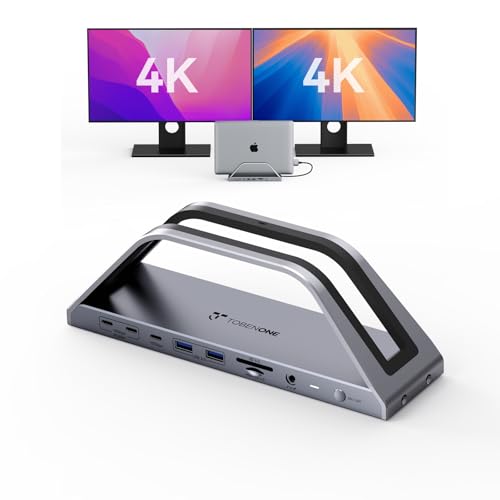 TobenONE MacBook Pro Docking Station Dual 4K TobenONE MacBook Pro Docking Station Dual 4K | 𝟏𝟕-𝐢𝐧-𝟐 𝐌𝐚𝐜𝐁𝐨𝐨𝐤 𝐏𝐫𝐨 𝐃𝐨𝐜𝐤𝐢𝐧𝐠 𝐒𝐭𝐚𝐭𝐢𝐨𝐧-𝐂𝐮𝐭 𝐂𝐚𝐛𝐥𝐞 𝐂𝐥𝐮𝐭𝐭𝐞𝐫 &… Exclusive MacBook Compatibility-Reliable Performance for Your Device 𝐏𝐥𝐮𝐠-𝐚𝐧𝐝-𝐏𝐥𝐚𝐲 𝐃𝐮𝐚𝐥 𝟒𝐊@𝟔𝟎𝐇𝐳 𝐃𝐢𝐬𝐩𝐥𝐚𝐲-𝐌𝐮𝐥𝐭𝐢𝐭𝐚𝐬𝐤 𝐖𝐢𝐭𝐡𝐨𝐮𝐭 𝐋𝐢𝐦𝐢𝐭𝐬 | Check price |
As an Amazon Associate we earn from qualifying purchases at no extra cost to you.
Quick Picks
| Product | Best for | Price |
|---|---|---|
| Anker USB C Hub, 5-in-1 | Minimalist travel setups | $19.99 |
| Anker 8-in-1 Dual Monitor | Budget dual-screen desks | $39.99 |
| Anker Nano 13-in-1 Dock | Modular, expandable workstations | $111.99 |
| Anker 7-in-1 4K@60Hz Hub | Single 60Hz display on a budget | $19.99 |
| Anker Prime 14-in-1 | Power users needing everything | $269.99 |
| iVANKY FusionDock 1 (M5) | MacBook Pro M5 owners | $113.97 |
| 13-in-1 Dual Monitor Dock | Mid-range dual 4K setups | $49.99 |
| TobenONE 150W Dual 4K Dock | Fast-charging with dual monitors | $161.99 |
How We Picked
We filtered this category on four criteria that directly affect daily use: display output quality (resolution and refresh rate per port, plus whether dual monitors run at full spec simultaneously), power delivery wattage and passthrough behavior, port variety relative to price, and thermal management as reported by long-term owners. A dock that throttles after twenty minutes of heavy file transfers or caps one HDMI port at 30Hz loses points regardless of how many ports it lists.
The 8 Best Mac Docking Station in 2026
Anker USB C Hub, 5-in-1 USBC to HDMI Splitter with 4K Display
For anyone who just needs one external display and a couple of USB-A ports without spending more than a fast-food meal. This slim hub adds HDMI output at 4K resolution alongside USB-A and USB-C data passthrough, making it ideal for coffee shops and hotel desks where you plug into a monitor or projector for a few hours. Owners praise its pocket size and reliable handshake with MacBook Air models.
- Pro: Extremely compact, fits in any laptop sleeve.
- Pro: Consistent 4K output that works across macOS versions without firmware updates.
- Con: Single HDMI output only — no path to dual monitors without a second unit.
Skip this if your desk setup requires more than one external display or if you need wired Ethernet and SD card slots.
Anker Laptop Docking Station Dual Monitor, 8-in-1 USB C Hub with 4K HDMI
The go-to answer for anyone who wants two 4K displays without spending over forty dollars. This dock outputs dual monitors from a single USB-C connection and adds USB-A ports plus SD/microSD readers, covering the most common peripheral gaps on a MacBook. Owners report it handles everyday productivity without thermal complaints, and the aluminum housing resists fingerprints.
- Pro: True dual-monitor output at 4K for under $40.
- Pro: Integrated SD and microSD readers save dongle clutter.
- Con: Power delivery is modest — full-speed charging on larger MacBook Pros may be limited.
Skip if you charge a 16-inch MacBook Pro through the dock and need maximum wattage passthrough.
Anker Nano Laptop Docking Station, 13in1 Dock with Detachable 6in1 USBC Hub
Designed for people who want one comprehensive desk dock but also need a compact hub for travel. The detachable six-in-one module pops out for on-the-go use, while the thirteen-port base station stays anchored to your monitor arm or desk. This modularity is genuinely rare in the category and saves you from buying two separate adapters.
- Pro: Two-in-one design — full dock plus portable hub in one purchase.
- Pro: Thirteen ports cover virtually every peripheral type at a desk.
- Con: Higher price than fixed docks with comparable port counts.
Skip if you only use one dock location and will never detach the hub.
Anker USB C Hub, 7in1 Multi-Port USB Adapter, 4K@60Hz USBC to HDMI Splitter
A direct upgrade pick over the 5-in-1 for anyone whose monitor supports 60Hz and where the difference between 30Hz and 60Hz is noticeable during scrolling and video playback. The extra ports include USB-A data and an additional USB-C passthrough. Owners highlight the refresh-rate jump as transformative for reading text and watching media at a desk.
- Pro: 4K@60Hz over HDMI — smooth scrolling without the lag of 30Hz panels.
- Pro: Seven ports in a footprint that stays under $20.
- Con: No dual-monitor capability; a second display requires another dock.
Skip if dual external monitors are non-negotiable for your workflow.
Anker Prime Docking Station, 14-in-1 Laptop Docking Station Dual Monitor
The flagship option for power users who want the maximum number of ports, dual 4K monitor output, high-wattage charging, and premium build quality in one unit. Fourteen connections cover Ethernet, multiple display ports, USB-A, USB-C, SD, and audio simultaneously. Owners consistently note it runs cool even under sustained multi-monitor workloads, which is the key differentiator at this price tier.
- Pro: Fourteen ports eliminate nearly every dongle scenario.
- Pro: Thermal performance under sustained load is a step above budget docks.
- Con: $269.99 is a significant investment that only makes sense if you use most of those ports.
Skip if your setup needs six or fewer ports — the Anker Nano or iVANKY will serve you at half the cost.
iVANKY 12-in-2 FusionDock 1 for M5 MacBook Pro Docking Station
Engineered specifically for the M5 MacBook Pro, this dock matches Apple’s latest hardware revisions in both port layout and power negotiation. Owners with the newest MacBook report fewer handshake issues compared to generic docks — a real advantage when macOS updates shift how Thunderbolt and DisplayPort interact. Twelve ports plus a detachable front module keep the desk clean.
- Pro: Designed around M5 chip behavior, reducing compatibility surprises.
- Pro: Twelve-plus ports with a modular front panel for quick-access connections.
- Con: Priced and sized for a premium laptop; overkill on older MacBooks.
Skip if you use a MacBook Air or an older Pro — the savings elsewhere are better spent.
Docking Station Dual Monitor 4K HDMI 13-in-1 USB C Hub for Laptop MacBook
A well-rounded thirteen-port dock at a mid-range price that delivers dual 4K HDMI outputs, Ethernet, USB ports, and SD card readers. It sits comfortably between budget hubs and premium docks, offering most of what owners need without the flagship price. Owner feedback highlights its reliability over months of daily use and its compatibility with both Intel and Apple Silicon Macs.
- Pro: Thirteen ports at under $50 is aggressive value for a dual-monitor dock.
- Pro: Solid owner satisfaction across multiple MacBook generations.
- Con: Brand visibility is lower, which may affect long-term firmware support.
Skip if you want the reassurance of a major manufacturer’s warranty ecosystem.
TobenONE MacBook Pro Docking Station Dual 4K Monitor, 150W Charger, 7 USB
For MacBook Pro owners who want their laptop charged at full speed through the dock while running dual 4K monitors. The 150W charger means you get the same or better charging wattage compared to plugging directly into the wall — a critical feature for 16-inch models that draw heavily under load. Seven USB ports cover hubs, drives, and peripherals without congestion.
- Pro: 150W passthrough keeps even a 16-inch MacBook Pro at full charging speed.
- Pro: Seven USB ports prevent the bottleneck smaller docks create.
- Con: Larger physical footprint on the desk.
Skip if you use a MacBook Air that charges at lower wattage — the extra power budget is wasted.
Buying Guide
Display Output: Resolution, Refresh Rate, and Dual-Monitor Behavior
Not all HDMI ports on a dock are equal. A “4K” label means nothing without the refresh rate — 4K@30Hz looks choppy during everyday scrolling and video calls, while 4K@60Hz is smooth and is the minimum you should accept for any primary display. Dual-monitor docks vary significantly here: some deliver two 4K@30Hz signals, others achieve two 4K@60Hz, and a few drop one port to 1080p when both are active. Check the exact combination supported simultaneously, not the maximum each port can do alone.
Power Delivery: Wattage Passthrough Matters More Than You Think
A dock that receives an 85W charger but only passes 60W to your MacBook Pro means slower charging or battery drain under heavy CPU and GPU load. Higher-end models like the TobenONE pass through 150W, ensuring your laptop charges at full speed while driving two monitors and peripherals. If your MacBook is a 14- or 16-inch Pro, look for at least 85W passthrough. For MacBook Air or 13-inch Pro users, 60W is usually sufficient.
Thermal Design and Long-Term Reliability
Docks that dissipate heat poorly throttle display output or drop USB connections after sustained use — exactly when you are mid-presentation or mid-export. Aluminum housings outperform plastic ones, and passive-vent designs with adequate surface area tend to be more reliable than those that rely on tiny fans. Owner reviews that mention “stable after months” or “no dropouts during long sessions” are more valuable than any spec sheet when assessing durability.
Our Verdict
The Anker Prime 14-in-1 is the top pick for anyone who uses their desk every day and wants a single dock that will not become a bottleneck as peripheral needs grow. For the budget-conscious, the Anker 8-in-1 Dual Monitor delivers true dual-4K output for under forty dollars, making it the most practical starting point for most MacBook users. That said, if you own a 16-inch MacBook Pro and need full-speed charging through the dock, the TobenONE 150W wins — no other option in this list passes through comparable wattage while driving dual displays.
FAQ
Do all USB-C docks work with any MacBook?
Most USB-C docks are functionally compatible with any MacBook that has a USB-C or Thunderbolt port, but the display and power behavior can vary between Intel and Apple Silicon models. Apple Silicon Macs generally handle multi-monitor setups more gracefully, while some older Intel MacBooks require specific display port combinations to drive two external screens simultaneously.
Is HDMI 2.0 or 2.1 better for a Mac docking station?
For 4K at 60Hz, HDMI 2.0 is sufficient and is what most docks in this category use. HDMI 2.1 adds support for higher refresh rates at 4K (120Hz and above) and is relevant only if you use a high-refresh gaming monitor. For productivity and creative work, a reliable HDMI 2.0 port at 60Hz is the practical target.
Can I use a docking station with a MacBook Air?
Yes, and the Air benefits significantly from one given its limited port count. The main consideration is power delivery — MacBook Air models charge at lower wattage than Pros, so you do not need a high-wattage passthrough dock. A modest 60W option like the Anker 8-in-1 or the iVANKY FusionDock is more than adequate.
Do docks reduce performance or cause overheating on MacBooks?
Well-designed docks do not degrade laptop performance; the dock handles its own thermal load independently. Issues arise with cheap units that have poor shielding, which can cause USB or audio interference, or with docks that cap power delivery below what the MacBook draws under load, leading to slower charging rather than reduced processing speed.









