Key takeaways
- The best network adf scanners for record archiving, compared by speed, feeder capacity, network options, OCR, and archive-ready output.
Finding the best network ADF scanners for record archiving begins with one question: how will a stack of paper become a searchable, reliable digital record that anyone on your team can find years from now? A scanner built for archiving does more than turn pages into images. It feeds thick stacks without jamming, captures both sides in a single pass, connects to the office network so several people can share one machine, and produces files with text that can be searched later. This guide compares four network-capable document scanners with automatic document feeders and explains what matters when you buy one for archiving.
How to Choose
1. Network connectivity
A network scanner earns its place in a shared office by working without a dedicated host computer. Look for wired Ethernet first, because a cabled connection stays stable during long batch jobs and keeps large scan files moving without wireless interference. Wi-Fi adds flexibility when the scanner must sit away from a network port, and Wi-Fi Direct lets a laptop or phone send a job without joining the office network. Check that the scanner supports scan-to destinations over the network, such as a shared folder, an email server, FTP, or a cloud service, so finished scans land where the archive lives.
2. ADF capacity and paper handling
The automatic document feeder sets the pace of any archiving project. A 50-sheet feeder suits a small office that scans in short sessions, while an 80-sheet or 100-sheet feeder keeps large backfile jobs moving with fewer reloads. Pay attention to the range of paper weights the feeder accepts, because archives mix thin pages, folded letters, receipts, and card stock. Ultrasonic double-feed detection matters here: it senses when two pages stick together and pauses the job, so a missed page does not silently vanish from the record.
3. Scan speed and daily duty cycle
Speed is quoted in pages per minute for single-sided scanning and images per minute for duplex work, where both sides of a page are captured at once. For archiving, duplex speed matters most, because nearly every record has content on both sides. A scanner rated at 40 pages per minute in duplex mode can clear a filing-cabinet drawer in a reasonable afternoon, while a 60 or 70 page-per-minute machine suits a team digitizing boxes of files. Just as important is the daily duty cycle, the number of pages the manufacturer rates the machine to scan each day. Choose a duty cycle comfortably above your busiest day, not your average day, so the scanner is not strained during a big conversion project.
4. Image quality and optical resolution
Most office records scan well at 300 dots per inch, which keeps text sharp and files compact. A 600 dpi optical resolution gives you headroom for small print, faint carbon copies, handwriting, stamps, and seals that need closer inspection later. Look for automatic image cleanup features: blank-page removal, deskew, background smoothing, and punch-hole removal all reduce the editing work after a batch finishes. Color depth matters when the archive includes photographs, highlighted annotations, or color-coded forms.
5. OCR and searchable file output
A scan without searchable text is a picture of a document, not a record you can find again. Optical character recognition, usually bundled with the scanner software or built into the device, turns the image into text that can be searched by keyword. For archiving, look for direct output to searchable PDF, which keeps the image and the text layer in one file, and for PDF/A support, the archival variant of PDF designed for long-term preservation. Check whether OCR runs on the device itself or needs a connected computer, because on-device OCR lets the scanner work standalone.
6. Software, drivers, and archive integration
The software around the scanner decides how smoothly it fits into your records system. Broad driver support, including TWAIN, WIA, and ISIS, lets the scanner work with document management systems and records platforms instead of only the bundled app. A touchscreen with one-touch profiles is valuable in a shared office: each department can have a preset destination, resolution, and file format, so staff do not reconfigure the machine for every job. Also confirm the scanner works with the operating systems in your office and supports user authentication, so only authorized staff can send scans to restricted archive folders.
7. Reliability, security, and running costs
An archive scanner is a workhorse, so build quality and service matter. A metal-reinforced paper path and replaceable rollers and feed pads extend the life of the machine through years of daily use. On the security side, look for encrypted network communication, secure scan-to-email, and the ability to require a PIN or login before a job starts, which protects confidential records on a shared device. Consumables are part of the running cost: check how often rollers need replacement and whether the vendor publishes a clear maintenance schedule. A longer warranty and a next-business-day exchange program reduce downtime when the scanner is the only route into the archive.
Top Picks
Fujitsu ScanSnap iX1600

View the Fujitsu ScanSnap iX1600 on Amazon
The ScanSnap iX1600 is the most approachable scanner in this roundup, and it suits a small office or a home archive project where one person, or a small team, does the bulk of the scanning. Its 50-sheet automatic document feeder handles a solid stack of letters, invoices, and statements, and it scans both sides of each page in a single pass at up to 40 pages per minute. A large 4.3-inch color touchscreen stores one-touch profiles, so a recurring job such as scanning receipts to a cloud folder becomes a single tap. Wi-Fi and USB connectivity let the scanner sit on a shelf away from a desk, and it sends scans directly to cloud services, email, or a computer without a cable.
Image quality is strong for its class, with 600 dpi optical resolution that renders small print, signatures, and stamps clearly. The bundled software creates searchable PDFs and can sort documents by type, which helps when an archive mixes receipts, business cards, and multi-page contracts. Its duty cycle is aimed at personal and small-team use rather than a records department, so it fits best where daily volume is moderate and the archive grows steadily.
Who it is for: small offices, home archivists, and professionals who want a simple touchscreen workflow and direct cloud destinations without managing a shared network device.
Caveats: the 50-sheet feeder is the smallest in this group, so large backfile projects need frequent reloading. It has no wired Ethernet port, so offices that require a cabled connection should look at the other picks.
Brother ADS-4900W

View the Brother ADS-4900W on Amazon
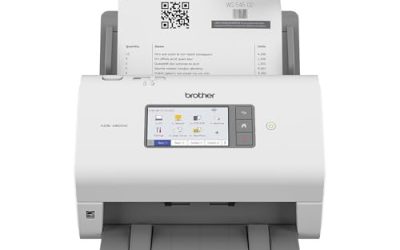
The Brother ADS-4900W is the heavy-duty pick in this group, built for a workgroup that scans all day. It moves up to 60 pages per minute, capturing 120 images per minute in duplex mode, and its 100-sheet feeder swallows thick stacks of mixed office documents. Connectivity is its strongest card: dual-band Wi-Fi, Gigabit Ethernet, and USB 3.0 are all on board, and the scanner supports scan-to destinations that matter for archives, including network folders, FTP and SFTP servers, email servers, SharePoint, and USB drives. A 4.3-inch color touchscreen with customizable shortcuts lets each department set up its own one-touch workflow, and user authentication keeps confidential records restricted.
Image handling is thorough, with 600 dpi optical resolution, ultrasonic double-feed detection, and automatic cleanup features that straighten pages, remove blank sides, and smooth backgrounds. The scanner accepts a wide range of media, from thin receipts to thick card stock and plastic ID cards, and it handles long documents that exceed standard page length, which is useful for contracts and continuous forms.
Who it is for: busy offices, legal and medical practices, and records teams that need a shared network scanner with fast duplex throughput, strong scan-to destinations, and security controls for sensitive files.
Caveats: this is a larger desktop machine that needs a permanent spot with room for the feeder and output tray. First-time setup takes longer than a simpler scanner, especially when configuring network destinations and user accounts.
Brother ADS-4700W

View the Brother ADS-4700W on Amazon
The Brother ADS-4700W sits in the middle of the Brother workgroup line, offering the same network-first design as its bigger sibling at a more moderate speed. It scans up to 40 pages per minute in duplex mode, capturing 80 images per minute, and its 80-sheet feeder is a comfortable size for a department that scans in regular sessions rather than continuous batches. Wi-Fi, Ethernet, and USB connectivity are all included, so the scanner can join the office network over a cable or sit on Wi-Fi in a records room, and it supports scan-to destinations including network folders, email, cloud services, and USB drives. The 10.9 cm color touchscreen carries one-touch shortcuts, and TWAIN, WIA, ISIS, and SANE driver support means it integrates with document management software without special setup.
For archiving, the ADS-4700W covers the essentials well: 600 dpi optical resolution, duplex capture in one pass, ultrasonic double-feed detection, and automatic image cleanup. It handles mixed stacks of letters, forms, and cards, and its paper path copes with the varied weights found in older files. The machine is compact enough for a shared desk or a small records station, and its touchscreen workflow keeps training short for staff who rotate through scanning duties.
Who it is for: departments and small workgroups that need a true network scanner with a generous feeder and solid scan-to options, but whose daily volume does not justify the fastest machine in the line.
Caveats: at 40 pages per minute it is noticeably slower than the ADS-4900W on large backfile jobs, so a team facing boxes of unfiled records should weigh the time difference. The feeder holds 20 fewer sheets than the larger model, which adds reloads on long batches.
Fujitsu fi-8270

View the Fujitsu fi-8270 on Amazon
The Fujitsu fi-8270 is the specialist pick for archives that include more than standard loose pages. It pairs a 100-sheet automatic document feeder with a built-in flatbed, so bound volumes, stapled booklets, fragile pages, and thick items can be scanned on the glass while loose sheets run through the feeder. Speed is the fastest in this group, at up to 70 pages per minute and 140 images per minute in duplex mode, and the scanner connects over Gigabit Ethernet or USB 3.2, making it a natural fit for a shared workstation or a small network deployment. The bundled PaperStream software is a genuine asset for archiving: it handles batch naming, image cleanup, and direct output to searchable PDF, and it integrates with enterprise content management systems through TWAIN and ISIS drivers.
Paper handling is a strength, with support for a wide range of weights and sizes, plus ultrasonic double-feed detection and paper protection sensors that stop the feeder when a page skews or folds. The flatbed adds real value for archives holding bound minute books, certificates, or damaged originals that should never pass through a feeder. At 600 dpi optical resolution, it produces clean text images at high speed, which keeps searchable-PDF output accurate.
Who it is for: archives, libraries, and records departments that handle mixed collections, including bound material and fragile originals, and need the fastest feeder in this group plus a flatbed for items that cannot be fed.
Caveats: the fi-8270 has no Wi-Fi, so it needs a wired network connection or a USB host, which limits where it can sit. The flatbed makes it wider and heavier than a feeder-only scanner, so it needs a sturdy desk. Its software is powerful but has a learning curve, and first-time users should allow time to set up batch profiles before beginning a large conversion project.
Comparison Table
| Feature | ScanSnap iX1600 | Brother ADS-4900W | Brother ADS-4700W | Fujitsu fi-8270 |
|---|---|---|---|---|
| Network connection | Wi-Fi, USB | Wi-Fi, Gigabit Ethernet, USB 3.0 | Wi-Fi, Ethernet, USB | Gigabit Ethernet, USB 3.2 |
| ADF capacity | 50 sheets | 100 sheets | 80 sheets | 100 sheets |
| Duplex speed | 40 ppm | 60 ppm / 120 ipm | 40 ppm / 80 ipm | 70 ppm / 140 ipm |
| Optical resolution | 600 dpi | 600 dpi | 600 dpi | 600 dpi |
| Touchscreen | 4.3-inch color | 4.3-inch color | 10.9 cm color | LCD panel with buttons |
| Flatbed | No | No | No | Yes |
| Scan-to destinations | Cloud, email, computer | Network folder, FTP/SFTP, email, SharePoint, USB | Network folder, email, cloud, USB | Network folder, searchable PDF, ECM via drivers |
| Double-feed detection | Yes | Ultrasonic | Ultrasonic | Ultrasonic plus paper protection |
| OCR and searchable PDF | Bundled software | Bundled software and drivers | Bundled software and drivers | PaperStream software |
| Best fit | Small office and home archive | Busy workgroup | Department workgroup | Mixed archive with bound material |
Which One Is Right for You?
Match the scanner to the shape of your archive, not only to its speed. If you work alone or in a small office and value a simple touchscreen and direct cloud destinations, the ScanSnap iX1600 keeps the workflow short and the desk footprint small. Its Wi-Fi connection and one-touch profiles suit a person who scans as records arrive, a few stacks a day, and wants searchable files without managing network settings.
If several people share one machine and the feeder rarely sits idle, the Brother ADS-4900W is the natural center of the office. Its combination of Gigabit Ethernet, dual-band Wi-Fi, and broad scan-to destinations means any authorized user can send a batch straight to the archive, and its 100-sheet feeder and 60 page-per-minute duplex speed clear large jobs quickly. Choose it when the scanner will serve a whole floor or a records team rather than one desk.
The Brother ADS-4700W is the right call when the workload is steady but not extreme. A department that scans daily batches of forms, correspondence, and case files gets the same network design and touchscreen workflow as the larger Brother, with a feeder and speed that match a moderate volume.
Pick the Fujitsu fi-8270 when the archive itself is varied. If your shelves hold bound volumes, booklets, certificates, or fragile pages alongside loose files, the flatbed is not a luxury but a requirement, and the fastest feeder in this group clears the loose material quickly. Its PaperStream software and enterprise driver support also suit an organization that already runs a document management system and needs the scanner to feed it directly.
Before you commit, check three practical points. First, confirm the scanner has the connection your office actually uses, wired or wireless. Second, estimate your largest single batch, not your average day, and pick a feeder that covers most of it without constant reloading. Third, decide where finished scans must land, a shared folder, a document system, or a cloud archive, and confirm the scanner can send files there directly.
Frequently Asked Questions
What makes a scanner good for record archiving?
A good archiving scanner combines a reliable automatic document feeder, duplex capture in one pass, network connectivity for shared use, and output to searchable PDF. Double-feed detection protects against missed pages, and 300 dpi or higher keeps text legible for future readers. Software that names batches, applies OCR, and sends files directly to the archive folder matters as much as raw speed, because an archive is only useful when files can be found again.
Is Wi-Fi enough, or do I need wired Ethernet for a network scanner?
Wi-Fi is enough for a small office where the scanner sits near an access point and batches are modest. Wired Ethernet is the safer choice for large daily volumes, because it avoids wireless interference during long jobs and keeps transfer speeds steady. Many offices use both: Ethernet for the main records scanner and Wi-Fi for a second machine in another room.
What resolution should I scan records at?
Scan text records at 300 dpi, which keeps characters sharp while holding file sizes down. Move to 600 dpi for small print, faint originals, handwriting, stamps, seals, or photographs that may need close inspection later. Whatever resolution you choose, save a searchable PDF so the text layer travels with the image.
How should I organize scanned records so they stay findable?
Use a consistent folder structure by year and record type, and give files names that include the date and a short description, such as the client, case, or document type. Apply OCR to every scan so the contents are searchable, and keep a simple index or use document management software when the archive grows beyond a few thousand files. Store a second copy in a separate location, and keep the original paper for legally sensitive records until you confirm the retention rules that apply to them.
Disclosure: As an Amazon Associate, we may earn from qualifying purchases.
More from Amazon
Programs that pair well with the guide above. Offers and eligibility are set by Amazon and may change.
Free shipping on eligible items, Prime Video and more. Eligible new members can start with a free trial.
Start a Prime free trialAd-free music streaming. Eligible new subscribers can start with a free trial.
Try Music Unlimited freeA Prime membership for ages 18-24 with a trial period. Eligibility is set by Amazon.
See Prime for Young AdultsAudiobooks and podcasts to listen to on the go. Eligible new members can start with a free trial.
Try Audible freeAs an Amazon Associate we earn from qualifying purchases.