Key takeaways
- Compare three network document scanners with automatic feeders for administrative teams, covering shared access, duplex speed, feeder capacity and workload.
An administrative team that still passes a single USB scanner from desk to desk loses time on every batch of forms, invoices, contracts and correspondence that needs to enter a shared system. The real decision is not about one impressive speed figure on a box. It is about whether several people can send work to the same machine over a network, whether mixed stacks feed cleanly without constant attention, and whether the resulting files land where colleagues can find them without a tangle of cables, email attachments and re-scans.
The three scanners below were chosen for teams that share one device in an office. The Brother ADS-4900W suits a high-volume workgroup that needs wired and wireless connections plus a large feeder. The Epson WorkForce ES-580W suits a team that wants a touchscreen, cloud destinations and a straightforward shared setup. The Ricoh ScanSnap iX1600 suits a team that values one-touch scanning, wireless placement and simple cloud filing for everyday paperwork.
Quick Picks
As an Amazon Associate we earn from qualifying purchases
| Product | Best for | Key spec from title |
|---|---|---|
| Brother ADS-4900W | High-volume shared workgroups | Professional desktop scanner with fast scan speeds, duplex and wireless |
| Epson WorkForce ES-580W | Touchscreen scanning to cloud folders | Wireless color duplex desktop scanner with 100-sheet auto document feeder |
| Ricoh ScanSnap iX1600 | One-touch wireless scanning for everyday paperwork | Wireless or USB high-speed cloud enabled scanner with large touchscreen and auto document feeder |
How to Choose
Shared network access
A scanner earns its place in an administrative team only when more than one person can reach it without unplugging anything. Look for both wired Ethernet and Wi-Fi, because a wired link keeps a fixed station stable while Wi-Fi lets the team place the machine where paper actually arrives. Check how scan destinations are set up, since a team needs named folders, email addresses and cloud accounts that stay in place from one day to the next. Ask whether each person can send a job from a desk, a laptop or a phone, and whether the machine can sit on the office network without a dedicated computer acting as a middleman.
Feeder capacity and paper handling
Feeder capacity shapes the rhythm of a working day more than any single speed number. A 50-sheet feeder suits a team that scans in short bursts, while a 100-sheet feeder suits a team that clears a morning pile of forms in one run. Mixed paper matters too, because administrative work combines letter pages, receipts, thin forms, thick cards and the occasional long sheet. Look for double-feed detection and paper protection, which help the machine pause rather than skip a page or damage an original. A feeder that handles varied stock cleanly saves more time than a faster machine that needs constant watching.
Duplex speed and daily workload
Duplex scanning captures both sides of a page in one pass, and that matters when contracts, forms and correspondence arrive printed on both sides. Compare the duplex figure in images per minute rather than pages alone, and weigh it against the daily duty cycle, which describes how much volume the machine is built to handle over a working day. A team that scans a few hundred pages a day needs a different machine from a team that clears several thousand pages during a busy period. Match the machine to the heaviest normal week, not the quietest one, so the scanner keeps pace when several people queue work at once.
File destinations and software
A scan only helps a team when the file ends up in the right place with a useful name. Look for searchable PDF creation, so colleagues can find a document by its contents rather than by remembering a filename. Check the cloud destinations the software supports, and whether scans can go straight to a USB drive, an email address or a shared folder without a computer in between. TWAIN driver support matters when the team uses document management software, because it lets the scanner work inside tools the office already uses. Simple profiles or one-touch shortcuts also help, since they let each person repeat a familiar job without changing settings every time.
The 3 Best Options
Brother ADS-4900W

The Brother ADS-4900W is built for a workgroup that treats scanning as a shared utility rather than a personal task. Its wired and wireless connections let the team place it on the office network, and its large touchscreen gives each person a clear way to choose a destination without opening software on a computer. The feeder holds a substantial stack, the duplex mechanism captures both sides in one pass, and the driver support suits offices that already run document management tools. For a team with heavy daily paperwork, this is the most workgroup-shaped machine of the three.
Specs
- Wireless 802.11a/b/g/n, Ethernet and USB 3.0 connectivity
- Up to 60 pages per minute, duplex up to 120 images per minute
- 100-page capacity auto document feeder
- 4.3-inch color touchscreen
- Optical scan resolution up to 600 x 600 dpi, interpolated up to 1200 x 1200 dpi
- Maximum daily duty cycle up to 9,000 pages
- TWAIN, WIA, ISIS and SANE driver support
- Scan to email, cloud, network folder and USB drive
Best for: Administrative workgroups with heavy daily scanning that need wired and wireless shared access.
Watch out for: Its size and capacity suit a fixed shared station better than a crowded personal desk.
ASIN: B09TRX9JQ3
Epson WorkForce ES-580W

The Epson WorkForce ES-580W gives an administrative team a clear touchscreen workflow for everyday scanning without a complicated setup. Its wireless connection and large feeder suit a shared desk where several people scan forms, tax paperwork, receipts and correspondence through the day. The machine creates searchable PDFs with optical character recognition, converts scans to editable Word and Excel files, and sends files to cloud storage, email or a USB drive without a computer in between. Double-feed detection and paper protection help it handle mixed stacks, while the included software checks scans and names files before they reach a shared folder.
Specs
- Wi-Fi connectivity with 4.3-inch touchscreen
- 100-sheet auto document feeder
- Scan up to 35 pages per minute and 70 images per minute in duplex
- Optical character recognition for searchable PDFs
- Scan to smartphones, tablets, computers and cloud storage accounts
- Save directly to a USB drive, email or cloud services such as Dropbox, Evernote, Google Drive and OneDrive
- TWAIN driver for document management software
- Peak daily duty cycle up to 4,000 pages
- Scan extra-long pages up to 240 inches, plus business and ID cards
Best for: Teams that want touchscreen scanning to cloud folders and searchable files from a shared desk.
Watch out for: Wireless setup takes care the first time, so follow the on-screen steps before the team begins using it.
ASIN: B08P3ZT5WH
Ricoh ScanSnap iX1600

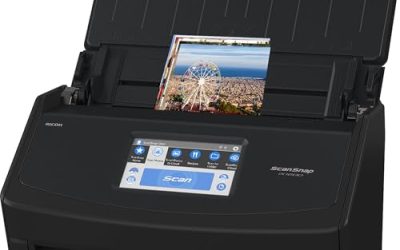
The Ricoh ScanSnap iX1600 suits an administrative team that wants scanning to feel like pressing one button and moving on. Its large touchscreen holds up to 30 customizable profiles, so each person or routine can have a named shortcut for a familiar job, from filing correspondence to archiving receipts. Wi-Fi and USB connections give the team freedom over placement, and cloud destinations let files reach shared storage without a computer acting as a go-between. The duplex mechanism captures both sides of a page in one pass, and the compact body fits a shared station where space is limited.
Specs
- Wi-Fi and USB connectivity
- 50-sheet auto document feeder
- Scan up to 40 pages per minute, duplex up to 80 images per minute
- 4.3-inch color touchscreen
- Optical scan resolution up to 600 dpi
- Up to 30 customizable profiles
- Scan to cloud services, email and folders
- Built-in optical character recognition for searchable PDFs
- For Mac or PC
Best for: Teams that want one-touch profiles and wireless placement for routine administrative paperwork.
Watch out for: The 50-sheet feeder suits steady daily batches better than very large single stacks, so split oversized piles.
ASIN: B08PMQQZ8H
Which One Fits Your Situation
A busy workgroup sharing one station
Choose the Brother ADS-4900W when several people feed the same machine through the day and the pile never really clears. Its 100-sheet feeder, fast duplex capture and wired plus wireless connections keep a shared station moving, while the touchscreen lets each person pick a destination without waiting for a computer. The higher daily duty cycle also gives the team headroom during busy periods when forms and contracts arrive in waves.
A team that files everything to the cloud
Choose the Epson WorkForce ES-580W when most scans need to land in a shared cloud folder, an email inbox or a USB drive. Its touchscreen workflow, searchable PDF creation and direct cloud destinations suit a team that files correspondence and forms as they arrive. The large feeder handles a morning stack in one run, and the software check helps the team verify a file before it reaches colleagues.
A small team that wants simple one-touch jobs
Choose the Ricoh ScanSnap iX1600 when the team values simplicity over raw capacity. Its profiles turn repeated jobs into a single tap, and its wireless connection lets the machine sit where paper arrives rather than where a cable reaches. The compact body suits a shared desk, and the duplex speed keeps routine batches of correspondence and receipts moving without fuss.
A team with mixed paper and varied originals
Choose the Epson WorkForce ES-580W when the daily pile mixes receipts, cards, long pages and standard forms. Its paper handling covers extra-long sheets and small cards alongside letter pages, and double-feed detection helps the team catch a missed page. The touchscreen also makes it easy to switch between destinations when one batch goes to a folder and the next goes to email.
Common Mistakes
- Choosing a USB-only scanner for a team, then discovering that only the person beside it can use it.
- Judging a scanner by simplex speed alone, when most administrative paperwork is printed on both sides.
- Picking a small feeder for a team that scans in large batches, then refilling it every few minutes.
- Skipping the setup of named folders and cloud destinations, so scans pile up in one inbox.
- Ignoring the daily duty cycle and buying a machine built for light use when the team scans heavily.
Frequently Asked Questions
What makes a scanner suitable for an administrative team?
A suitable scanner connects to the office network, so several people can use it without moving cables or sharing one computer. It needs an automatic document feeder, duplex capture and enough daily capacity for the team’s normal workload. Clear scan destinations matter too, because files should reach shared folders, email or cloud storage directly. A touchscreen or one-touch profile helps each person repeat a familiar job without changing settings.
Is Wi-Fi enough, or should the scanner have Ethernet too?
Wi-Fi suits a team that needs flexible placement, while Ethernet suits a fixed station that must stay connected through the day. A scanner with both gives the team a choice, so the machine can sit where paper arrives and still hold a stable link. If the office network is busy, a wired connection keeps large batches moving without interruption. Check both connections during setup.
How large should the automatic document feeder be?
A 50-sheet feeder suits a team that scans in short bursts, while a 100-sheet feeder suits a team that clears large stacks of forms in one run. Count the pages in a batch, and remember that mixed paper feeds more slowly than a uniform stack. A larger feeder reduces the number of times someone must stop work to refill the machine. Split large piles when the feeder is small.
Can these scanners create searchable files for a shared archive?
Yes, each of these scanners can create searchable PDFs with optical character recognition, so colleagues can find a document by its contents. The Epson and Ricoh models list this capability, and the Brother model supports it through its software and driver setup. Name files clearly and send them to a named folder, since a searchable file needs a home. Check the output before the team files a batch.
More from Amazon
Programs that pair well with the guide above. Offers and eligibility are set by Amazon and may change.
Free shipping on eligible items, Prime Video and more. Eligible new members can start with a free trial.
Start a Prime free trialAd-free music streaming. Eligible new subscribers can start with a free trial.
Try Music Unlimited freeA Prime membership for ages 18-24 with a trial period. Eligibility is set by Amazon.
See Prime for Young AdultsAudiobooks and podcasts to listen to on the go. Eligible new members can start with a free trial.
Try Audible freeAs an Amazon Associate we earn from qualifying purchases.