
A plugable docking station is supposed to be the single cable that replaces the tangle of chargers, adapters, and USB hubs on your desk. When it works, you plug in once and gain monitors, ethernet, storage, and power. When it fails, you get blank screens at certain refresh rates, laptops that charge too slowly, or drivers that break after every OS update. The stakes are higher than they look because a poorly matched dock quietly degrades your entire workflow without obvious warnings.
The gap between a $99 dual-monitor dock and a $245 triple-display hub is not just price. It is whether the dock can push 4K at 60Hz on multiple outputs, how many watts it delivers to your laptop, and whether you are willing to run DisplayLink software as a permanent background process. This 2026 roundup compares published specs, listed prices, and owner-reported experiences across Plugable’s current range so you can match a dock to your laptop, your monitors, and your tolerance for driver installs.
Our top picks
 Plugable Universal Laptop Docking Station Dual HDMI
- Flexible Expandability: Featuring a hybrid 2-in-1 USB 3.0…
- Dual HD Monitors (Driver Required): Supports dual HDMI…
- Universal Compatibility: Windows 11, 10 with plug-and-play driver…
 Plugable USB C Triple Display Docking Station
- Enterprise-Grade 12-in-1 Expansion for Hybrid Teams: Designed for…
- Triple Display USB-C Docking Station: Maximize productivity with…
- Advanced USB-C Functionality: Integrated DisplayLink graphics technology and…
 Plugable USB-C Triple Monitor Docking Station: 13-in-1
- 13-in-1 USB-C Docking Station
- Triple Monitor Support with DisplayLink: Connect up to…
- 100W Laptop Charging + 20W Device Charging: Charge…
| Product | Key specs | |
|---|---|---|
| Plugable Universal Laptop Docking Station Dual HDMI | Flexible Expandability: Featuring a hybrid 2-in-1 USB 3.0… Dual HD Monitors (Driver Required): Supports dual HDMI… Universal Compatibility: Windows 11, 10 with plug-and-play driver… | Check price |
| Plugable USB C Triple Display Docking Station | Enterprise-Grade 12-in-1 Expansion for Hybrid Teams: Designed for… Triple Display USB-C Docking Station: Maximize productivity with… Advanced USB-C Functionality: Integrated DisplayLink graphics technology and… | Check price |
| Plugable USB-C Triple Monitor Docking Station: 13-in-1 | 13-in-1 USB-C Docking Station Triple Monitor Support with DisplayLink: Connect up to… 100W Laptop Charging + 20W Device Charging: Charge… | Check price |
 Plugable Dual 1080p HDMI Universal Docking Station Plugable Dual 1080p HDMI Universal Docking Station | Standardize Dual-Monitor Workstations: This laptop docking station enables… Designed for Windows, macOS, and ChromeOS environments 10 Ports with USB-C or USB-A Host Connectivity:… | Check price |
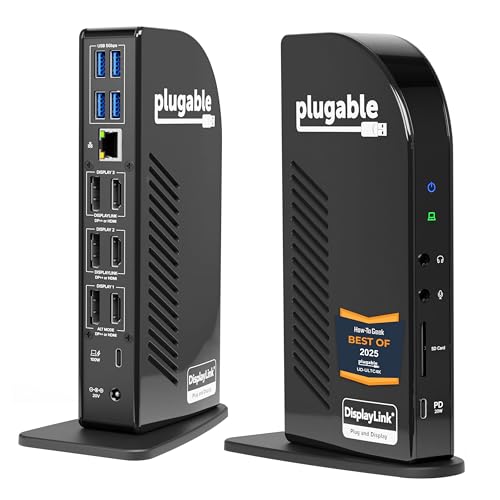 Plugable 13-in-1 USB C Docking Station 4K Plugable 13-in-1 USB C Docking Station 4K | Award-Winning 13-in-1 Dock for Complete Workstations: Named “Best… Triple 4K Display Support: Drive up to three… 100W Laptop Charging + 20W Accessory Charging: Charge… | Check price |
 Plugable Dual DisplayPort & HDMI Docking Station Plugable Dual DisplayPort & HDMI Docking Station | Flexible Expandability: This versatile laptop docking station dual… Dual 4K Monitors with HDMI and DisplayPort: Enjoy… Optimized for Work, Not Gaming: Best suited for… | Check price |
 Plugable USB-C Docking Station Dual Monitor 4K Plugable USB-C Docking Station Dual Monitor 4K | One Cable Desk Setup: Turn your laptop into… Compatibility Checklist: Designed for Windows 10+ / USB4… Easy Setup, No Drivers: True plug-and-play, no software… | Check price |
 Plugable USB C Laptop Docking Station Plugable USB C Laptop Docking Station | 14-in-1 Dock for Mac: Premium aluminum housing with… Enable Dual 4K Displays on M1-M5 Macs: Enable… Work around Mac Display Limits: Some Macs only… | Check price |
As an Amazon Associate we earn from qualifying purchases at no extra cost to you.
Quick Picks
| Product | Best for | Price |
|---|---|---|
| UD-3900 | Most basic dual-monitor setup | $99.95 |
| USB-C Triple Display (100W PD) | Three screens on a budget | $159.95 |
| UD-ULTCDL | Mac users wanting an SD reader | $175.49 |
| UD-3900Z | Windows/ChromeOS plug-and-play | $119.99 |
| UD-ULTC4K | Maximum video output options | $245.99 |
| UD-6950Z | Mixed DP and HDMI monitors | $159.99 |
| UD-MSTH2 | Dual 4K60 without drivers | $119.95 |
| UD-6950PDH | Mac with dual 4K60 and fast charging | $199.99 |
How We Picked
We scored each dock on four criteria that consistently decide owner satisfaction: driver burden (whether the dock relies on DisplayLink or runs natively via MST or Thunderbolt), power delivery ceiling, video resolution and refresh-rate combinations across simultaneous outputs, and port ecosystem breadth including ethernet, SD, and front-facing USB-C. A dock can look impressive on a spec sheet but frustrate users who expect plug-and-play, which is why driver requirements weigh as heavily as raw output numbers in these picks.
The 8 Best Plugable Docking Station in 2026
Plugable UD-3900 (Dual HDMI, USB 3.0 or USB-C)
The entry point for anyone with two standard monitors and a laptop that still has a USB-A port. It covers dual HDMI output, gigabit ethernet, six USB ports, and audio in one box. The price is its strongest asset, undercutting every other option here. Owner feedback highlights its reliability as a no-frills extender for older laptops. The con is significant: no power delivery means your charger stays plugged in separately, and the dual HDMI outputs are not 4K-capable.
- Pro: Lowest cost in the lineup with still-useful ethernet and audio passthrough.
- Pro: Works with legacy USB 3.0 laptops as well as USB-C, extending relevance.
- Con: No charging pass-through; your laptop charger remains a separate cable.
Skip if you want one-cable convenience or need 4K monitors.
Plugable USB-C Triple Display Docking Station (100W PD)
Three HDMI outputs with 100W power delivery at under $160 makes this the value play for triple-screen users who do not need 4K at 60Hz on all displays. The top HDMI handles 4K at 30Hz while the other two run 1080p at 60Hz. For programming terminals, dashboards, or reference material, that split is workable. Six USB 5Gbps ports cover peripherals generously. The main drawback is the 4K30 ceiling on the primary output, which owners note feels sluggish for video or scrolling compared to a true 60Hz panel.
- Pro: 100W PD keeps most 14-inch laptops topped up through the same cable.
- Pro: Six USB-A ports eliminate the need for an additional hub.
- Con: Only one display can hit 4K, and that output is limited to 30Hz.
Skip if you watch video or do motion-sensitive work on your primary monitor.
Plugable UD-ULTCDL (13-in-1 Triple Monitor Dock)
Built for people who want a built-in SD card reader alongside triple HDMI output and 100W charging. The 20W USB-C front port is a practical touch for fast phone charging without reaching behind the desk. DisplayLink drivers are required, which is a trade-off for the breadth of connectivity. Owners on Mac report stable operation once drivers are installed. The port count is the highest here short of the UD-ULTC4K.
- Pro: Integrated SD card reader saves a dongle for camera or drone workflows.
- Pro: Gigabit ethernet plus USB-C 20W and four USB-A ports cover a full desk.
- Con: DisplayLink driver is mandatory, adding a software layer that can conflict with OS updates.
Skip if you refuse to install third-party display drivers on your machine.
Plugable UD-3900Z (Dual 1080p HDMI, 10 Ports)
Designed for Windows and ChromeOS users who want zero driver friction. Plug it in and both monitors light up at 1080p. macOS requires a driver, but the target buyer is probably on Windows given the platform emphasis. Ten ports in total keep a keyboard, mouse, storage, ethernet, and audio connected without a secondary hub. The limitation is resolution: neither HDMI exceeds 1080p, so this dock suits office productivity but not creative or media work.
- Pro: True plug-and-play on Windows and ChromeOS with no driver install.
- Pro: Ten ports provide a genuinely complete desk connection in one box.
- Con: Caps out at 1080p per display, making it unsuitable for 4K panels.
Skip if your monitors are anything above full HD.
Plugable UD-ULTC4K (13-in-1, 4K Triple Monitor, Thunderbolt)
The flagship for anyone who needs maximum video flexibility. Six total outputs (three HDMI and three DisplayPort) let you arrange a triple-4K setup or mix panel types freely. 100W PD and Thunderbolt support place it in a tier above the other docks here. At $245 it is the most expensive, and DisplayLink drivers are still required. Owners with mixed monitor brands appreciate the DP-and-HDMI combination because it removes adapter clutter.
- Pro: Six video outputs in two connector types handle virtually any monitor arrangement.
- Pro: Thunderbolt compatibility means it also works on high-bandwidth laptops natively.
- Con: Premium price is nearly double the mid-range options without doubling everyday utility.
Skip if two monitors cover your workflow or your budget is under $150.
Plugable UD-6950Z (Dual DisplayPort and HDMI)
Fills a specific niche: users with one DisplayPort monitor and one HDMI monitor, which is common in mixed home-office setups. Gigabit ethernet and audio round out a functional package. DisplayLink is required, so it is not a driverless option. Owners note that the mixed-output approach saves the $5-plus adapter you would otherwise buy. For USB 3.0 laptops it also works via its backward-compatible interface.
- Pro: HDMI and DisplayPort on the same dock eliminates one common compatibility headache.
- Pro: Gigabit ethernet and audio are standard, avoiding a dongle chain.
- Con: Requires DisplayLink drivers, so it is not ideal for locked-down corporate machines.
Skip if your organization blocks unsigned or third-party display drivers.
Plugable UD-MSTH2 (Dual 4K 60Hz, Driverless)
The standout for Windows and ChromeOS users who want two 4K displays at 60Hz without installing anything. MST (Multi-Stream Transport) handles the dual-stream natively, provided your laptop GPU supports it. Sixty-five watts of charging suits thin-and-light laptops but will trickle-charge a 15-inch workstation under load. The port selection covers ethernet, one USB-C, three USB-A, and audio. Owners praise the instant setup, though some with older Intel chips report single-output fallback.
- Pro: Fully driverless on Windows and ChromeOS for a genuinely plug-and-play experience.
- Pro: Dual 4K60 output is rare at this price point in the Plugable lineup.
- Con: 65W PD is insufficient for laptops that draw more than 65W under sustained load.
Skip if you need more than 65W charging or run macOS.
Plugable UD-6950PDH (Dual 4K 60Hz for Mac, 100W PD)
Engineered around Apple Silicon constraints, this dock delivers dual 4K at 60Hz to M1 through M5 Macs via DisplayLink. One hundred watts of charging covers even a MacBook Pro 16-inch under heavy use. Owners appreciate the option to choose HDMI or DisplayPort on each output independently. The trade-off is the same as any DisplayLink solution on macOS: a background driver process that occasionally requires reinstall after major system updates.
- Pro: 100W PD plus dual 4K60 makes it the strongest single-cable option for Mac.
- Pro: Mixed HDMI and DisplayPort outputs adapt to whatever monitors you already own.
- Con: DisplayLink driver is essential, and macOS updates can reset its system permissions.
Skip if you already run a Thunderbolt dock natively and refuse third-party display software.
Buying Guide
Driver Requirements and Platform Compatibility
The most consequential spec is not resolution or wattage; it is whether the dock uses native protocols (MST or Thunderbolt) or DisplayLink. Native docks work instantly on Windows and ChromeOS but often cannot push two 4K streams through a single USB-C port. DisplayLink docks overcome bandwidth limits by compressing the second (or third) stream in software, enabling resolutions and counts that hardware alone cannot achieve on a USB-C 5Gbps or 10Gbps link. The cost is a permanent software dependency and occasional post-update breakage. macOS users with Apple Silicon almost always need DisplayLink for multi-monitor setups, so factor that into your tolerance before purchasing.
Power Delivery and Charging Headroom
A dock rated for 100W PD does not mean your laptop receives 100W; the laptop negotiates only what it needs, and the dock’s internal electronics consume several watts. If your machine draws 86W under load and the dock advertises 100W, you will see slow charging or a net drain during intensive tasks. Thin-and-light laptops drawing under 65W are safe with the lower-powered options here. Check your charger’s rated wattage before buying and leave at least 15W of headroom above your laptop’s maximum draw.
Video Output: Resolution, Refresh Rate, and Port Types
Three numbers matter together: maximum resolution per output, the refresh rate at that resolution, and how many outputs run simultaneously at the advertised spec. A dock listing “3x HDMI (1x 4K30, 2x 1080p60)” is not equivalent to one listing “2x 4K60” even though both support three screens. Mismatched output types (HDMI versus DisplayPort) affect adapter cost and signal integrity. If your monitors have a specific input preference, count matching ports before committing.
Our Verdict
For most Mac and Windows users juggling two or three monitors with a single cable, the UD-ULTC4K is the strongest overall pick thanks to its six video outputs, 100W charging, and Thunderbolt compatibility. If budget is the binding constraint and you work on Windows or ChromeOS with dual 1080p panels, the UD-3900Z delivers plug-and-play reliability at $119.99 with no driver install. For the specific case of an Apple Silicon Mac needing dual 4K60 with full-speed charging, the UD-6950PDH outperforms everything else on this list despite its driver dependency.
FAQ
Do all Plugable docking stations require drivers?
No. Docks like the UD-3900Z and UD-MSTH2 run natively on Windows and ChromeOS via USB-C MST without any additional software. Docks that push multiple displays through DisplayLink technology, such as the UD-ULTCDL and UD-6950PDH, require a driver install on every platform including macOS.
Can a Plugable dock replace my laptop charger?
Yes, if the dock’s power delivery rating meets or exceeds your laptop’s charger output with some headroom. The 100W docks on this list cover most 13- and 14-inch laptops. Larger gaming or workstation machines may still draw more than 100W under sustained load and will charge slowly or not at all through the dock.
What is the difference between USB-C and Thunderbolt for docking?
Thunderbolt is a superset of USB-C that guarantees higher bandwidth (up to 40Gbps on Thunderbolt 3 and 4) and supports native multi-stream video and PCIe. A Thunderbolt dock like the UD-ULTC4K will also accept plain USB-C input, so it is forward-compatible. A USB-C-only dock may need DisplayLink to achieve the same monitor count and resolution.
Can I mix HDMI and DisplayPort monitors on a single Plugable dock?
Several models support both output types simultaneously, including the UD-6950Z and UD-6950PDH. The UD-ULTC4K goes further with three HDMI and three DisplayPort outputs. Mixing connector types avoids the need for active adapters and reduces signal-quality risk compared to chaining dongles.









