
A laptop with one or two USB-C ports can struggle the moment you want an external monitor, a wired keyboard, and a flash drive connected at the same time. A docking station solves that bottleneck by turning a single cable into a multi-port hub with dedicated video outputs, so you leave the dock at your desk and plug in once. The catch is that not all docks deliver the same experience: some push 4K to one display and nothing else, others advertise dual monitors but require proprietary drivers that fail after a Windows update, and a few charge your laptop at barely enough wattage to keep the battery from draining during heavy use.
The eight products compared below span under sixteen dollars to over a hundred fifty, covering single-monitor hubs, dual-monitor mid-rangers, and premium enterprise-class docks. Owner feedback consistently highlights three failure points that spec sheets do not always reveal: driver instability on certain laptop models, inconsistent power delivery passthrough, and ports that work fine at launch but degrade after firmware updates. We sorted these picks by price, port configuration, video output capability, and reported compatibility across Dell, HP, Lenovo, Acer, and Apple systems to help you narrow the field.
Our top picks
 Anker USB C Hub
- 5-in-1 Connectivity: Equipped with a 4K HDMI port,…
- Powerful Pass-Through Charging: Supports up to 85W pass-through…
- Transfer Files in Seconds: Move files to and…
 Anker 7-in-1 USB-C Hub
- Powerful 7-in-1 Hub: Designed for the multitasker, this…
- See More, Do More: Easily extend your workspace…
- Blazing-Fast 10Gbps Data Transfer: Dramatically reduce transfer times…
| Product | Key specs | |
|---|---|---|
 Anker Laptop Docking Station Dual Monitor Anker Laptop Docking Station Dual Monitor | Check price | |
| Anker USB C Hub | 5-in-1 Connectivity: Equipped with a 4K HDMI port,… Powerful Pass-Through Charging: Supports up to 85W pass-through… Transfer Files in Seconds: Move files to and… | Check price |
| Anker 7-in-1 USB-C Hub | Powerful 7-in-1 Hub: Designed for the multitasker, this… See More, Do More: Easily extend your workspace… Blazing-Fast 10Gbps Data Transfer: Dramatically reduce transfer times… | Check price |
 Laptop Docking Station Laptop Docking Station | Check price | |
 Dell Pro Laptop Docking Station WD25 Dell Pro Laptop Docking Station WD25 | Powerful compatibility: Power essential productivity across the AI… Modern manageability: The Dell Pro Dock is part… Thoughtful design: Configure your workspace with an ambidextrous… | Check price |
 Acer USB-C Docking Station Dual Monitor Acer USB-C Docking Station Dual Monitor | Check price | |
 Plugable Universal Laptop Docking Station Dual HDMI Plugable Universal Laptop Docking Station Dual HDMI | Flexible Expandability: Featuring a hybrid 2-in-1 USB 3.0… Dual HD Monitors (Driver Required): Supports dual HDMI… Universal Compatibility: Windows 11, 10 with plug-and-play driver… | Check price |
 USB C Docking Station Dual Monitor for USB C Docking Station Dual Monitor for | Check price |
As an Amazon Associate we earn from qualifying purchases at no extra cost to you.
Quick Picks
| Product | Best For | Price |
|---|---|---|
| Anker 8-in-1 Dual Monitor Dock | Reliable dual 4K without driver headaches | $39.99 |
| Anker 5-in-1 USB C Hub | Single external monitor on a tight budget | $19.99 |
| Anker 7-in-1 Dual Monitor Hub | Dual monitors with USB-C data ports | $31.99 |
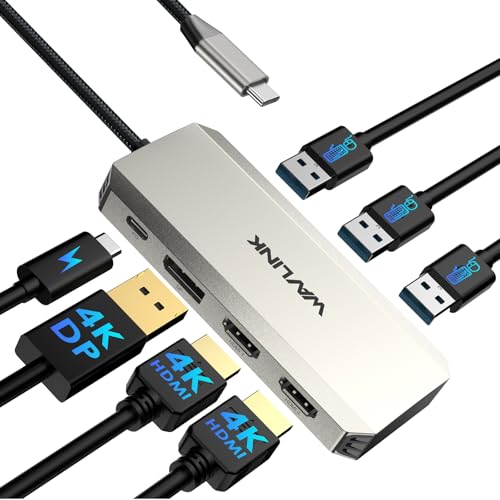
| WAVLINK Triple 4K Dock | Three displays at the lowest price | $15.99 |
| Dell WD25 Dock | Dell laptop owners wanting factory-level compatibility | $152.49 |
| Acer 9-in-1 Dual Monitor Dock | Most ports in the budget tier | $43.99 |
| Plugable UD-3900 | Legacy USB 3.0 laptops needing dual HDMI | $99.95 |
| USB C Dock for HP Triple Monitor | HP and similar laptops wanting three outputs | $37.99 |
How We Picked
We evaluated every dock on four criteria: video output capability (number of independent displays and maximum resolution per port), power delivery passthrough wattage, port diversity beyond HDMI (USB-A count, USB-C data, Ethernet, audio jack, SD card reader), and driver or software requirements that could complicate setup on Windows versus macOS. Products needing only native DisplayPort Alt Mode scored higher than those requiring DisplayLink drivers, because Alt Mode avoids the CPU overhead and update fragility that frustrates owners long-term. Price-to-feature ratio served as a final tiebreaker.
The 8 Best Hdmi Docking Station in 2026
Anker 8-in-1 Dual Monitor Dock
This hub targets laptop users who want two external 4K displays without paying enterprise prices. The dual HDMI ports use native DisplayPort Alt Mode, so no driver installation is needed on most modern machines. Owners praise its compact aluminum housing and the fact that both HDMI outputs maintain 4K at sixty hertz simultaneously when connected to a compatible source. The eight ports include USB-A data, USB-C charging, and an SD card reader, covering common peripheral needs. The main drawback is limited power delivery passthrough—enough to top off a thin-and-light during moderate work but not to fast-charge a gaming laptop. Skip this if you need more than two monitors or your laptop draws heavy power.
Anker 5-in-1 USB C Hub
At under twenty dollars, this is the cheapest entry into external monitor territory for USB-C laptops. The single 4K HDMI port handles one display, and the remaining four ports cover USB-A, USB-C, and SD card needs. Buyers on a budget who only need one secondary screen find the build quality impressive for the price, with a braided cable that resists tangling. It is genuinely plug-and-play with no software involved. The limitation is obvious: one video output means no dual-monitor setup, and the power delivery is modest enough that it will not sustain a laptop under load. Skip it if your workflow demands more than a single extended display.
Anker 7-in-1 Dual Monitor Hub
Falling between the five-port and eight-port Anker models, this hub delivers dual monitor support with a slightly different port mix. The seven ports combine HDMI outputs with USB-C and USB-A data connections, making it practical for users who need one flash drive and one USB-C accessory alongside two screens. Owners report stable dual 4K output on newer laptops and appreciate the low-profile form factor that slides under a monitor stand. The tradeoff is that one of the HDMI outputs typically operates at a lower refresh rate than the primary, which can matter for creative work involving video scrubbing. Skip it if both displays need matching 4K sixty-hertz performance without compromise.
WAVLINK Triple 4K Dock
At fifteen dollars and ninety-nine cents, this is the lowest-priced dock on the list that claims three independent display outputs through dual HDMI and a DisplayPort. Owners on Dell and Lenovo Windows machines report it drives triple 4K successfully when connected to a laptop with Thunderbolt or full-function USB-C. The one-hundred-watt power delivery input is the strongest on the budget tier, keeping even workstation-class laptops charged during multitasking. The significant caveat is that it requires Windows only and relies on DisplayLink or similar software, which means driver updates can break functionality between OS patches. Skip it if you use a Mac or dislike installing third-party display drivers.
Dell WD25 Dock
Dell’s WD25 is an enterprise-class dock designed for fleet deployment and maximum compatibility with Dell and Latitude laptops. The one-hundred-watt power delivery, combined with both DisplayPort and HDMI outputs, ensures it handles high-resolutions without software workarounds. IT professionals value its modular design and long driver support cycle. For individual consumers, the price is the hardest obstacle at over one hundred fifty dollars, and the feature set is largely wasted on a home setup that needs only one or two external monitors. Owners of non-Dell laptops report mixed experiences with power negotiation. Skip it unless you are buying for an office environment or need guaranteed factory-level firmware support.
Acer 9-in-1 Dual Monitor Dock
This dock offers the widest port selection among budget-priced options, packing dual HDMI outputs plus seven other connections into a single hub. The nine ports cover USB-A, USB-C, SD card, and Ethernet, eliminating the need for a separate adapter chain on most desks. Acer and Lenovo owners specifically mention stable dual 4K output and solid build construction for the price. The power delivery passthrough is adequate but not generous, meaning a high-wattage laptop may still draw from battery during peak workloads. The included cable is short, which can be inconvenient on taller monitor arms. Skip it if you need fast charging passthrough or have a deep desk that places the laptop far from the dock.
Plugable UD-3900
The Plugable UD-3900 stands apart because it connects via USB 3.0 Type-A, making it viable for older laptops that lack USB-C entirely. Its two HDMI outputs and six USB ports provide a functional dual-monitor setup on machines from 2014 onward. Owners praise the extensive support documentation and Plugable’s reputation for driver maintenance across Windows and Mac. The tradeoff is that it relies on DisplayLink software for both video outputs, which introduces CPU overhead and occasional screen-tearing in motion-heavy tasks. The price at nearly one hundred dollars reflects this driver-dependent approach. Skip it if your laptop already has USB-C with DisplayPort Alt Mode, since a native dock will run smoother and cheaper.
USB C Dock for HP Triple Monitor
This unnamed-branded dock earns its place by offering three monitor outputs at under thirty-eight dollars, undercutting the WAVLINK model on price while delivering similar triple-display functionality. HP laptop owners report it works natively with Spectre and Envy models that output DisplayPort Alt Mode over USB-C. The build is plasticky compared to Anker’s aluminum housings, and the included documentation is sparse. Owners of other brands sometimes encounter one non-functional port due to chipset-specific compatibility quirks. The power delivery is sufficient for ultrabooks but will not sustain a mobile workstation under load. Skip it if you own a non-HP laptop and cannot verify USB-C DP Alt Mode support in your machine’s specifications.
Buying Guide
DisplayPort Alt Mode Versus DisplayLink
The single most important technical distinction in this category is whether the dock uses native DisplayPort Alt Mode or software-based DisplayLink. Alt Mode routes the GPU signal directly through the USB-C cable, requiring no driver installation and adding zero CPU load. DisplayLink encodes frames in software and sends them as USB data, which works on any laptop with a USB port but taxes the processor and can cause stutter during video playback or rapid window movement. If your laptop supports Alt Mode, always prefer a dock that uses it.
Power Delivery Passthrough
Check both the input wattage the dock accepts and the output wattage it delivers to your laptop. A dock rated for one hundred watts input may only pass through sixty-five or ninety watts after reserving power for its own ports. Match the passthrough rating to your laptop’s charger wattage. If your machine shipped with a sixty-five-watt adapter, a dock that passes through sixty-five is fine. If it needs one hundred watts to run without battery drain during compile or render tasks, verify the dock’s actual output rather than its advertised input.
Port Count and Layout for Your Actual Desk
Eight or nine ports sounds generous until you realize the USB-A ports face the wall behind a monitor or the SD slot is recessed too deeply for your card reader dongle. Owners consistently flag port spacing as a frustration: a USB drive with a wide connector can block an adjacent port, reducing a theoretical eight to a practical six. Read owner photos of the specific dock in real desk setups before assuming every port will be usable simultaneously.
Our Verdict
The top pick for most buyers is the Anker 8-in-1 Dual Monitor Dock. At just forty dollars it delivers native dual 4K output without driver complexity, includes a useful spread of USB and card ports, and has the broadest owner-reported compatibility across brands. For the tightest budget where a single external monitor is enough, the Anker 5-in-1 at twenty dollars is nearly impossible to beat on build quality per dollar. However, if you drive three monitors and already run Windows with no objection to DisplayLink, the WAVLINK Triple 4K Dock at under sixteen dollars is a strong value that only fails on Mac systems.
FAQ
Can I use a docking station with a Mac?
Yes, but only docks that use native DisplayPort Alt Mode will give you full functionality without extra software. Docks relying on DisplayLink require a macOS driver download and may not support your specific Mac’s USB-C port if it is Thunderbolt-only without Alt Mode passthrough. Check the manufacturer’s compatibility list before purchasing.
Will a docking station slow down my laptop?
A dock using DisplayPort Alt Mode adds negligible overhead since the GPU drives the external display directly through the USB-C lane. DisplayLink-based docks do impose a measurable CPU and GPU encoding load, which becomes noticeable on older laptops or during tasks like video playback or rapid scrolling across multiple windows.
Do I need to worry about my laptop’s USB-C port revision?
Absolutely. USB-C is a connector shape, not a specification. A laptop’s USB-C port may support only data transfer without video output or power delivery passthrough. Verify that your port supports DisplayPort Alt Mode and Power Delivery before buying any dock, because a port lacking video lanes simply cannot drive an external display regardless of what the dock is capable of.
How many monitors can a typical laptop drive through one dock?
Most mid-range dual-monitor docks handle two independent 4K displays using DisplayPort Alt Mode’s available lanes. Triple-monitor setups usually require either Thunderbolt 4 bandwidth or DisplayLink software that encodes additional streams over USB. The laptop itself must support the total number of display pipelines, so check the GPU specification rather than assuming the dock determines the limit.









