
Key takeaways
- Line up the adapter’s combined 15+7-pin SATA connector with the drive’s edge connector — it only fits one way; never force it.
- Plug the USB-A or USB-C end into a USB 3.x port (blue or labeled SS/10G). USB 2.0 will work but at ~35MB/s.
- The drive appears in File Explorer/Finder within seconds. If Windows prompts to “format the disk,” decline — the partition is likely healthy but uses a filesystem Windows doesn’t recognize, or has a damaged partition table. Formatting erases recoverable data.
What's inside
A 2.5-inch SATA drive — HDD or SSD — connects to any USB port with a $10–$15 bus-powered SATA-to-USB cable, no tools required. A 3.5-inch desktop drive needs the same kind of adapter plus a 12V power brick, because USB alone cannot supply the voltage its spindle motor needs. Beyond that, the only spec that materially changes performance is whether the adapter’s bridge chip supports UASP — and whether you buy USB 5Gbps or 10Gbps.
As an Amazon Associate we earn from qualifying purchases at no extra cost to you.

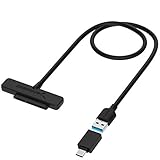


Why 3.5-Inch Drives Need a Powered Adapter
SATA’s 15-pin power connector carries three voltages, but drives actually use two: 5V for the logic board and 12V for the spindle motor. A 2.5-inch laptop drive was designed to run entirely on 5V, drawing roughly 0.5–1.0A at idle and up to about 1.4A during spin-up on some 7200rpm models — comfortably inside the 900mA (4.5W) a USB 3.x port guarantees, though marginal on older 5Gbps ports and USB 2.0 ports.
A 3.5-inch drive is a different problem. Its motor pulls a spin-up surge of 1.5–2.5A at 12V — roughly 20–30W for a second or two — then settles to 6–10W while spinning. USB ports deliver 5V only (unless you step into USB-C PD territory, which no SATA bridge does), so a powered adapter ships with a 12V/2A or 12V/3A barrel-jack supply that drives the motor while the logic runs off the same brick’s 5V line.
The symptom of insufficient power is distinctive and worth knowing: the drive clicks or repeatedly tries to spin up, appears briefly in the OS, then drops. If you hear that, the fix is a powered adapter — not a new drive.
The Four Adapter Formats
| Adapter type | Drives supported | External power | Typical USB spec | Typical price range |
|---|---|---|---|---|
| Simple cable adapter (e.g., StarTech USB3S2SAT3CB, UGREEN/Sabrent equivalents) | 2.5″ HDD/SSD only | No — bus powered | USB 3.x 5Gbps, usually UASP | $8–$15 |
| Powered adapter + 12V brick | 2.5″ and 3.5″ SATA | Yes — 12V/2A–3A brick included | USB 3.x 5Gbps or 10Gbps | $20–$35 |
| Single-bay dock (top-load) | 2.5″ and 3.5″ SATA | Yes | 5Gbps or 10Gbps | $25–$45 |
| Dual-bay cloning dock | 2.5″ and 3.5″ SATA, offline clone | Yes | 5Gbps or 10Gbps | $35–$60 |
Cable adapters win on portability — they live in a laptop bag next to the drive. Docks are worth it only if you swap drives frequently: top-loading bays spare you the fiddly 15+7-pin connector alignment and double as a permanent home for a backup drive. For a drive that will stay attached for months, a proper aluminum enclosure with a fan vent is gentler than an exposed adapter — a 3.5-inch 7200rpm drive idles around 35–40°C and can pass 50°C under sustained writes with no airflow.
What Speeds You’ll Actually Get
SATA III tops out at 6Gbps, so buying a 10Gbps or 20Gbps USB adapter doesn’t make the drive faster — it only ensures USB isn’t the bottleneck. Here is what each link in the chain delivers in practice:
| USB connection | Theoretical bandwidth | Realistic SATA SSD throughput | Realistic HDD throughput |
|---|---|---|---|
| USB 2.0 (avoid) | 480Mbps | ~35MB/s | ~35MB/s |
| USB 3.x 5Gbps, BOT mode | 5Gbps | ~250–330MB/s | 120–200MB/s (drive-limited anyway) |
| USB 3.x 5Gbps, UASP | 5Gbps | ~400–440MB/s | 150–260MB/s |
| USB 3.2 Gen 2 10Gbps, UASP | 10Gbps | ~430–450MB/s (SATA ceiling) | 150–260MB/s (drive-limited) |
UASP vs. BOT
Two protocols carry storage traffic over USB. BOT (Bulk-Only Transport) is the 1990s-era fallback — single command queue, high CPU overhead. UASP (USB Attached SCSI Protocol) enables command queuing and parallel transfers, which is why it lifts SSD throughput by 20–30% and drops latency noticeably on random workloads. Most adapters sold since ~2015 use ASMedia (ASM1153E family) or JMicron (JMS578/JMS580 series) bridge chips that support UASP; it activates automatically on Windows 8 and later, macOS, and Linux. Check the spec sheet for “UASP” — it’s the single most reliable marker of a decent bridge chip, and UASP-capable chips also tend to pass through SMART data, so tools like CrystalDiskInfo can read drive health.
Two follow-on benefits of UASP chips: TRIM works for SSDs (keeping write speeds from degrading over time), and 48-bit LBA support means drives over 2TB read correctly. Very old or no-name adapters sometimes cap at 2TB — a 4TB drive shows up as ~2.2TB or not at all. If you’re rescuing a large modern drive, verify the listing explicitly supports 4TB+ or “16TB+” capacities.
How to Connect a Drive
2.5-inch HDD or SSD
- Line up the adapter’s combined 15+7-pin SATA connector with the drive’s edge connector — it only fits one way; never force it.
- Plug the USB-A or USB-C end into a USB 3.x port (blue or labeled SS/10G). USB 2.0 will work but at ~35MB/s.
- The drive appears in File Explorer/Finder within seconds. If Windows prompts to “format the disk,” decline — the partition is likely healthy but uses a filesystem Windows doesn’t recognize, or has a damaged partition table. Formatting erases recoverable data.
3.5-inch HDD
- Attach the SATA connector, then connect the 12V brick to the adapter before plugging in USB. Sequencing matters: you want the motor spinning up on wall power, not attempting to draw through the USB port.
- Flip the adapter’s inline power switch if it has one; listen for the drive to reach full speed (~1–3 seconds) before the USB cable goes in.
- Lay the drive flat on a desk while it runs. Bare 3.5-inch drives transfer vibration into whatever they sit on and dislike being moved mid-transfer — bumping a spinning drive risks a head crash.
- When finished, eject in the OS first, then kill power. A powered-off adapter still passes through the drive safely, but hard-cutting power mid-write can corrupt open files.
Which Adapter for Which Situation
| Your situation | Right choice | Why |
|---|---|---|
| Occasional recovery of laptop drives / SSD upgrades | $10–$15 UASP cable adapter | Bus-powered, pocketable, no brick to lose |
| Pulling data off old desktop PCs (mixed 2.5″/3.5″) | Powered adapter with 12V/2A+ brick | One kit covers both drive sizes for ~$25 |
| Frequent drive swaps, repair bench, media library | Single- or dual-bay dock | Connector cycles don’t wear the drive’s pins; instant swap |
| Drive migrating permanently to external use | Aluminum enclosure (5Gbps UASP) | Protection, heat dissipation, cleaner desk |
| Cloning a boot drive before a swap | Dual-bay dock with offline clone, or any adapter + free cloning software | Offline clone is convenient; software cloning is free and just as reliable |
Ownership Realities Listings Don’t Mention
- The power brick outlasts the adapter — guard it. Bricks are usually 12V center-positive barrel plugs, but tip sizes vary (5.5×2.1mm is most common; some use 5.5×2.5mm). Losing the brick turns a $30 adapter into a $10 one. Label it.
- Connector wear is the first failure point. SATA data/power pins are rated for a few hundred insertion cycles. Cables fail at the strain relief; docks fail at the bay connector. If a previously reliable adapter starts dropping the drive mid-copy, suspect the connector, not the disk.
- Sleep timers cause phantom problems. Many bridges spin the drive down after 10–30 idle minutes; some OSes then report the drive as “removed” when it wakes slowly. If a copied file is missing after idle, check power-saving settings before blaming the drive.
- NVMe won’t fit — ever. M.2 NVMe sticks use a different connector and protocol; a SATA adapter physically cannot accept them. An M.2 SATA SSD fits a 2.5-inch adapter only via an M.2-to-2.5-inch converter, which is usually a sign to buy a proper NVMe enclosure instead.
- Optical drives are a trap. Slim laptop DVD drives use slimline SATA (a 13-pin variant) — standard adapters don’t fit, and the powered adapters’ 12V won’t help.
FAQ
Can I use a SATA-to-USB adapter for data recovery from a dead PC?
Yes — this is the most common use. The drive only needs SATA power and data; it doesn’t care what machine reads it. If the drive itself is mechanically failed (clicking that persists on proper power, grinding), an adapter won’t help and continued attempts can worsen the damage — that’s a job for a recovery service.
Can I boot Windows or Linux from a drive on a USB adapter?
Linux generally boots fine over UASP adapters. Windows will boot as Windows To Go–style installs or via Ventoy tools, but standard installs refuse external USB targets on some versions; macOS boots fine. Treat it as workable, not guaranteed.
Does the adapter work with 8TB, 16TB, or larger drives?
Any adapter listing UASP and a modern ASMedia/JMicron chip handles current capacities — look for explicit “up to 20TB” wording. The 2TB ceiling is a legacy-chip problem, mostly a risk with no-name bargain adapters.
Is a docking station faster than a cable?
No — speed depends on the USB spec and bridge chip, not the format. A 5Gbps UASP cable and a 5Gbps UASP dock perform identically; the dock buys convenience and connector longevity, not bandwidth.



