
Key takeaways
- Connect to the router — either on its Wi-Fi network (the default SSID is on the sticker, usually “ASUS” or “ASUS_XX”) or with an Ethernet cable in a LAN port.
- Open a browser and go to http://router.asus.com or http://www.router.asus.com. Use http, not https — the local page has no certificate.
- Enter admin / admin when the login box appears.
- On newer firmware you’ll be pushed into a setup wizard that requires a fresh ASUS router admin password before anything else.
The ASUS router default username and password is admin / admin on virtually every ASUS router ever shipped, and you reach the login page at router.asus.com or 192.168.1.1. Two caveats matter in 2026: routers running firmware 3.0.0.6 or later (most Wi-Fi 6E and Wi-Fi 7 models) force you to create your own admin password during first-time setup, and some mesh and gaming models answer at 192.168.50.1 instead — the sticker on the bottom of the unit always lists the exact address. If admin/admin is rejected, there is no recovery shortcut; a factory reset is the only fix.
Our top picks


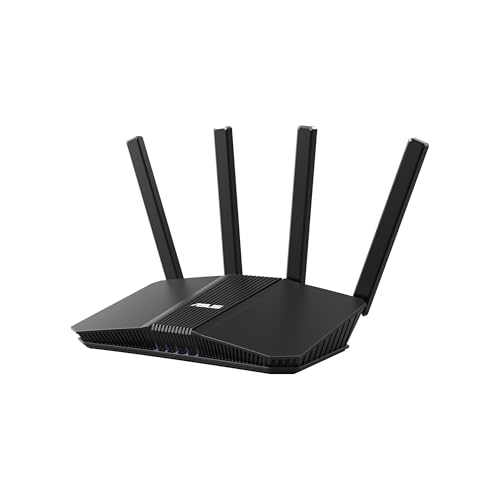
As an Amazon Associate we earn from qualifying purchases at no extra cost to you. Ratings are shown as listed on Amazon.
ASUS router default username and password by model series
ASUS keeps defaults consistent across product lines, but the access address and first-login behavior differ. Find your series below:
| Series (example models) | Default address | Username | Password | First-login behavior |
|---|---|---|---|---|
| RT Wi-Fi 5/6 routers (RT-AC68U, RT-AX86U, RT-AX58U, RT-N66U) | 192.168.1.1 / router.asus.com | admin | admin | admin/admin logs straight in; older firmware won’t force a change |
| RT Wi-Fi 7 routers (RT-BE88U, RT-BE96U, RT-BE92U) | 192.168.1.1 / router.asus.com | admin | admin | Setup wizard requires a new password before you can proceed |
| ROG Rapture (GT-AX11000, GT-AXE16000, GT-BE98) | 192.168.1.1 (some units 192.168.50.1) | admin | admin | Newer firmware forces a new password at setup |
| TUF Gaming (TUF-AX5400, TUF-AX6000) | 192.168.1.1 / router.asus.com | admin | admin | Depends on firmware version installed |
| ZenWiFi mesh (XT8, XT9, ET12, BQ16) | 192.168.50.1 / router.asus.com | admin | admin | App or web setup requires a new password |
| DSL modem-routers (DSL-AC68U, DSL-AX82U) | 192.168.1.1 / router.asus.com | admin | admin | admin/admin logs straight in |
| Range extenders (RP-AX58, RP-AC1900) | repeater.asus.com (IP assigned by your router) | admin | admin | admin/admin logs straight in |
If your ASUS router was supplied by an ISP, the label may show a unique device-specific password instead of admin — always check the sticker first, since it overrides every published default.
How to log in to your ASUS router
Option 1: via router.asus.com
- Connect to the router — either on its Wi-Fi network (the default SSID is on the sticker, usually “ASUS” or “ASUS_XX”) or with an Ethernet cable in a LAN port.
- Open a browser and go to http://router.asus.com or http://www.router.asus.com. Use http, not https — the local page has no certificate.
- Enter admin / admin when the login box appears.
- On newer firmware you’ll be pushed into a setup wizard that requires a fresh ASUS router admin password before anything else.
Option 2: via 192.168.1.1
Type http://192.168.1.1 into the address bar — this bypasses the friendly URL, which occasionally fails to resolve on phones or when a VPN is active. If that doesn’t respond, try 192.168.50.1, then confirm the real gateway: on Windows run ipconfig and read the “Default Gateway” line; on macOS check Wi-Fi → Details → Router. ASUS also publishes a free Device Discovery utility that lists every ASUS device on the network with its IP.
If the login page won’t load at all
| Symptom | Likely cause | Fix |
|---|---|---|
| Page times out | You’re on a different network or a VPN is routing traffic away | Confirm the SSID, disable VPN, retry |
| 192.168.1.1 fails, router.asus.com fails | Router uses 192.168.50.1 or a custom subnet | Check ipconfig Default Gateway or run Device Discovery |
| Browser warns “not secure” then blocks | You typed https:// | Remove the “s” — use plain http |
| Login box appears but admin/admin is rejected | Password was changed during setup | Skip to the reset section below |
| Blank page after login | Stale browser cache with old firmware files | Hard-refresh (Ctrl+F5) or use a private window |
Forgot your ASUS router username and password? Reset is the only fix
ASUS stores credentials locally on the router — there is no account recovery, email reset, or backdoor. Before wiping anything, exhaust two possibilities: check your browser’s saved passwords and any password manager, and check whether the ASUS Router app on a previously paired phone still has access to the device. If both come up empty, proceed.
Factory reset via the button (about 3 minutes total)
- Leave the router powered on and find the recessed Reset pinhole on the back panel (not the WPS button).
- Press and hold it for 5–10 seconds with a paperclip until the power LED starts flashing, then release.
- Wait roughly 90 seconds to 3 minutes for the reboot. On older firmware the ASUS router username and password return to admin/admin; on firmware 3.0.0.6+ the router boots into the setup wizard instead.
- Reconnect to the default “ASUS” Wi-Fi and start setup at router.asus.com.
What a reset erases — and what it keeps
A factory reset deletes the admin credentials, Wi-Fi names and passwords, AiMesh node pairing, PPPoE/ISP login details, port forwarding rules, DDNS, and parental controls. It does not roll back firmware — whatever version is installed stays. If your internet plan uses PPPoE (common on DSL), dig up your ISP username and password before resetting, or you’ll be offline until you find it.
If the button method fails
Two alternatives: if you can still log in, use Administration → Restore/Save/Upload Setting → Restore for a clean software reset. If the router is unstable or the firmware looks corrupted, use rescue mode — power off, hold Reset while powering back on for 5–10 seconds until the power LED blinks slowly, then push firmware with ASUS’s Firmware Restoration utility. Note that rescue mode is for unbricking, not routine password resets.
Set it up properly the second time
- Create a unique admin password of 12+ characters — never reuse your Wi-Fi password, since anyone on the network who guesses it owns the router.
- If your firmware allows it, change the admin username too — it removes the easiest half of any login attempt.
- Enable automatic firmware updates under Administration → Firmware Upgrade; ASUS patches the web interface regularly.
- Confirm Web Access from WAN is off so the login page isn’t reachable from the internet.
- Use WPA3 or WPA2-AES for Wi-Fi security, and store the new credentials in a password manager so you never have to reset again.
FAQ
Is the Wi-Fi password the same as the admin password?
No. The Wi-Fi password joins your devices to the network; the ASUS router admin password opens the settings page at router.asus.com. Many new models print a default Wi-Fi password on the sticker, but the admin login is still admin/admin until you change it.
Why is 192.168.50.1 working but 192.168.1.1 isn’t?
Some series — ZenWiFi mesh kits and certain ROG Rapture models — ship on the 192.168.50.x subnet. Both are correct defaults; the label on your unit is the authority.
Does a factory reset revert the firmware?
No. It wipes settings only. The installed firmware version remains untouched, so a router on firmware 3.0.0.6 will still demand a new admin password during setup after the reset.
Can ASUS support recover my password remotely?
No — support will walk you through the same factory reset described above. ASUS has no access to credentials stored on your hardware.
