Key takeaways
- Ten NVMe SSDs compared from their listing titles: Samsung 990 PRO and 9100 PRO, SanDisk Optimus 5100, Kingston NV3, with slot, heat and capacity checks.
The best NVMe SSD for most buyers here is the Samsung 990 PRO: a PCIe 4.0 M.2 2280 drive offered in 1TB and 2TB listings that suits nearly any recent desktop or laptop with a free slot. If your board has a PCIe 5.0 slot and cooling, the Samsung 9100 PRO raises the ceiling. For tighter budgets the Kingston NV3, SanDisk Optimus 5100 and Patriot P300 give up some speed or capacity. Ten listings follow, with titles quoted and gaps flagged.
Quick picks
Our top picks


As an Amazon Associate we earn from qualifying purchases at no extra cost to you.
- Best all-rounder: Samsung 990 PRO, 1TB or 2TB
- Highest quoted speed: Samsung 9100 PRO, needs a PCIe 5.0 slot
- Mid-price Gen4: SanDisk Optimus 5100 1TB or Kingston NV3 1TB
- Cheapest way in: Patriot P300 512GB or SanDisk Optimus 5100 500GB
- Older Gen3 boards: Silicon Power 2TB
All ten at a glance
| Model | Key point from title | Best for |
|---|---|---|
| Samsung 990 PRO 2TB | PCIe 4.0, M.2 2280, up to 7,450MB/s | Big game library plus projects |
| Samsung 990 PRO 1TB | Same line, 1TB | Single-drive gaming PC |
| Samsung 9100 PRO 2TB | PCIe 5.0 x4, up to 14,700MB/s | Gen5 boards, heavy transfers |
| Samsung 9100 PRO 1TB | Same line, 1TB | Gen5 boards, lower capacity |
| Samsung 990 1TB | Up to 7,150/6,450MB/s; interface not stated | Buyers who check the listing |
| SanDisk Optimus 5100 1TB | PCIe 4.0, up to 7,100/6,700MB/s | Gen4 value |
| SanDisk Optimus 5100 500GB | PCIe 4.0, up to 6,600/5,600MB/s | Boot drive |
| Kingston NV3 1TB | PCIe 4.0 x4, up to 6000MB/s | Budget Gen4 upgrade |
| Silicon Power 2TB | PCIe Gen3x4, 2280 | Older boards, bulk storage |
| Patriot P300 512GB | PCIe Gen 3 x4, low-power | Light-duty boot drive |
What each drive offers
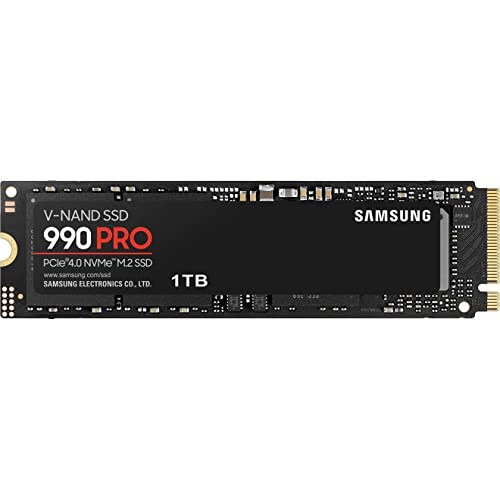
Samsung SSD 990 PRO 2TB (MZ-V9P2T0B/AM)
The listing gives PCIe 4.0, M.2 2280 and speeds up to 7,450MB/s, aimed at high-end computing, gaming and workstations. At 2TB it suits a machine where a large game library, capture footage and work files share one drive. The quoted speed is a peak sequential figure, so do not expect load screens to shrink in proportion; most games lean on the CPU too. The title does not mention a heatsink, so check the page before relying on the motherboard cover.
- Pro: Largest capacity in the 990 PRO line here
- Pro: PCIe 4.0 works in both Gen4 and Gen5 slots
- Con: Highest outlay among the Gen4 options
- Con: No heatsink information in the title
Who it’s for: Builders who want one big fast drive and do not plan to add a second.
Samsung SSD 990 PRO 1TB (MZ-V9P1T0B/AM)
Same title wording and the same 7,450MB/s ceiling as the 2TB, just half the space. A 1TB drive formats to roughly 931GB, which fills quickly once a few modern AAA installs land. Treat it as the default size for a boot and games drive when a second disk is possible later. If you already keep large video files or a big Steam library, go straight to the 2TB instead of upgrading twice, and confirm the page lists the exact MZ-V9P1T0B/AM code before ordering.
- Pro: Same PCIe 4.0 platform as the 2TB
- Pro: Easier on the budget
- Con: Space disappears fast with big installs
- Con: Peak speed is the same, so you pay for capacity only
Who it’s for: Anyone planning a two-drive setup.
Samsung SSD 9100 PRO 2TB (MZ VAP2T0B/AM)
The title quotes PCIe 5.0 x4 and up to 14,700MB/s, and pitches it at AI computing, gaming and heavy workstations. Gen5 only delivers that number in a Gen5 slot; in a Gen4 slot the link speed drops to the slot’s limit. Fast drives of this class normally run warmer under sustained writes, so plan for a heatsink and airflow. The model code in the title is missing a hyphen, which is probably a typo, so verify it on the page.
- Pro: PCIe 5.0 x4 gives the most headroom on the list
- Pro: 2TB suits large transfers
- Con: Needs a PCIe 5.0 slot to reach the quoted speed
- Con: Likely to need good cooling
Who it’s for: Owners of Gen5 boards who move large files regularly.
Samsung SSD 9100 PRO 1TB (MZ VAP1T0B/AM)
Identical wording to the 2TB listing apart from capacity. The same Gen5 caveats apply: slot support, cooling and the hyphen-less model code. If you are tempted by the speed number alone, remember a Gen4 drive of the same capacity will feel very similar in everyday use. Buy this one only when the board manual confirms a Gen5 M.2 slot, and check whether the slot shares lanes with a graphics card.
- Pro: Gen5 interface for future upgrades
- Pro: Lower entry point than the 2TB
- Con: Same slot and cooling requirements
- Con: Capacity limited for large libraries
Who it’s for: Gen5 boards with a single game drive.
Samsung Internal SSD 990 1TB (MZ-V9V1T0B/AM)
The title lists up to 7,150MB/s reads and 6,450MB/s writes and markets it to game collectors, DIY PC builders and digital archivists. It does not state the PCIe generation, form factor or length, and the title ends with an unclosed parenthesis, so treat it as incomplete and read the specs section before buying. It is a different model from the 990 PRO, even though the numbers are close.
- Pro: Strong quoted read and write speeds
- Pro: Aimed at DIY builds and archives
- Con: Interface and size missing from the title
- Con: Easy to confuse with the 990 PRO
Who it’s for: Careful buyers who will confirm the interface on the page.
SanDisk Optimus 5100 1TB NVMe SSD (SDSP51100TAN)
SanDisk lists PCIe 4.0, M.2 2280, up to 7,100MB/s reads and up to 6,700MB/s writes. Write speed is notably close to read speed for the class, which can matter when you copy big folders. No heatsink or endurance rating appears in the title, so check the page.
- Pro: PCIe 4.0 with matching 2280 size
- Pro: Quoted writes close to reads
- Con: Endurance and cooling not in the title
- Con: Little beyond speed figures in the title
Who it’s for: Gen4 builders who want a 1TB drive without the top-tier name.
SanDisk Optimus 5100 500GB NVMe SSD (SDSP51500GAN)
Same family as above at 500GB, quoting up to 6,600MB/s reads and 5,600MB/s writes. Half a terabyte is enough for the OS and a handful of programs, but a single big game can take a tenth of it. It makes more sense as a cheap system disk next to a larger data drive than as the only storage in a gaming PC, and the title gives no heatsink information.
- Pro: Small and fast enough for a boot disk
- Pro: PCIe 4.0 in a 2280 module
- Con: Quickly outgrown by game libraries
- Con: Lower write speed than the 1TB
Who it’s for: Boot drives and second drives for office PCs.
Kingston NV3 1TB M.2 2280 NVMe SSD (SNV3S/1000G)
Kingston’s title states PCIe 4.0 Gen 4×4 and up to 6000MB/s, which is the lowest Gen4 speed claim on this list but still far above SATA. For general gaming and storage, the gap to a 7,000MB/s drive is rarely something you notice outside a file copy. Check the listing for heatsink details and any capacity-dependent write limits.
- Pro: Clear PCIe 4.0 x4 label
- Pro: Straightforward product code and size
- Con: Lowest peak speed among the Gen4 drives
- Con: No cooling details in the title
Who it’s for: First-time upgraders with a Gen4 slot and a spending cap.
Silicon Power 2TB NVMe M.2 PCIe Gen3x4 2280 (SP002TBP34A60M28)
The title says PCIe Gen3x4, 2280 and 2TB, with no speed figures. A Gen3 drive is a reasonable fit for older motherboards or secondary storage where you value capacity over peak transfer rates. In a Gen4 or Gen5 slot it still runs, but at Gen3 speeds.
- Pro: 2TB capacity on a Gen3 interface
- Pro: Plain labelling with no speed hype
- Con: No speed figures in the title
- Con: Slower than the Gen4 and Gen5 drives here
Who it’s for: Older systems and bulk game storage.
Patriot P300 M.2 PCIe Gen 3 x4 512GB (low-power)
The title says PCIe Gen 3 x4 with a low-power design and gives no speeds or form factor length. Low power can help laptops and small builds, but at 512GB capacity is the main limit. Confirm the module is 2280 before you order.
- Pro: Low-power design for small systems
- Pro: Cheapest capacity on the list
- Con: Form factor not stated in the title
- Con: 512GB fills quickly
Who it’s for: Light boot drives and older laptops.
How we picked these
We read each listing title and grouped them by interface generation, capacity and brand line, then compared what each title actually states. We looked for PCIe generation, form factor, quoted speeds and any gaps or typos, and we merged capacity variants into the same family so that the differences are easy to see. Nobody on the team used or measured these units. Our basis is published specifications, manufacturer documentation and buyer reviews, and anything the title leaves out is marked “check the listing” rather than guessed.
What to look for in an NVMe SSD
Slot generation and length
Open your motherboard or laptop manual and find the M.2 slot you plan to use. Note whether it is PCIe 3.0, 4.0 or 5.0, whether it is NVMe or SATA only, and whether it takes 2280 modules. A drive usually runs at whichever generation is lower: the drive’s or the slot’s.
Capacity after formatting
Worked example: say Windows and apps take 120GB and you want a 600GB game library plus 100GB of media. That is 820GB. A 1TB drive formats to about 931GB, which leaves roughly 111GB, or 12 percent free. That is tight. A 2TB drive leaves plenty. Run this sum with your own numbers before choosing.
Heat and cooling
Sustained writes warm any NVMe drive, and Gen5 models usually run hotter. Look for a heatsink in the listing, or use the motherboard’s M.2 cover. Check clearance if a graphics card covers the slot.
Peak speed versus daily use
Quoted speeds are sequential maximums. Everyday tasks, such as launching a game or opening an app, depend on small random reads and the CPU. Choose capacity first, then step up in speed if you move large files often.
Laptops, consoles and tight spaces
Laptops and game consoles often fix the module length and limit heatsink height. A bare 2280 stick fits where a drive with a tall heatsink will not. None of these titles mention bundled heatsinks, so read the compatibility list from your device maker, and look at the listing photos for the drive’s thickness before you buy.
Warranty and endurance
Titles rarely quote terabytes-written ratings or warranty length. Open the specifications section and note both. Higher capacities generally carry higher endurance figures, so a heavy writer, such as someone editing video, should compare the numbers instead of assuming. A checklist before you click buy: slot generation, length, capacity after formatting, cooling, and warranty.
Common buying slips
- Buying on the peak megabytes-per-second figure alone, without checking the slot can deliver it.
- Mixing up near-identical names such as 990 and 990 PRO.
- Ignoring Gen5 cooling needs and letting the drive throttle.
- Filling the drive to the brim and expecting the same behaviour.
- Assuming every title lists form factor; two here do not.
- Treating a Gen3 drive as a bargain without noticing it is slower than the Gen4 drives on this list.
- Forgetting to back up data before cloning or swapping drives; a failed clone is common, and a second copy removes the worry.
Verdict
Go for the Samsung 990 PRO in the capacity your library needs: it is the plainest Gen4 choice on the list and its titles state the details clearly. Pick the Kingston NV3 or SanDisk Optimus 5100 to spend less. Choose the 9100 PRO only with a Gen5 slot and proper cooling. Use the Silicon Power or Patriot drives for older machines or secondary storage. Whichever you pick, confirm the slot, length and cooling on the listing page first, and keep a backup of anything you cannot replace. Capacity plus a matching slot is worth more than the biggest speed number.
Questions buyers ask
Is a PCIe 5.0 NVMe SSD worth it over PCIe 4.0?
For most gaming and office use, probably not yet. The Samsung 9100 PRO listings quote up to 14,700MB/s against 7,450MB/s for the 990 PRO, but the headline only applies in a PCIe 5.0 slot, and game loading is usually limited by the CPU. Pick Gen5 for large file transfers or a future-proof board, and expect it to run warmer.
Will an NVMe drive work in a given PC?
You need an M.2 slot that supports NVMe, not SATA-only, and room for a 2280 (80mm) module. Eight of the ten titles state 2280; the Patriot P300 and the plain Samsung 990 do not, so check those two. Your motherboard or laptop manual shows which slots are PCIe 3.0, 4.0 or 5.0.
How much free space should an SSD keep?
A common rule of thumb is to keep roughly 10 to 20 percent free so the drive has room to manage writes and you are not forced into a cleanup mid-install. A 1TB drive formats to about 931GB, so a 700GB library already leaves little breathing room. When in doubt, buy the next capacity up.
Does an NVMe SSD need a heatsink?
Many motherboards ship with an M.2 cover, and laptops often have their own thermal solution. Faster drives, especially PCIe 5.0, generate more heat under long transfers. The titles here do not mention heatsinks, so check each listing for a bundled one, and confirm clearance if your slot sits under a graphics card.
Are the two Samsung 990 listings the same drive?
No. The 990 PRO titles list PCIe 4.0 and up to 7,450MB/s, while the plain Samsung 990 1TB title quotes 7,150/6,450MB/s read and write and does not state the interface. The names are close enough to confuse, so match the model code in the listing (MZ-V9P for PRO, MZ-V9V for the plain one) against your shopping list.
Related guides
- Helping Hands Soldering Station With Magnifier
- Bench Power Supply For Electronics Hobbyists
- Does The Motherboard Affect Gaming Performance