Our Top Picks
 Docking Station Dual Monitor 4K HDMI 13-in-1 USB13-in-1 Docking Station (USB C)13 x 0.5 x 5 inches0.3 poundsCheck on Amazon
 TobenONE 19-in-1 Laptop Docking Station Dual Monitor4.9 x 3.5 x 1.6 inches0.68 poundsCheck on Amazon


The WAVLINK DisplayLink docking station is the best USB-C dock in this group for a home office that needs three screens, especially if the laptop is a Mac: it uses DisplayLink technology and lists three HDMI outputs, two DisplayPort outputs, six 10 Gbps USB ports, Gigabit Ethernet and 100W power delivery. A USB-C dock turns one laptop port into a full desk, with monitors, wired internet, a keyboard, a mouse and charging all on one cable. The catch is that how many screens you actually get depends on your laptop, which is explained below.
Quick List
- LIONWEI 13-in-1 Docking Station – best for a triple-4K claim with dual HDMI plus DisplayPort and 100W charging
- TobenONE 19-in-1 Docking Station – best for the most ports for a crowded desk
- USB C Docking Station for HP (3 monitors, quad display) – best for a multi-output layout with HDMI, DisplayPort and VGA
- PULWTOP 11-in-1 Docking Station with Vertical Stand – best for a compact upright dock that saves desk space
- WAVLINK DisplayLink Docking Station – best for three monitors on Mac or Windows
- USB-C G6 100W Docking Station – best for a simple dual-display dock with 100W power delivery
Which One Is Right for You?
Docks differ most in how they send video to monitors and in how many displays your laptop will drive through them. Decide the number of monitors you want, then confirm that your laptop’s USB-C port supports external video. The table maps typical home-office needs to the picks.
| If you… | Choose |
|---|---|
| use a Mac or any laptop and want three external screens | WAVLINK DisplayLink Docking Station |
| need lots of USB ports for drives, receivers and cameras | TobenONE 19-in-1 |
| run an older monitor with VGA next to newer HDMI screens | USB C Docking Station for HP (quad display) |
| have limited desk space and want the dock to stand upright | PULWTOP 11-in-1 with Vertical Stand |
| want triple-display output and 100W power delivery on a Windows laptop | LIONWEI 13-in-1 |
| need a straightforward dock for two monitors and charging | USB-C G6 100W Docking Station |
If you are unsure, begin with your laptop model: look up whether its USB-C port supports DisplayPort Alt Mode, and whether it is a Mac with an Apple silicon chip, because that determines whether extra screens need a DisplayLink-style dock.
All 6 Picks in Detail
1. LIONWEI 13-in-1 Docking Station – Best for a triple-display Windows desk
As an Amazon Associate we earn from qualifying purchases at no extra cost to you.

The LIONWEI is a 13-in-1 dock built for multi-monitor work. The listing name states dual-monitor 4K HDMI output, a triple 4K claim using dual HDMI plus DisplayPort, 10 Gbps USB, 100W power delivery, Ethernet and eight USB ports, and says it works with laptops and MacBooks. Docks that promise three displays on one cable usually rely on a display-link chip or on a laptop with strong multi-stream support, so the number of screens you really get can vary by computer. It suits a Windows user who wants a lot of ports and charging in one box. Confirm on the product page which laptops and operating systems support the full triple-display mode.
- 13-in-1 USB-C dock
- Dual HDMI plus DisplayPort video outputs
- Triple 4K display claim per the listing name
- 100W power delivery
- Ethernet and eight USB ports; 10 Gbps USB on some ports
Pros
- Three video outputs cover most multi-monitor desks
- Large port count reduces the need for extra hubs
Cons
- Display count depends on the laptop, so check compatibility
- Frame rate at triple 4K: confirm on listing
It sits between the PULWTOP and the WAVLINK, with more outputs than the former and fewer confirmed Mac details than the latter. A sensible way to buy it is to read the compatibility list on the product page and match your laptop model against it, since the triple-display mode is the main reason to choose this dock over a simpler one. If your laptop is not on the list, expect two working displays at most until you have confirmed otherwise.
2. TobenONE 19-in-1 Docking Station – Best for the most ports

The TobenONE aims to be the single answer for a crowded desk. The listing name describes a 19-in-1 laptop docking station for dual monitors with ten USB-C and USB-A ports, two 4K HDMI outputs, Ethernet and PD 3.0 charging, aimed at office and multi-screen use. Having ten USB ports lets you plug in a webcam, a headset receiver, a keyboard dongle, a card reader and a drive without swapping cables. It suits a home-office worker who also uses lots of peripherals. The listing name does not state the charging wattage, the USB speeds or how dual displays behave on Mac, so check those details before buying.
- 19-in-1 USB-C dock
- Ten USB-C and USB-A ports per the listing name
- Two 4K HDMI outputs
- Ethernet port and PD 3.0 charging
- Charging wattage and USB speeds: confirm on listing
Pros
- Very high port count for peripherals
- Dual HDMI outputs for two monitors
Cons
- Many ports share one USB-C link, so total bandwidth is limited
- Power and speed details are not in the listing name
Compared with the LIONWEI, it offers more ports but only two stated video outputs. Port count is a real convenience, but remember that all of those ports share one cable to the laptop. A webcam, a microphone, an external drive and a pair of monitors can together ask for more bandwidth than a single link provides, so put the heaviest device, usually the drive, on a fast port and leave low-speed items such as the keyboard receiver on the others.
3. USB C Docking Station for HP (3 monitors, quad display) – Best for mixed video outputs

This dock stands out for its mixed outputs. The listing name states a USB-C docking station for dual monitor use with HP laptops, supporting three monitors and a quad-display adapter with 4K HDMI, DisplayPort and VGA outputs, along with USB ports. VGA is useful if you still own an older monitor or a projector, which many home offices do. The “for HP” wording suggests it is aimed at HP laptops, but the listing title is cut off, so confirm the brand, model, charging wattage and operating system support on the product page. It suits someone with an assortment of older and newer displays.
- USB-C dock for laptops, marketed for HP
- 4K HDMI, DisplayPort and VGA outputs
- Three- and four-display claims per the listing name
- Multiple USB ports; details cut off in the listing name
- Power delivery wattage: confirm on listing
Pros
- VGA output supports legacy monitors and projectors
- Many video outputs for flexible layouts
Cons
- Using all outputs at once may reduce resolution or refresh rate
- Unclear brand and specifications in the listing name
Next to the WAVLINK, it has more output types but less certainty about how many displays it can actually run. If you pick it, treat the quad-display claim cautiously: that wording usually describes the total number of physical outputs, not a guarantee that all four will work together on one laptop. Photograph the back of the dock when it arrives so you can see which ports are which, and keep the VGA cable only if you truly need it.
4. PULWTOP 11-in-1 Docking Station with Vertical Stand – Best for saving desk space
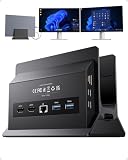
The PULWTOP is built around a small footprint. The listing name states a USB-C docking station for dual monitors at 4K and 60 Hz, a vertical stand design, 11-in-1 connectivity, two HDMI outputs and five 10 Gbps USB ports. Standing the dock on its end keeps it off the desk and makes it easy to tuck beside a laptop or monitor. The 4K at 60 Hz claim for dual monitors is a strong one, since many docks drop to 30 Hz when two screens share a single USB-C link, so verify how it works with your laptop. It suits a minimalist desk with two monitors.
- 11-in-1 USB-C dock with vertical stand
- Two HDMI outputs, dual 4K at 60 Hz claim
- Five 10 Gbps USB ports per the listing name
- Ethernet and power delivery details: confirm on listing
- Stand design that keeps the dock upright
Pros
- Compact footprint on a crowded desk
- Fast USB ports for external drives
Cons
- Only two video outputs
- Whether both screens reach 60 Hz depends on the laptop
It is the most space-conscious option here and a simple alternative to the larger LIONWEI. The upright stand also helps airflow, since the heat from the dock can rise along its body instead of pooling under a laptop. Make sure the stand is stable and that the cables on the front and sides do not pull it over, and give it a little clearance from walls and papers.
5. WAVLINK DisplayLink Docking Station – Best for three monitors on Mac or Windows

The WAVLINK is the most clearly documented multi-display dock in the group. The listing name states DisplayLink technology, support for three monitors on Mac (M1 through M5) and Windows, 100W power delivery, three HDMI and two DisplayPort outputs, six 10 Gbps USB ports and Gigabit Ethernet. DisplayLink works by compressing the video signal and sending it over USB to a chip in the dock, which gets around the display limits of Apple silicon Macs and some Windows laptops. It needs a driver installed on the computer, and screen content is processed by the CPU. It suits a professional who needs more screens than the laptop provides natively.
- DisplayLink docking station
- Three-monitor support for Mac and Windows per the listing name
- Three HDMI and two DisplayPort outputs
- Six 10 Gbps USB ports and Gigabit Ethernet
- 100W power delivery
Pros
- Works around the single-display limit on many Macs
- Solid port selection with fast USB
Cons
- Requires a driver, and fast motion or video may look less smooth
- Not ideal for games or color-critical work
Compared with the LIONWEI, it has clearer Mac documentation and a larger set of video outputs.
6. USB-C G6 100W Docking Station – Best for a simple dual-display dock

This dock keeps the feature list simple. The listing name states a USB-C docking station with up to 100W power delivery, HDMI, DisplayPort and USB ports, and dual display support. The brand and model are not clear from the name, and the “G6” label could refer to a product generation, so confirm the maker, warranty and compatibility details on the product page. With one HDMI and one DisplayPort output, it fits a two-monitor desk without extra adapters. It suits a user who wants the basic dock experience of one cable for monitors, power and peripherals, with less emphasis on a big port count.
- USB-C docking station
- Up to 100W power delivery
- HDMI and DisplayPort outputs; dual display support
- USB ports; count and speed: confirm on listing
- Ethernet and card readers: confirm on listing
Pros
- Simple layout with two common video outputs
- 100W charging for most thin-and-light laptops
Cons
- Few specifics are stated in the listing name
- Dual display behavior on Mac: confirm on listing
It is the plainest of the six and the natural comparison for the PULWTOP, which also targets two monitors. Because the title is short on detail, read the full product page for the warranty, the included cable and the power adapter rating before you rely on it as your daily dock. A well-documented dock from a clearly named maker is worth more than a long port list from an unknown source.
Specs Compared
| Dock | Video outputs | Stated display count | Power delivery | USB ports | Ethernet |
|---|---|---|---|---|---|
| LIONWEI 13-in-1 | Dual HDMI plus DisplayPort | Triple 4K claim | 100W | 8 USB, 10 Gbps | Yes |
| TobenONE 19-in-1 | 2 x 4K HDMI | Dual | PD 3.0; wattage confirm on listing | 10 USB-C and USB-A | Yes |
| USB C Docking Station for HP | 4K HDMI, DisplayPort, VGA | Up to 3, quad claim | Confirm on listing | Several; confirm on listing | Confirm on listing |
| PULWTOP 11-in-1 Vertical Stand | 2 x HDMI | Dual 4K at 60 Hz claim | Confirm on listing | 5 x 10 Gbps | Confirm on listing |
| WAVLINK DisplayLink | 3 x HDMI, 2 x DisplayPort | Up to 3 | 100W | 6 x 10 Gbps | Gigabit |
| USB-C G6 100W | HDMI and DisplayPort | Dual | Up to 100W | Confirm on listing | Confirm on listing |
How We Chose These
We built this shortlist from retailer listing titles and specification fields, then applied general knowledge of how the display technologies described in them behave. We focused on four questions: how many monitors the dock claims to drive, what video outputs it offers, how much power it delivers to the laptop, and how many fast USB ports it adds. We gave extra weight to listings that name their display technology, since that explains laptop compatibility. Where a title was cut off or silent on a figure, we wrote “confirm on listing.” No claim here comes from our own use of a dock.
What to Look For
How many monitors your laptop can really drive
A USB-C port with DisplayPort Alt Mode can send one or more video streams, but each laptop has a fixed limit. Windows laptops with Multi-Stream Transport can often split one connection into two screens, while Apple silicon base chips have historically supported only one external display natively. DisplayLink-style docks avoid that limit by sending compressed video over USB with a driver. Before you buy, look up your laptop’s maximum number of external displays, and match the dock’s technology to it. A dock that claims three monitors does not create display capacity your laptop lacks without a driver-based chip.
Resolution and refresh rate over one cable
A single USB-C link shares its bandwidth between video and data. When a dock carries two 4K screens plus fast USB, the video may be limited to 30 Hz unless the laptop and dock support higher-bandwidth modes. At 30 Hz, mouse movement and scrolling feel slightly laggy, which is noticeable in office work. A 4K screen at 60 Hz needs roughly 12.5 Gbps of video bandwidth before overhead, so two of them push past what a basic link provides. If smooth motion matters, prefer one 4K monitor at 60 Hz, or two monitors at 1080p or 1440p.
Power delivery and charging safety
A dock’s power delivery rating, such as 100W, is the most it can pass to the laptop, and the dock itself uses some of it, so the laptop typically receives less. Worked example: a laptop that draws 65W under load will charge comfortably from a 100W dock, but a 16-inch laptop that needs 140W may charge slowly or not at all while working hard. Use the power adapter supplied with the dock, make sure the adapter wattage matches the rating, and keep the dock ventilated since it can run warm. Avoid using damaged or unmarked power bricks, and unplug the dock if it gets hot or smells of burning.
Mac versus Windows and what that means for docks
Windows laptops generally let a dock split one DisplayPort connection into several monitors, provided the laptop’s graphics hardware allows it. That is why a basic dock with two HDMI ports can show two different pictures on a Windows machine. On a Mac with an Apple silicon chip, the same dock may show only a mirrored image on the second screen, because macOS does not use that splitting method. The fix is either a laptop model with more display engines, or a dock that uses a driver-based chip. If you use both kinds of computer at the same desk, a DisplayLink dock is the one that behaves most consistently, although you will need to install its driver on each machine and allow the screen-recording permission on a Mac.
USB speeds, Ethernet and card readers
USB labeled 10 Gbps is USB 3.2 Gen 2, twice as fast as 5 Gbps USB 3.2 Gen 1, and fast enough for external SSDs. Older USB 2.0 ports are fine for keyboards, mice and webcams. Gigabit Ethernet is a good match for most home internet plans, and a wired connection is steadier than WiFi for video calls. If you use SD cards, check that the dock lists a card reader, since not all of them include one.
Home-office layout tips
Plan the cable path before you buy. Place the dock where the laptop’s cable can reach it comfortably, and where the monitor cables do not cross the walking area. A vertical stand dock suits a narrow desk, while a flat dock tucks under a monitor riser. Label cables, leave a bit of slack for laptop movement and avoid daisy-chaining several hubs, which can cause drops.
Questions
Will any USB-C dock work with my laptop?
No. The laptop’s USB-C port must support video output through DisplayPort Alt Mode or Thunderbolt. Some ports only handle data and charging. Check your laptop’s specifications first.
Why is a DisplayLink dock different?
It uses a driver and a chip to send compressed video over USB, so it can add screens beyond the laptop’s native limit. The trade-offs are the driver install and slightly higher CPU use. It is well suited to office work.
Can a dock charge my laptop?
Yes, if it provides power delivery at a wattage close to what your laptop needs. A 100W dock suits most 13- to 15-inch laptops. Check your laptop’s original charger rating and compare.
Are these Thunderbolt docks?
The listing names describe USB-C docks and do not mention Thunderbolt, so treat them as USB-C. Thunderbolt docks offer more bandwidth for multiple high-resolution screens. If you need that, look for a dock that explicitly says Thunderbolt.
Do I need to install drivers?
For DisplayLink models such as the WAVLINK, yes. Standard docks usually work without drivers on current Windows and macOS, though a firmware or driver update may help with Ethernet or display issues. Check the product page for steps.
Will two 4K monitors run at 60 Hz?
Only if both the laptop and the dock support the bandwidth. The PULWTOP lists that claim, but results depend on your laptop. If a screen is limited to 30 Hz, lower the resolution or use one 4K screen.
Update History
- October 20, 2026 – Initial publication; product set drawn from current catalog listings.
- Check the product page for current specifications and availability before buying.
Sources
- Retailer listing titles and specification fields for all six docks