Our Top Picks

To toggle Bluetooth on Windows 11 quickly, press Windows + A to open Quick Settings, then click the Bluetooth button to turn it on or off. It takes about 2 seconds and works without opening the full Settings app.
If the button is missing, slow to respond, or greyed out, use the Settings app path at Settings > Bluetooth & devices and check the Bluetooth driver and Bluetooth Support Service. The methods below cover normal toggling plus what to do when the toggle does not work.
Updated October 2026 — People who search “toggle Bluetooth settings easily Windows” usually want one thing: the fastest on/off switch. On Windows 11, press Windows + A and click the Bluetooth tile. If the tile or the whole Bluetooth page is missing, the fix is almost always a driver, a service, or a disabled adapter, not a broken Settings app.
Quick answer: three paths cover most cases.
- Fastest toggle: Windows 11 Quick Settings (Windows + A), then the Bluetooth tile.
- Pairing and removing devices: Settings > Bluetooth & devices > Devices.
- Toggle missing or greyed out: Device Manager > Bluetooth, then enable or reinstall the adapter (for example Intel Wireless Bluetooth, Realtek Bluetooth Adapter, or MediaTek Bluetooth).
Method 1: Toggle Bluetooth from Quick Settings
This is the fastest method for daily use, such as connecting headphones, a mouse, or a controller.
- Press Windows + A to open Quick Settings from the taskbar.
- Look for the Bluetooth tile. If you do not see it, click the pencil icon to Edit, click Add, then add Bluetooth.
- Click the Bluetooth tile once to toggle it On or Off. When On, the tile is highlighted.
- To connect a specific device, click the right-arrow next to the Bluetooth tile, then select the device from the list.
- Press Esc or click outside the panel to close Quick Settings.
If Bluetooth turns on but does not find your device, your device is probably not in pairing mode. Put headphones, speakers, or controllers in pairing mode first, then click the arrow in Quick Settings and select Add device > Bluetooth.
Method 2: Toggle Bluetooth in the Settings app
Use this method when you need to pair new devices, remove old devices, or check whether Windows actually sees the Bluetooth adapter.
- Press Windows + I to open Settings.
- Go to Bluetooth & devices in the left sidebar.
- Use the Bluetooth switch at the top of the page to turn Bluetooth On or Off.
- To pair: turn Bluetooth On, click Add device > Bluetooth, choose your device, and confirm the PIN if prompted.
- To forget a problem device: stay on Bluetooth & devices > Devices, click the three dots next to the device, and select Remove device > Yes, then pair again.
The exact full path is: Settings > Bluetooth & devices > Bluetooth On/Off toggle. If that whole Bluetooth page is missing, Windows is not detecting a Bluetooth adapter. Skip to the troubleshooting section.
Method 3: Other fast toggle options
Quick Settings and Settings cover almost all cases, but these alternatives help in specific situations:
- Airplane mode toggle: Press Windows + A, click Airplane mode to disable all wireless radios including Bluetooth and Wi-Fi. Click it again to restore them. Useful on flights or when Bluetooth is stuck on.
- Bluetooth troubleshooter: Go to Settings > System > Troubleshoot > Other troubleshooters > Bluetooth > Run. Use this when the toggle flips back off by itself.
- Device Manager disable/enable: Press Windows + X > Device Manager > Bluetooth, right-click your Intel, Realtek, MediaTek, or Qualcomm Bluetooth adapter, and choose Disable device, then Enable device. This is a reset, not a daily toggle.
- Swift Pair prompt: Go to Settings > Bluetooth & devices > Devices > Show notifications to connect using Swift Pair > On. This does not toggle Bluetooth, but it lets supported accessories connect with one click when nearby.
Windows 11 does not have a built-in single keyboard key that only toggles Bluetooth. Windows + A opens Quick Settings, where you can move to the Bluetooth tile with the keyboard, but the mouse or touch is usually quicker.
More Ways to Turn On Bluetooth in Windows 11
Quick Settings and the Settings app are not the only doors. These extra routes help when the taskbar is hidden, when you manage a shared PC, or when you want one-click access.
Open the Bluetooth page with a Run command
Press Windows + R, type ms-settings:bluetooth, and press Enter. Windows opens Settings > Bluetooth & devices directly, with the switch at the top. You can also type “Bluetooth and other devices settings” into Windows Search (Windows + S) and open the first result.
Create a one-click desktop shortcut
- Right-click an empty area of the desktop and choose New > Shortcut.
- Enter
explorer.exe ms-settings:bluetoothas the location. - Name it “Bluetooth” and click Finish.
- Optional: right-click the shortcut and choose Pin to Start or Pin to taskbar.
The shortcut opens the Bluetooth page, where the switch is the first control. It does not flip the radio by itself, but it saves the Settings > Bluetooth & devices clicks.
Enable the adapter in Device Manager
If the switch is greyed out or absent because the adapter is disabled, Quick Settings cannot fix it. Press Windows + X, open Device Manager, expand Bluetooth, right-click the adapter, and choose Enable device. If you only see “Generic Bluetooth Adapter” or “Microsoft Bluetooth Enumerator” entries, those are Windows helper entries, so look for the real adapter name from Intel, Realtek, MediaTek, Qualcomm, or Broadcom.
Use PowerShell to check what Windows sees
Open Windows Terminal as administrator and run Get-Service bthserv. The status should read Running. To restart it, run Restart-Service bthserv. To list Bluetooth hardware, run Get-PnpDevice -Class Bluetooth. A status of Error or Unknown on the radio entry points to a driver problem rather than a settings problem.
Bluetooth Settings on Windows 10 vs Windows 11
Windows 10 reached end of support in October 2025, but many older laptops still run it, which is why people search for Bluetooth settings on Windows 10. The switch exists in both systems; only the path differs.
| Task | Windows 11 | Windows 10 |
|---|---|---|
| Fast on/off | Windows + A, Bluetooth tile | Windows + A, Action Center, Bluetooth tile |
| Full settings page | Settings > Bluetooth & devices | Settings > Devices > Bluetooth & other devices |
| Add a device | Add device > Bluetooth | Add Bluetooth or other device > Bluetooth |
| Advanced options | Devices page > More Bluetooth settings | Related settings > More Bluetooth options |
| Run command | ms-settings:bluetooth |
ms-settings:bluetooth |
The “More Bluetooth settings” window has an Options tab with three useful checkboxes: Allow Bluetooth devices to find this computer, Alert me when a new Bluetooth device wants to connect, and Show the Bluetooth icon in the notification area. Turn off discoverability when you are not pairing, especially on public Wi-Fi or in an office.
Which toggle method should you use?
Choose based on what you are trying to do, not just speed. Quick Settings is fastest, but the Settings app gives you pairing and removal controls.
| Situation | Best method | Path / Keys | Steps | Typical time |
|---|---|---|---|---|
| Turn Bluetooth on/off daily | Quick Settings | Windows + A | 2 clicks | 2 to 5 seconds |
| Switch headphones to PC | Quick Settings submenu | Windows + A, then arrow | 3 clicks | 5 to 10 seconds |
| Pair a new device | Settings app | Windows + I, Bluetooth and devices | 4 to 5 clicks | 15 to 60 seconds |
| Remove a device that will not connect | Settings app | Bluetooth and devices, Devices, Remove device | 4 clicks | 10 to 20 seconds |
| Bluetooth freezes or toggle bounces back | Troubleshooter + restart | Settings, System, Troubleshoot | 5 clicks + restart | 2 to 5 minutes |
How to Pair Common Bluetooth Devices With Windows 11
Once Bluetooth is on, most pairing failures come from the accessory not being in pairing mode. Put the device in pairing mode first, then use Settings > Bluetooth & devices > Add device > Bluetooth.
| Device | How to enter pairing mode | What you should see |
|---|---|---|
| Wireless headphones and earbuds | Hold the power or pairing button until the light flashes (often 3 to 7 seconds) | Name appears in the Add device list |
| Bluetooth mouse or keyboard | Slide the switch to Bluetooth mode, then hold the pairing or channel button | Mouse or keyboard name in the list |
| Xbox wireless controller | Hold the pair button on the top edge until the Xbox logo flashes quickly | “Xbox Wireless Controller” in the list |
| PlayStation DualSense controller | Hold PS and Create together until the light bar blinks | “Wireless Controller” in the list |
| Phone (for file transfer or tethering) | Open phone Bluetooth settings and keep the screen on | Matching code on both screens |
If a device pairs but will not connect
- Remove it from the Windows device list, turn the accessory off and on, and pair again from scratch.
- Make sure it is not still connected to a phone or tablet, because many headphones hold one active link.
- Keep the accessory within about 10 meters (33 feet) with no thick walls in between, which is the nominal range of a typical Class 2 adapter.
- Reinstall the accessory driver only if it appears with a yellow warning icon in Device Manager.
Why headphone sound gets worse when the mic turns on
When an app opens the headset microphone, Windows can switch from the stereo music profile to the Hands-Free profile, which is lower quality. If your music suddenly sounds thin during a call, that is the profile switch, not a Bluetooth failure. In Settings > System > Sound, choose the stereo output entry for music and use a separate microphone when quality matters.
Fix it when the Bluetooth toggle is missing or will not stay on
A missing or greyed-out toggle almost always means a driver, service, USB, or BIOS-level problem, not a Settings bug. Work through these in order.
1. Check if Windows sees the adapter
- Press Windows + X > Device Manager.
- Expand Bluetooth. You should see an adapter such as Intel Wireless Bluetooth, Realtek Bluetooth Adapter, or MediaTek Bluetooth.
- If you see an Unknown USB Device or a yellow warning icon, right-click it and select Update driver > Search automatically for drivers.
- If Bluetooth is not listed at all, click View > Show hidden devices. If it appears greyed out, the adapter is disabled or disconnected.
On desktops with a USB Bluetooth dongle, try a rear USB 2.0 port directly on the motherboard. Front-panel ports and USB hubs cause many disappearing-adapter problems.
2. Restart Bluetooth services
- Press Windows + R, type services.msc, and press Enter.
- Find Bluetooth Audio Gateway Service, Bluetooth Support Service, and Bluetooth User Support Service.
- Double-click each one, set Startup type to Automatic, click Start if it is stopped, then click OK.
- Restart the PC. The Quick Settings Bluetooth button usually returns after this.
3. Check power saving settings
- Go to Device Manager > Bluetooth, right-click your adapter, and choose Properties > Power Management.
- Uncheck Allow the computer to turn off this device to save power if your toggle randomly turns off after sleep.
- In Device Manager, also check Universal Serial Bus controllers > USB Root Hub > Properties > Power Management and uncheck the same option for the hub that powers an external dongle.
- For laptops, go to Settings > System > Power & battery and try Power mode set to Best performance while plugged in to rule out aggressive power saving.
4. Reinstall the driver correctly
- In Device Manager, right-click the Bluetooth adapter and select Uninstall device. If offered, check Attempt to remove the driver for this device.
- Restart the PC. Windows 11 will reinstall a generic driver on boot.
- If it still fails, install the driver from your PC or motherboard maker support page, or the Intel, Realtek, or MediaTek driver page for your exact Wi-Fi/Bluetooth card model. Wi-Fi and Bluetooth often share one card, so a Wi-Fi driver update can fix Bluetooth.
- Check BIOS/UEFI if Bluetooth never appears: reboot, enter BIOS setup, and confirm Onboard Bluetooth / Wireless / BT is Enabled. Some desktops have a physical BIOS switch that hides Bluetooth from Windows completely.
Bluetooth Toggle Missing in Windows 11: Extra Checks
The built-in steps cover most cases. If the Bluetooth switch is still missing, work through these extra checks in order before you reinstall Windows.
- Scan for hardware changes. In Device Manager, right-click your PC name at the top and choose Scan for hardware changes. A Bluetooth category should appear if the radio is alive.
- Look for “Unknown device”. Under Other devices, an Unknown device with a warning icon can be the Bluetooth radio without a driver. Right-click it and choose Update driver.
- Show hidden devices. Use View > Show hidden devices to reveal disabled or ghost Bluetooth entries, then uninstall the ghost entries and restart.
- Install the driver from Windows Update. Go to Settings > Windows Update > Advanced options > Optional updates > Driver updates and install any Bluetooth or Wi-Fi driver listed.
- Use the maker driver. If Windows installed a generic driver, download the Bluetooth or combined Wi-Fi/Bluetooth driver from your PC or motherboard maker for the exact model.
- Check Services again. The Bluetooth Support Service should be set to Automatic and run under the Local Service account on the Log On tab.
- Power-cycle laptops. Shut down fully (not restart), unplug the charger, hold the power button for about 30 seconds, then start again. This clears a stuck radio on some laptops.
If the radio still never appears, it may be switched off in BIOS/UEFI or failed. A USB Bluetooth adapter is a low-cost workaround and avoids opening the laptop.
Bluetooth toggle symptom table
| Symptom | Likely cause | Fix |
|---|---|---|
| No Bluetooth tile in Quick Settings | Tile removed from layout | Open Quick Settings, click pencil icon, Add, Bluetooth |
| No Bluetooth page in Settings | Adapter not detected or disabled in BIOS | Check Device Manager, try another USB port, enable Bluetooth in BIOS |
| Toggle is greyed out | Airplane mode on or driver error | Turn off Airplane mode with Windows + A, update Bluetooth driver |
| Toggle turns off by itself after sleep | USB power management | Uncheck Allow the computer to turn off this device to save power |
| Toggle On but no devices found | Accessory not in pairing mode or still paired elsewhere | Put accessory in pairing mode, remove it from phone, then Add device |
| Audio stutters after connecting | Wi-Fi interference on 2.4 GHz or low battery | Move to 5 GHz Wi-Fi, charge headphones, keep a clear line of sight to the PC |
Bluetooth Versions and Range: What Your Adapter Really Does
Knowing your Bluetooth version explains why one PC connects to a new headset instantly and another needs help. Open Device Manager, expand Bluetooth, double-click the radio, and look for “LMP” under Advanced (some drivers show it on the Details tab). Match the number below.
| LMP number | Bluetooth version | Good for |
|---|---|---|
| 8 | 4.2 | Basic mice, keyboards, older headsets |
| 9 | 5.0 | Most modern audio gear, better range than 4.2 |
| 10 | 5.1 | Improved connection reliability |
| 11 | 5.2 | Newer audio features |
| 12 | 5.3 | More efficient connections |
| 13 | 5.4 | Latest common desktop adapters |
A new accessory still works on an older adapter because Bluetooth is backward compatible, but you lose newer features. If your PC has no Bluetooth at all, or the built-in radio keeps dropping, a USB adapter is the cheapest fix.
USB Bluetooth adapters worth considering for a desktop PC
Choose a small adapter that works without extra software on Windows 11. Plug it into a rear USB port, give Windows a minute to install the driver, and then the Bluetooth switch should appear in Settings. For the best signal, use a short USB extension cable so the dongle is not hidden behind the case.
TP-Link USB Bluetooth Adapter for PC — Best for a simple plug-and-play upgrade
As an Amazon Associate we earn from qualifying purchases at no extra cost to you.

- Bluetooth 5.4 · EDR and BLE support · nano-size dongle · plug and play on Windows
- Pros: tiny, suits mice, keyboards, headphones, and controllers; no disc needed; fits laptops and desktops.
- Cons: standard range, so a desktop tucked under a metal desk may need an extension cable.
- Skip it if your built-in Bluetooth works fine and only a single device is acting up.
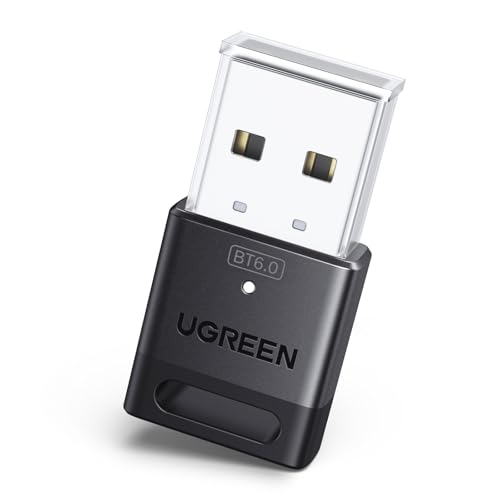
UGREEN USB Bluetooth Adapter (Bluetooth 6.0) — Best for newer accessories

- Bluetooth 6.0 · EDR and BLE · plug and play for Windows 11 and Windows 10
- Pros: newest version number, compact, a good match for new wireless headsets and controllers.
- Cons: your accessories must also support the newer version to use its newest features.
- Skip it if you only use an older mouse and keyboard, where any current adapter works the same.
What to expect at this tier: low-cost adapters are fine for input devices and audio. Use a rear port, avoid USB hubs, and uncheck the power-saving option for the USB root hub in Device Manager if the connection drops after sleep.
FAQ
Why does Windows 11 have no Bluetooth on/off keyboard shortcut?
Microsoft maps Windows + A to Quick Settings and Windows + I to Settings, but there is no dedicated Bluetooth-only hotkey. You can create one with PowerShell or an automation tool, but for most users Quick Settings is faster and safer than a script that disables the radio.
Does turning off Bluetooth save battery?
Yes, but only slightly on modern laptops. An idle internal Bluetooth radio draws very little power, so turning it off adds only a small amount of runtime. Turn it off mainly to prevent auto-connects and reduce interference, not for major battery savings.
Should I leave Bluetooth on all the time?
Leave it on if you use wireless peripherals daily. Turn it off if you have pairing conflicts, audio stutter from many nearby Bluetooth devices, or you use Airplane mode frequently. There is no harm in leaving it on from a Windows stability standpoint.
How do I turn on Bluetooth in Windows 11 when the toggle is missing?
Open Device Manager, expand Bluetooth, and enable the adapter; if it is not listed, scan for hardware changes and install the driver. The toggle returns only after Windows can see a working Bluetooth radio.
How do I turn on Bluetooth on Windows 10?
Press Windows + A and click the Bluetooth tile, or go to Settings > Devices > Bluetooth & other devices and switch Bluetooth on. The layout differs from Windows 11, but the steps are close.
How do I know if my PC has Bluetooth?
Open Device Manager and look for a Bluetooth category; if it exists, the PC has a radio. No category and no Bluetooth page in Settings usually means no adapter, a disabled adapter, or a missing driver.
How do I check which Bluetooth version my Windows PC has?
Open Device Manager, double-click the Bluetooth adapter, and read the LMP number on the Advanced tab; LMP 12 means Bluetooth 5.3. Some drivers hide it, so check the maker specs for your model.
Why does Bluetooth keep disconnecting on Windows 11?
Usually power saving, distance, or 2.4 GHz Wi-Fi interference causes drops. Turn off “Allow the computer to turn off this device to save power” for the adapter and move closer to the device.
Can I change the Bluetooth name of my PC?
Yes, because other devices see your Windows computer name. Go to Settings > System > About > Rename this PC, restart, and re-pair devices if needed.
More from Amazon
Programs that pair well with the guide above. Offers and eligibility are set by Amazon and may change.
Free shipping on eligible items, Prime Video and more. Eligible new members can start with a free trial.
Start a Prime free trialAd-free music streaming. Eligible new subscribers can start with a free trial.
Try Music Unlimited freeA Prime membership for ages 18-24 with a trial period. Eligibility is set by Amazon.
See Prime for Young AdultsAudiobooks and podcasts to listen to on the go. Eligible new members can start with a free trial.
Try Audible freeAs an Amazon Associate we earn from qualifying purchases.