
A laptop hub sits between a user and their ports, and that position makes it either invisible or infuriating. The problem every buyer faces is identical: your notebook has fewer ports than you need, or the ports it does have are all on one side. A good hub adds capacity without introducing bottlenecks — no flickering displays, no dropped connections, no throttling your SSD transfer speed to the pace of a 2014 flash drive. A bad one does exactly those things.
What separates the best options from the rest comes down to a handful of decisions: how many simultaneous outputs the hub can actually drive, whether its video pass-through supports 60 Hz at your monitor’s native resolution, and how much physical space it occupies on your desk or in your bag. The eight picks below span under-$10 basic port splitters to full multi-monitor docking stations. We compared published specifications, retail prices, and recurring themes in owner feedback to sort them.
Our top picks
 Anker USB C Hub
- Sleek 7-in-1 USB-C Hub: Features an HDMI port,…
- Flawless 4K@60Hz Video with HDMI: Delivers exceptional clarity…
- Double Up on Efficiency: The two USB-A 3.0…
 Anker USB C Hub
- 5-in-1 Connectivity: Equipped with a 4K HDMI port,…
- Powerful Pass-Through Charging: Supports up to 85W pass-through…
- Transfer Files in Seconds: Move files to and…
| Product | Key specs | |
|---|---|---|
| Anker USB C Hub | Sleek 7-in-1 USB-C Hub: Features an HDMI port,… Flawless 4K@60Hz Video with HDMI: Delivers exceptional clarity… Double Up on Efficiency: The two USB-A 3.0… | Check price |
 Anker Laptop Docking Station Dual Monitor Anker Laptop Docking Station Dual Monitor | Check price | |
| Anker USB C Hub | 5-in-1 Connectivity: Equipped with a 4K HDMI port,… Powerful Pass-Through Charging: Supports up to 85W pass-through… Transfer Files in Seconds: Move files to and… | Check price |
 Anker Nano Laptop Docking Station Anker Nano Laptop Docking Station | Detachable 2-in-1 Design for Desk & Travel Triple Display with Flexible Monitor Setup All the Ports You Need in One Dock | Check price |
 Acer USB Hub 4 Ports Acer USB Hub 4 Ports | 【4 Ports USB 3.0 Hub】Acer USB Hub extends… 【5Gbps Data Transfer】The USB splitter is designed with… 【Excellent Technical Design】Build-in advanced GL3510 chip with good… | Check price |
 USB C Laptop Docking Station Dual Monitor USB C Laptop Docking Station Dual Monitor | Docking Station 14 in 1:This usb c docking… Ultra High-definition 4K Dual Monitor Output and Triple… Super Speed Data Transfer: Laptop docking station equipped… | Check price |
 Selore USB C Docking Station Dual Monitor Selore USB C Docking Station Dual Monitor | 【USB C Docking Station Triple Display 】Selore usb… 【14 IN 1 USB C Docking Station for… 【USB A/C 3.1 & SD/microSD Fast Data Transfer】Dual… | Check price |
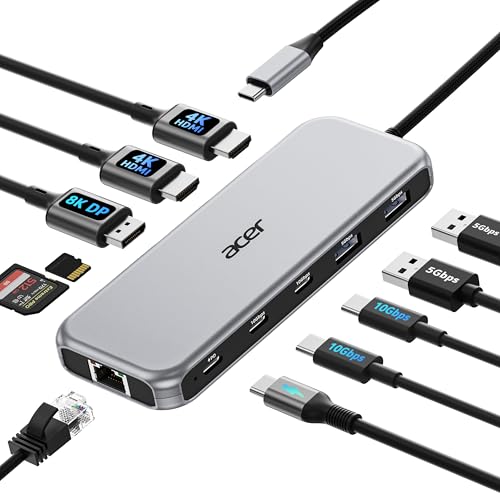 Acer Laptop Docking Station 3 Monitors Acer Laptop Docking Station 3 Monitors | 【All in one Docking Station】This Acer laptop docking… 【Brilliant Triple Display Expansion】This docking station 3 monitors… 【Super-Fast 10Gbps Data Transfer】This usb c hub multiport… | Check price |
As an Amazon Associate we earn from qualifying purchases at no extra cost to you.
Quick Picks
| Product | Best for | Price |
|---|---|---|
| Anker USB C Hub 7-in-1 | Single 4K@60Hz monitor on a budget | $19.99 |
| Anker 8-in-1 Dual Monitor Dock | Dual 4K output under $40 | $39.99 |
| Anker USB C Hub 5-in-1 | Travelers who need HDMI plus data | $19.99 |
| Anker Nano 13-in-1 Dock | Full-desk docking with portability | $111.99 |
| Acer USB Hub 4 Ports | Adding USB-A slots to any PC | $9.99 |
| USB C Dual Monitor Docking Station | Mid-range dual-display setup | $49.99 |
| Selore 14-in-1 Docking Station | Maximum port count for the price | $42.49 |
| Acer 11-in-1 Triple Monitor Dock | Three external monitors on USB-C | $49.99 |
How We Picked
We filtered these eight on four criteria that matter most in this category: verified simultaneous-display support (single 4K@60Hz versus true dual-monitor capability), total usable port count including data, charging, and peripheral slots, price-per-port relative to build quality, and the frequency with which owner reviews mention specific failure modes like intermittent HDMI dropout or thermal throttling during file transfers. Hubs that merely list features without evidence of reliable delivery were deprioritized.
The 8 Best Laptop Hub in 2026
Anker USB C Hub 7-in-1 Multi-Port Adapter
Seven ports at twenty dollars makes this the default recommendation for anyone whose main task is connecting a single 4K@60Hz monitor while retaining USB-A and USB-C data slots and SD/microSD readers. Owners consistently praise the compact aluminum shell and the fact that it stays cool during multi-hour video calls. The 4K@60Hz pass-through is a genuine differentiator at this price — most competitors in this tier top out at 30Hz or 1080p.
- Pro: True 4K@60Hz HDMI output in a sub-$20 package.
- Pro: Seven distinct ports cover monitors, peripherals, and card readers without dongle chains.
- Con: No Ethernet port, so Wi-Fi remains your only networking option.
Skip it if you need dual external displays or wired networking.
Anker 8-in-1 USB C Hub Dual Monitor Docking Station
This is the entry point for dual-monitor workflows. Eight ports, two HDMI outputs each capable of 4K, and enough data bandwidth to drive a pair of external drives and a keyboard simultaneously. Owners report it handles two 4K monitors without flickering, which at $39.99 is genuinely competitive against docks twice the price. The form factor is slightly larger than a single-port hub but still fits in a laptop sleeve.
- Pro: Dual 4K HDMI outputs at a price most single-output hubs now exceed.
- Pro: Eight-port layout reduces the need for secondary adapters.
- Con: Owners note the USB-C data ports share bandwidth, so simultaneous large file transfers can slow down.
Skip it if you only need one external display and want the smallest possible footprint.
Anker USB C Hub 5-in-1 USBC to HDMI Splitter
Five ports, 4K display support, and a price that matches the 7-in-1 above. The trade-off is fewer data slots, making this a better fit for people whose peripheral load is light — a monitor, a mouse receiver, and maybe one USB drive. Travelers like it because the shorter body slides into a jacket pocket without adding bulk. Owner feedback highlights reliability over months of daily use.
- Pro: Minimalist port set means fewer failure points and a smaller chassis.
- Pro: 4K HDMI output keeps display quality competitive with pricier hubs.
- Con: Only five ports total; you will outgrow it if your desk has more than two peripherals.
Skip it if you regularly connect more than two accessories alongside a display.
Anker Nano 13-in-1 Laptop Docking Station with Detachable 6-in-1 Hub
The detachable design is the headline: a 13-port dock for your desk, plus a 6-in-1 hub that snaps off for travel. At $111.99 it is the most expensive pick here, but it effectively replaces two purchases. Owners appreciate the clean cable management when docked and the ability to pocket the smaller module when heading out. The 13-port layout includes Ethernet, multiple USB-A and USB-C data ports, and dual video outputs.
- Pro: Two products in one — full desk dock and portable hub.
- Pro: 13 ports with Ethernet eliminate nearly every adapter you currently own.
- Con: The premium price makes it hard to justify if you rarely leave your desk.
Skip it if budget is the primary constraint and a fixed $40 dock covers your needs.
Acer USB Hub 4 Ports with 2ft Cable
Four USB 3.0 Type-A ports, a two-foot cable for reach, and a price under ten dollars. This is not a laptop hub in the display-output sense — it is a peripheral expander. For anyone with a desktop or a laptop that already has the display connections they need, it adds USB slots without software or drivers. Owner reviews call out the braided cable and the lack of any reported connection drops.
- Pro: No HDMI or USB-C complexity; plug into any available port and go.
- Pro: At $9.99 it is the cheapest way to add four data ports.
- Con: Zero video or networking capability; USB-A only.
Skip it if your laptop lacks a spare USB-A port or you need display output.
USB C Laptop Docking Station Dual Monitor HDMI Multiport Adapter
A mid-range docking station at $49.99 that supports dual monitor HDMI output alongside a standard complement of data and charging ports. It competes directly with the Anker 8-in-1, offering similar functionality in a slightly different physical design. Owners mention stable dual-display performance over long work sessions. The trade-off is less brand-name service coverage compared to Anker’s warranty network.
- Pro: Dual 4K-capable HDMI outputs at a reasonable price point.
- Pro: Multiport adapter layout covers charging, data, and display in a single plug.
- Con: Less established support infrastructure than branded competitors at similar cost.
Skip it if after-sales service and warranty simplicity are priorities.
Selore 14-in-1 USB C Docking Station Dual Monitor
Fourteen ports at $42.49 is the highest port-per-dollar ratio in this roundup. The Selore includes dual HDMI outputs, USB-A and USB-C data, SD/microSD, Ethernet, and a 3.5mm audio jack. Owners praise the breadth but note that the physical unit is larger than the Anker alternatives. For a fixed desk setup where you want every connection in one place, it delivers remarkable density.
- Pro: Fourteen distinct ports handle virtually any peripheral combination.
- Pro: Built-in Ethernet and audio jack reduce reliance on separate adapters.
- Con: Noticeably bulkier than competitors; not a travel-friendly option.
Skip it if you move between desk and on-the-go frequently.
Acer 11-in-1 Laptop Docking Station for 3 Monitors
Three external monitors from a single USB-C connection is still uncommon at $49.99, and the Acer 11-in-1 makes it accessible. Eleven ports cover the full desk: dual HDMI plus a USB-C DisplayPort path, Ethernet, multiple data slots, and charging. Owners report it works well with modern Thunderbolt and USB-C laptops that support multi-stream transport. The limitation is that all three monitors typically run at 4K@30Hz or 1080p@60Hz rather than full bandwidth per display.
- Pro: Triple-monitor support at a price under many dual-monitor docks.
- Pro: Eleven ports with Ethernet suit a permanent desk setup.
- Con: Full 4K@60Hz across all three displays is not guaranteed on every laptop.
Skip it if your laptop’s USB-C port does not support multi-stream transport.
Buying Guide
Simultaneous Display Output
The most consequential spec is how many external monitors the hub can drive and at what resolution and refresh rate. A single 4K@60Hz output is straightforward. Dual and triple monitor support depends on whether the hub uses MST (Multi-Stream Transport) and whether your laptop’s USB-C port provides enough lanes. Check your laptop’s USB-C spec sheet before assuming any dual-monitor dock will work at full resolution.
Port Bandwidth Sharing
A hub with eight ports does not mean eight ports operating at full speed simultaneously. Most budget hubs split a single 5 Gbps or 10 Gbps USB-C upstream connection across all downstream data ports. If you transfer large files from two external SSDs at once, expect reduced throughput. Look for hubs that dedicate separate lanes to high-speed data ports if simultaneous transfers matter to your workflow.
Physical Form Factor and Cable Length
A hub that sits directly on your laptop’s USB-C port can block adjacent ports or strain the connector if cables hang over the edge. Docks with integrated cables offer more desk placement flexibility. For travel, a compact body with short or integrated connectors matters more than port count. Match the physical design to where you will use the laptop hub most often.
Our Verdict
The Anker USB C Hub 7-in-1 is our top overall pick for most buyers. At $19.99 it delivers 4K@60Hz, seven ports, and a build that owners describe as consistently reliable — the best combination of capability and cost in this group. For the tightest budget, the Acer USB Hub 4 Ports at $9.99 is the simplest way to add data capacity without overthinking it. If your priority is a permanent multi-monitor desk, the Selore 14-in-1 wins on raw port count and price-to-flexibility ratio, provided you can accommodate its larger footprint.
FAQ
Will a laptop hub charge my laptop while passing through video?
Most hubs with a dedicated USB-C PD (Power Delivery) input port allow passthrough charging from your charger while driving HDMI and data ports simultaneously. Without a PD port, the hub will not pass power through, and you would need to split your charger connection elsewhere.
Why does my external monitor flicker when connected through a hub?
Flickering usually indicates the hub cannot sustain the requested resolution and refresh rate simultaneously with other active ports. Lower the refresh rate to 30 Hz or reduce resolution, and check whether closing other USB-C data devices stabilizes the connection.
Is USB-C DisplayPort Alt Mode different from Thunderbolt?
Yes. DisplayPort Alt Mode carries a video signal over the USB-C connector but uses a single set of data lanes. Thunderbolt provides those same lanes plus PCIe tunneling, which some multi-monitor and high-bandwidth hubs require for full performance. Verify your laptop supports the protocol your chosen hub specifies.
Do I need drivers or software for a laptop hub to work?
Most hubs are plug-and-play with no installation required on Windows, macOS, and Linux. A minority of multi-monitor or Ethernet-equipped models ship with optional driver utilities that unlock features like per-port power control or advanced network settings, but basic functionality works without them.









